Startup items, scheduled tasks, temporary files, and the registry all collect leftovers. You can open Startup Manager, Junk File Cleaner, and Registry Cleaner one by one, but it is easy to forget a step.
1-Click Cleaner in Windows Manager puts those jobs in one window. Check the items you want, click Start, and the program runs only the checked rows, in list order. Unchecked items are not deleted or changed. You can also create a scheduled task that cleans silently after you sign in.
This guide covers how to choose items, how Start and Pause work, what each cleanup actually removes, and the extra care needed for registry defragmentation and superseded components.
1. What can one-click cleanup do?
- Several maintenance jobs in one pass. Privacy traces, invalid startup items, invalid scheduled tasks, invalid services, invalid devices, desktop organization, the component store, superseded components, junk files, registry cleaning, and registry defrag are all on the same list.
- Only checked items run. Each row has its own checkbox. An unchecked row does not launch its tool.
- Results appear in the Result column. While a row is working you see Cleaning… or Analyzing…. When it finishes you see completed, no cleanup needed, or the message that step returned.
- It can run on a schedule. Silent Auto-Clean on the Task menu creates a task that later runs the saved selection in the background and does not show the completion toast.
2. How to open 1-Click Cleaner
In the Windows Manager main window:
Automation → 1-Click Cleaner
The button reads “Clean up system and privacy traces with one click.” If Windows Manager is not installed yet, get it from the download page.
Optimization Wizard can open the same program. Like the other Windows Manager tools, startup checks the Windows version, whether a copy is already running, registration, and the startup password. A silent run from Task Scheduler, or a task that only opens the window, does not ask for the startup password again.
3. The 1-Click Cleaner window
The window has four areas:
- Title bar: “Clean up your system with just one click.” Hover ? at the top right for a short explanation and an Online Help link to this page.
- List: The left column, Select the items to run, is the checklist. The right column, Result, shows progress and the outcome. Hover a name that has a tooltip for more detail.
- Under the list: Select All on the left, Last clean date on the right.
- Bottom: Other Options holds shutdown and the toast checkbox. Below that are Task, Start, Pause, and Exit.
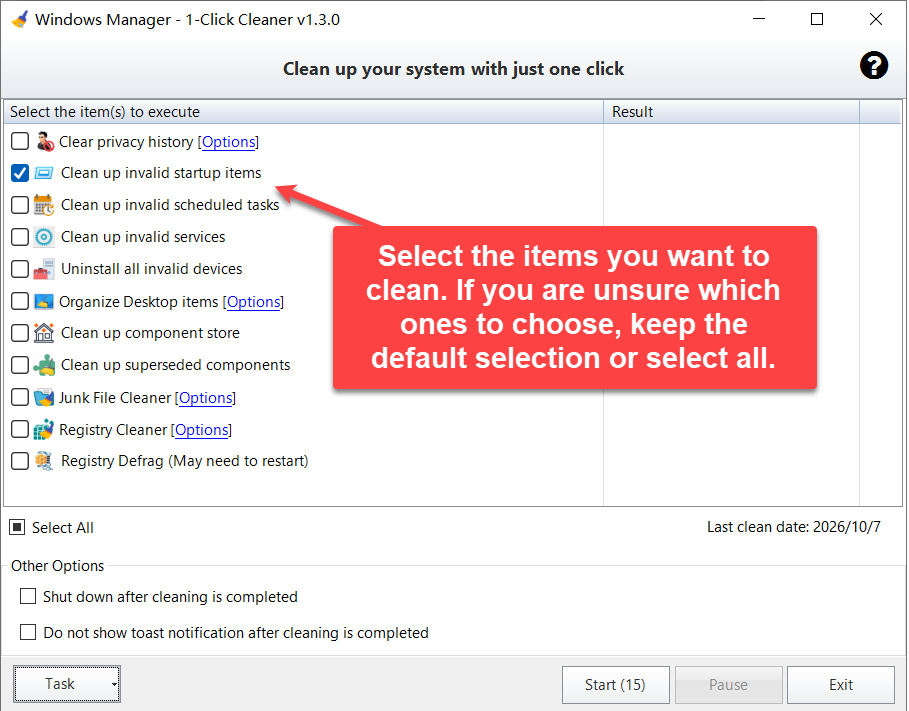
The red note means: select the items you want to clean; if you are unsure, keep the defaults or select all. The arrow points at Clean up invalid startup items only as an example. It does not mean that row is the only one you can choose.
4. How to choose junk files, startup items, and other cleanup tasks
Checkboxes are saved for the current user and come back the next time you open the program. On a first run, before anything has been saved, these four items are checked:
- Clean up invalid startup items
- Clean up invalid scheduled tasks
- Junk File Cleaner
- Registry Cleaner
Everything else starts unchecked: privacy history, invalid services, invalid devices, Organize Desktop items, the component store, superseded components, and Registry Defrag.
Select All checks or clears every row. A partial selection shows the box in the mixed state. If nothing is checked, Start stays disabled.
Four names have a blue [Options] link. Clicking it opens that tool’s options and waits until the window closes:
- Clear privacy history → Privacy Protector
- Organize Desktop items → Desktop Cleaner
- Junk File Cleaner → Junk File Cleaner
- Registry Cleaner → Registry Cleaner
Those links decide which categories and rules are used. 1-Click Cleaner does not change options you have never opened; it uses whatever each tool already has saved.
5. Start, Pause, and Exit
When at least one item is checked, Start shows a countdown such as Start (15), dropping by about one second at a time. At zero, cleaning starts by itself. Click Pause if you still want to change the selection. Changing a checkbox, opening Options, opening Task, or changing Other Options also cancels the countdown, so the run does not begin while you are still setting it up.
To start immediately, click Start. The countdown is cleared and the checked items run in order.
While a run is in progress:
- The active row shows that it is cleaning. Clean up component store shows Analyzing… first, then Cleaning… only if cleanup is actually needed.
- Task and Exit are disabled so you cannot change the task or close the window in the middle of a run.
- After you click Pause, the item that already started is allowed to finish. That row shows Pausing…, then Paused. Start becomes available again and continues with the remaining items. Pause does not uncheck anything.
- Silent Auto-Clean cannot be paused (see section 8).
When a row finishes, Result usually shows Cleaning completed. If the component-store analysis finds nothing to remove, it shows No cleanup needed. A failed step shows its error on that row; the other checked items still continue. Unchecked rows stay blank and are not deleted.
After every checked item has finished, the window closes unless you chose to shut down. Last clean date is set to today’s date when the run starts.
6. Startup items, junk files, registry cleaner, and the other tasks
1-Click Cleaner calls the matching Windows Manager tool for each checked row, in a fixed order.
Clear privacy history
Opens Privacy Protector and clears the privacy categories already checked there. Use [Options] on this row if you want to change which traces are included.
Clean up invalid startup items
Calls Startup Manager and deletes only startup items whose target file no longer exists (shown as invalid or unavailable in Startup Manager). Programs that are still installed are not disabled or removed. This clears leftovers from uninstalled software. It is not a way to manage startup items that still work. Use Startup Manager for those.
Clean up invalid scheduled tasks
Calls Task Scheduler Manager and deletes a task only when every file it is supposed to run is confirmed missing. If any local file or folder still exists, the task is not treated as invalid. Targets that cannot be checked reliably, such as some network paths, are skipped. The tool would rather leave a task than delete one you still need.
Clean up invalid services
Calls Service Manager. A silent cleanup deletes a service only when all of these are true: it is a Win32 service, its program file is not under the Windows folder, and the image file is confirmed missing again just before deletion. Drivers are not deleted.
Uninstall all invalid devices
Calls Device Manager and uninstalls invalid devices (also called hidden or non-present devices): hardware that was removed or replaced, while an old registry record remains. A typical case is a network adapter you already swapped out. This removes those leftovers, not the devices currently in use.
Organize Desktop items
Calls Desktop Cleaner and uses the method saved in its options: move unused items away, or group files into folders by type (shortcuts, documents, media, archives, and so on). Change the method with [Options] first. When 1-Click Cleaner launches it, organizing starts from the saved setting and does not ask for confirmation again.
Clean up component store
DISM analyzes the Windows component store (WinSxS) and runs component cleanup only if the analysis says it is needed. This removes previous versions of updated components that are no longer required. It does not stop you from uninstalling installed updates. It often takes about 1–3 minutes, depending on how much there is to remove. The same explanation is on the row tooltip. If analysis finds nothing to clean, the result is No cleanup needed.
Clean up superseded components
This also targets WinSxS, but it removes all previous versions of updated components. The program describes it as removing only files that are no longer needed, and after it runs you cannot uninstall updates that are already installed. It often takes about 3–10 minutes. Leave it unchecked if you may still want to uninstall a recent Windows update.
Junk File Cleaner
Scans and deletes junk using the drives and rules already saved in Junk File Cleaner, then closes that tool. Change the scope with [Options] first.
Registry Cleaner
Scans and deletes invalid entries in the categories already checked in Registry Cleaner. Launched from 1-Click Cleaner, it runs the automatic path: the scan window is not placed on the taskbar, and it does not ask “scan finished, delete now?” Open Registry Cleaner by itself, and leave this row unchecked, if you want to review each hit before deleting.
Registry Defrag
The name includes May need to restart. Defragmentation compacts the registry and, by default, restarts the computer when it finishes. The row tooltip says: if you created a scheduled task that runs 1-Click Cleaner at sign-in, turn off registry defragmentation, because the computer needs to restart after the registry is defragmented. If Shut down after cleaning is completed is also checked, this step is told not to restart on its own; shutdown handles the end of the run.
7. Shut down after cleaning, and the toast notification
Other Options has two checkboxes. Both are remembered:
- Shut down after cleaning is completed. The computer shuts down after every checked item has finished. While this is checked, the toast option below is disabled.
- Do not show toast notification after cleaning is completed. The choice is saved. It is disabled automatically when shutdown-after-clean is checked.
A normal manual run that does not shut down shows a Cleaning completed. toast at the bottom right, then closes the window. Silent Auto-Clean does not show that toast. The program decides whether to show the toast from the kind of run (manual, and not shutting down), not from this checkbox by itself.
8. Scheduled tasks and silent auto-clean
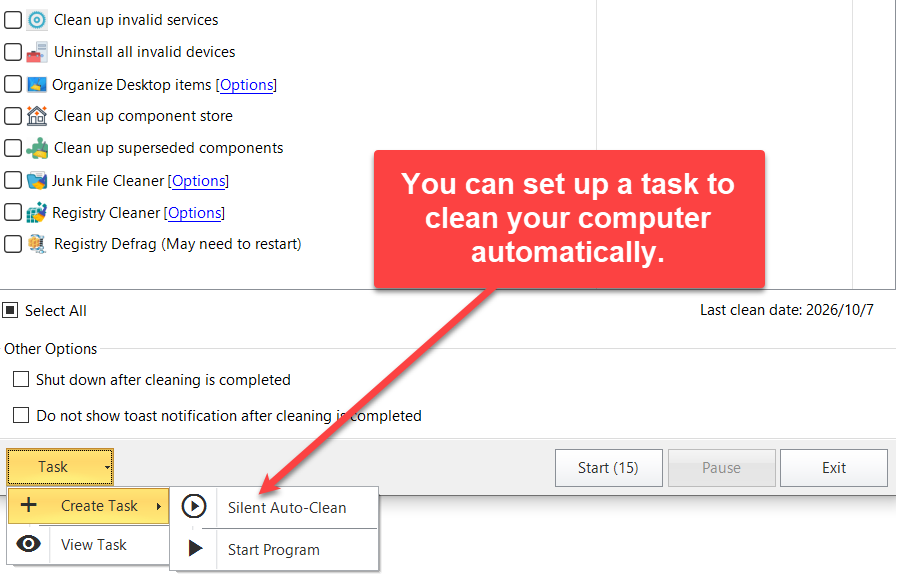
The red note means: you can set up a task to clean the computer automatically. The arrow points at Silent Auto-Clean on the Task menu.
Click Task. The menu has two levels:
- Create Task → Silent Auto-Clean: opens My Task so you can create a scheduled task. When it runs, 1-Click Cleaner starts and immediately cleans the selection that was saved, without a taskbar button and without Pause. It does not show the completion toast. If shutdown-after-clean is checked, the silent run still shuts the computer down.
- Create Task → Start Program: also opens My Task, but the task only opens the 1-Click Cleaner window. It does not start cleaning. Use this when you want the window to appear on a schedule so you can look at the checkboxes first.
- View Task: opens Task Scheduler Manager on the Yamicsoft tasks, so you can review or remove a task you already created.
Before you create the task, check the items you want it to run and confirm the shutdown option. Silent Auto-Clean uses those saved settings. Set the time, including “at sign-in,” in the My Task window.
9. Notes before you clean
- Unchecked items are left alone. Select All is what turns on the rows that start unchecked, including superseded components and Registry Defrag.
- “Invalid” does not mean “I don’t use it.” Invalid startup items, scheduled tasks, and services are leftovers whose target program is already gone. Software that is still installed, and that you simply do not want at startup, is not removed by these rows. Disable working startup items in Startup Manager.
- Invalid services have extra limits. Services under the Windows folder are not deleted, and drivers are not deleted.
- After superseded components, you cannot uninstall installed updates. If you only want a smaller WinSxS folder and still want to uninstall updates, use Clean up component store.
- Registry defrag may need a restart. The name already says May need to restart. Do not leave this checked on a task that runs at sign-in, or the computer will need to restart after each defrag. If this run is already set to shut down when cleaning finishes, the defrag step does not restart on its own.
- Registry Cleaner from here does not show a preview list first. Review entries in Registry Cleaner itself when you want to confirm each one.
- Rows with Options follow that tool’s own settings. Which drives junk cleaning uses, which privacy records are cleared, and how the desktop is organized are all set in the matching Options window.
- Do not end the process from Task Manager while it is running. Exit is disabled. Use Pause to stop later items; the current item finishes first.
10. A typical one-click cleanup
- Open Automation → 1-Click Cleaner. If the countdown has already started and you still want to change options, click Pause.
- If you are unsure, keep the four defaults (invalid startup items, invalid scheduled tasks, junk files, and Registry Cleaner). Add other rows one by one. Before Select All, decide whether superseded components and Registry Defrag belong on this PC.
- To change a scope, click that row’s [Options], save, and return here.
- Click Start and watch the Result column.
- To repeat this later, open Task → Create Task → Silent Auto-Clean and set the schedule in My Task. Leave Registry Defrag unchecked on a sign-in task.
If the PC still has damaged files or broken associations after the cleanup, use 1-Click Fixer. Both live under Automation: one removes invalid and extra content you selected, the other detects and repairs common Windows problems.
Try it now
1-Click Cleaner is an Automation tool in Windows Manager, next to 1-Click Fixer, Startup Manager, and Registry Cleaner. Use 1-Click Cleaner for the batch you checked; open the individual tool when you want to inspect one category in detail.
Get started: Download Windows Manager and open Automation → 1-Click Cleaner.
