Windows services are programs that run in the background. Even when you have not opened a single application, more than a hundred services are at work: audio, networking, printing, updates, search indexing and more. Many applications also install their own services that stay resident and start with Windows. When your PC becomes slow, takes longer to boot, or shows unexplained stability problems, third-party services are often part of the cause.
Service Manager in Windows Manager lists every service and driver on your computer in two groups, Non-Microsoft Company and Microsoft Company, and uses colors to show the signature status and invalid services whose files are missing. Here you can start or stop services, change the startup type, add or remove triggers, and delete leftover services. Optimize disables unneeded system services by usage scenario, and before you change anything you can back up the startup types or the entire services registry key and restore them whenever something goes wrong.
This guide explains how to open the tool, what each button and menu does, and what to watch out for when changing services and drivers. Hover over the ? icon in the upper-right corner of the program for a short summary; click Online Help at the bottom of the tooltip to open this page.
1. What can Service Manager do?
- Group by publisher. Based on the digital signature of each program file, services and drivers are split into Non-Microsoft Company and Microsoft Company, so third-party services stand out at a glance.
- Start and stop services. Select a service and start or stop it with one click. It takes effect immediately, with no need to open services.msc.
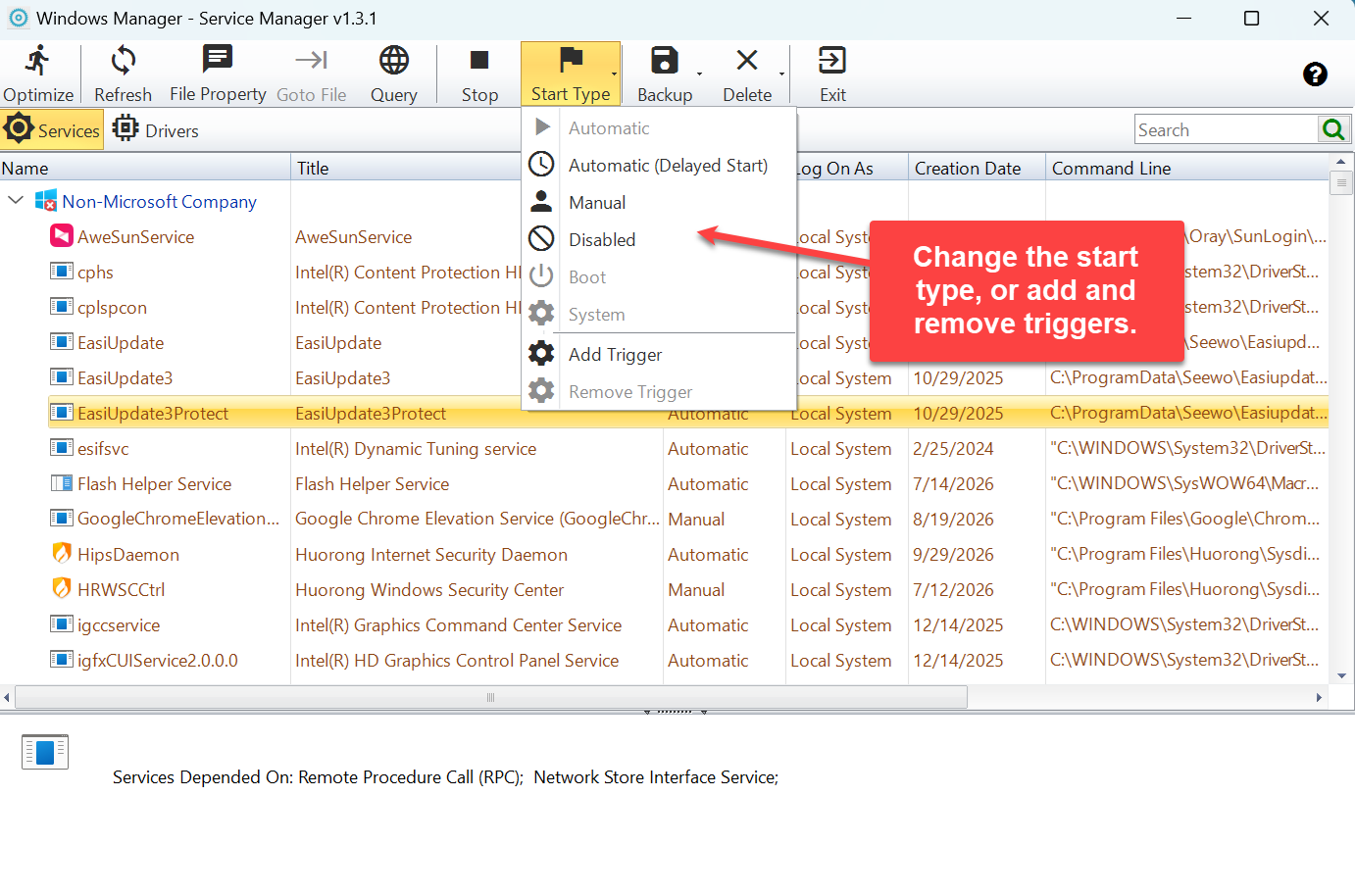
- Change the startup type. Switch between Automatic, Automatic (Delayed Start), Manual and Disabled; drivers can also be set to Boot or System.
- Manage triggers. Add a “start when the network is available” trigger to a service, or remove its triggers. The original triggers are saved automatically before removal and can be restored exactly as they were.
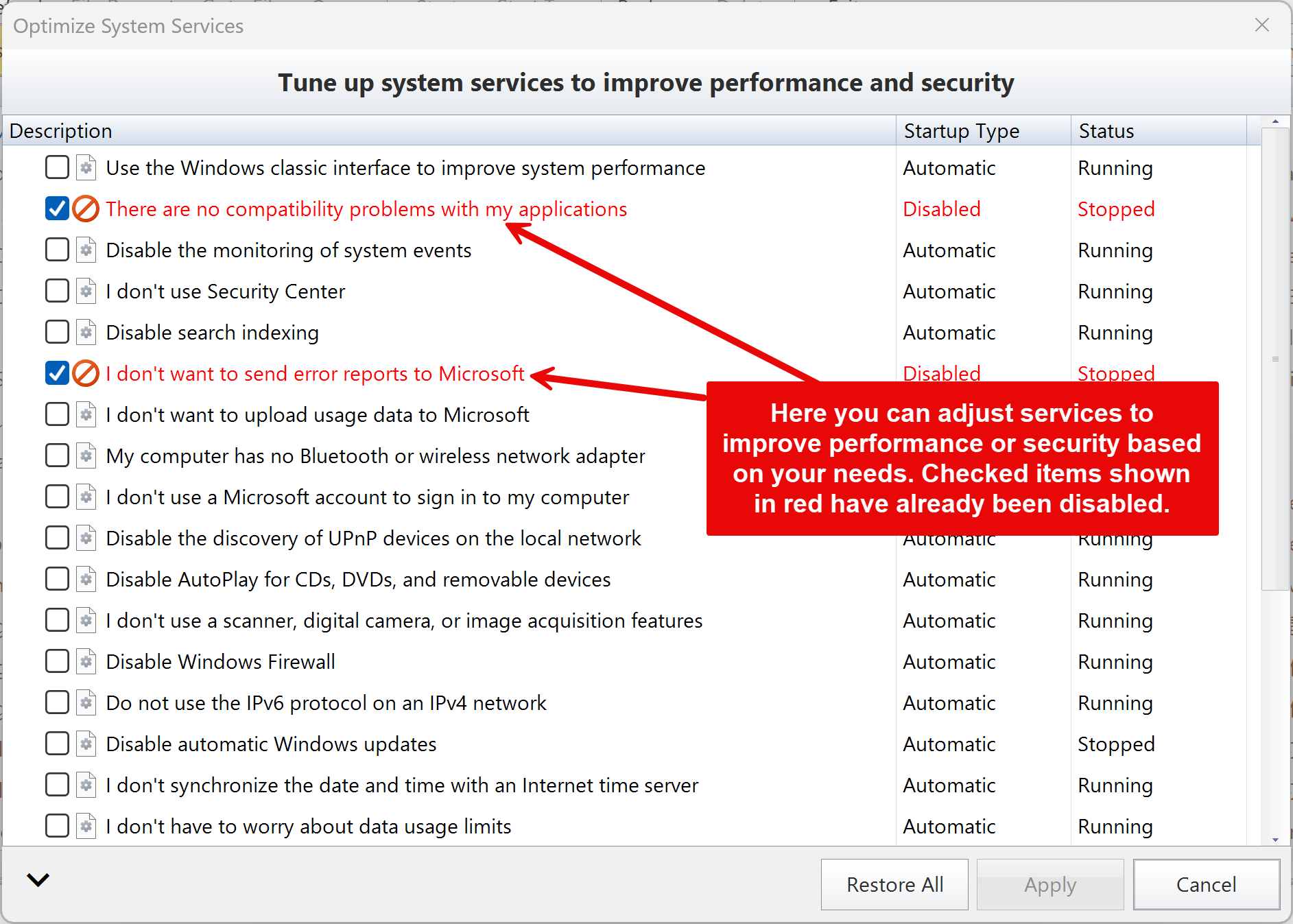
- Optimize system services in one click. Common system services that can be turned off are listed as scenarios such as “I don't use…” or “Disable…”. Check an item to disable it; uncheck it to restore it.
- Back up and restore. Export the registry data of all services and drivers to a .reg file, or back up only the startup types of all services (or drivers) and later restore a single item, all non-Microsoft items, or everything.
- Clean up invalid services. Services whose program file no longer exists are shown in gray and can be deleted directly. You can also delete an unwanted service together with its program file.
It complements Startup Manager (programs that run at logon) and Task Scheduler Manager (scheduled tasks). Together, the three tools cover every way programs can start automatically in Windows.
2. How to open Service Manager
In the Windows Manager main window, go to:
Optimizer → Service Manager
The button description reads “Manage and optimize system services and drivers”. The tool opens in its own window titled “Windows Manager - Service Manager”. Changing services and drivers requires administrator rights, so the program asks for elevation when it starts. Get a trial from the download page if Windows Manager is not installed yet.
Other entry points:
- Startup Manager: Service Manager under the Other group in the left tree.
- Process Manager: click Goto Service Manager in the process details. Service Manager opens and selects the service that belongs to that process. See the Process Manager guide.
- Optimization Wizard: step 9 (9/12), “Service Manager”, opens this program or its Optimize System Services window directly.
- 1-Click Cleaner: when cleaning invalid items, it runs this program in the background to delete invalid services, without showing a window.
3. Main window layout
Toolbar
- Optimize: Opens the “Optimize System Services” window (section 7).
- Refresh (F5): Reloads all services or drivers. Use it after you have changed services in another program.
- File Properties: Opens the Windows Properties dialog of the selected service's program file, where you can check its version, digital signature and more.
- Open File Location: Opens the folder of the selected service or driver file in File Explorer and selects the file. Unavailable when the file does not exist.
- Query: Searches the web for the selected service (service name + “service”) or driver (driver file name + “driver”) to help you find out what it does and whether it can be disabled.
- Start / Stop: Shows Start or Stop depending on the current state of the selected service (section 6). Unavailable in the drivers view.
- Start Type: Change the startup type and add or remove triggers (section 6).
- Backup: Back up and restore services, drivers and their startup types (section 8).
- Delete: Delete a service, or delete a service and its file (section 9).
- Exit: Closes the window.
Except for Optimize, Refresh and Exit, all commands are also available when you right-click a service in the list.
Services / Drivers switch and search
The Services and Drivers buttons below the toolbar switch the list content. Type in the search box on the right to filter the list as you type; the number of matches appears on the button next to the search box.
List columns
Available columns: Name (service name), Title (display name), Description, Startup Type, Log On As (for example Local System, Local Service, Network Service), Creation Date (modification date of the program file), Depends On, Command Line, Image Path, Available, Status (Running, Stopped, Paused) and Digital Signature. Right-click a column header to show or hide columns (except Name). Description, Depends On and Image Path are hidden by default. Column widths, hidden columns and the window size are remembered.
Details pane and status bar
When you select a service, the lower part of the window shows its program icon, description and Services Depended On (services that must be running before this one can start). The status bar at the bottom shows the current view and the total count, for example “Services Total: 288”.
4. Services: what do the colors and groups mean?
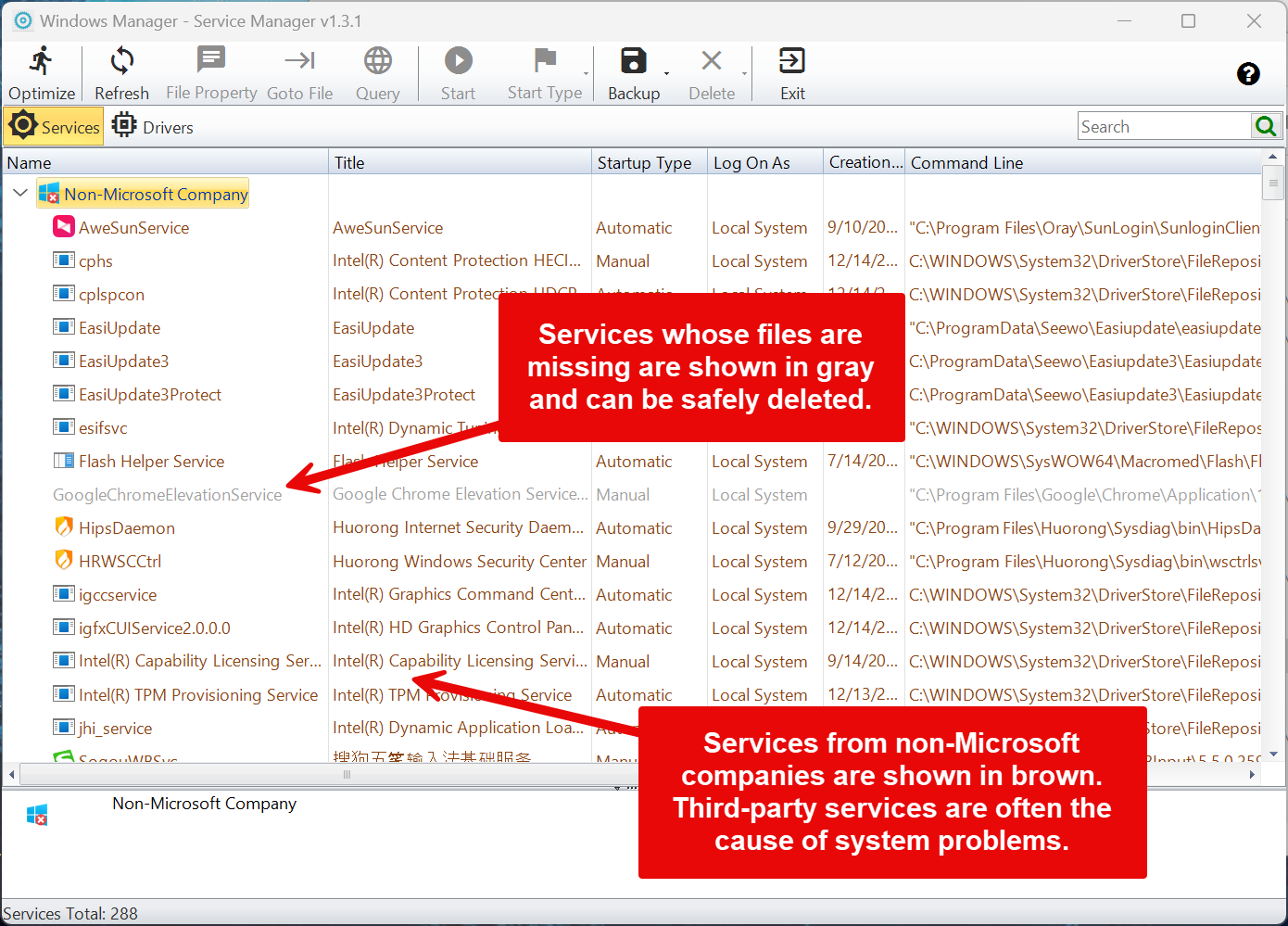
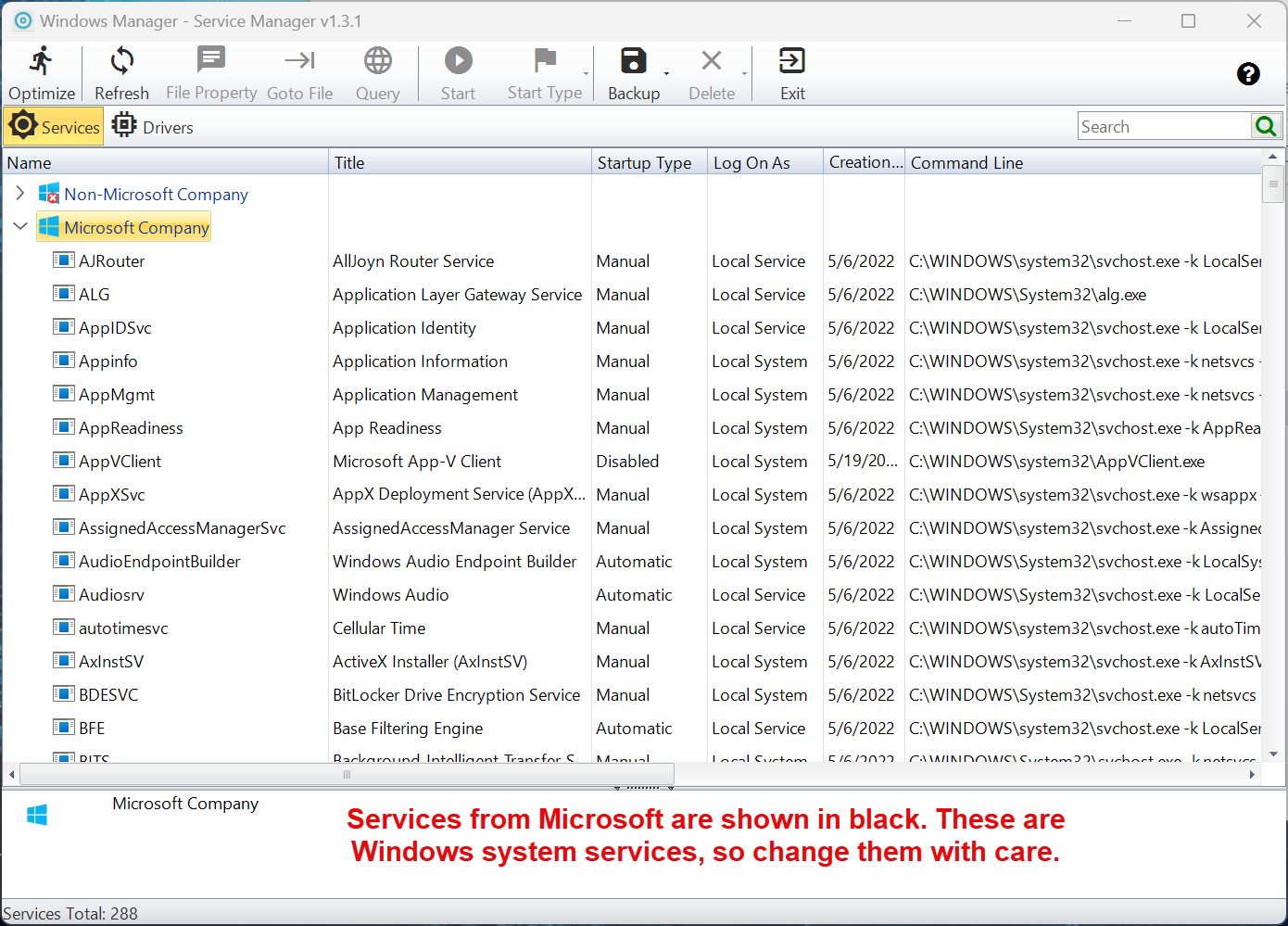
The program reads the digital signature of each service's program file. If the file has no embedded signature, it also looks for and verifies a Windows catalog signature (security catalog). Files signed by Microsoft go into Microsoft Company; everything else goes into Non-Microsoft Company (this group is hidden when there are no third-party services). Drivers from third-party vendors that passed Microsoft hardware certification (WHQL) show the signer “Microsoft Windows Hardware Compatibility Publisher”. They are not Microsoft's own components, so they are placed in the Non-Microsoft Company group. Click a group name to expand or collapse it. The colors mean:
- Black: Normal services. The Microsoft Company group consists almost entirely of built-in Windows services.
- Brown: Services with a third-party (non-Microsoft) digital signature, for example those installed by graphics, audio, security or remote-access software. When the system stutters or becomes unstable, these are usually the first ones to check.
- Orange: The program file has no digital signature, or the signature cannot be verified. The origin of such services is unclear; use Query or File Properties to find out where they come from.
- Gray: The program file registered for the service no longer exists (typically left over after uninstalling software). The Available column shows “No (deletable)”. Such services cannot run and can be deleted safely.
Services in the Microsoft Company group are part of Windows, and many system features depend on them. Do not disable them unless you know exactly what they do. To turn off common unnecessary system services, use Optimize (section 7) instead: it only lists items with a clear scenario that can be turned off safely.
5. Drivers view
When you click Drivers, the program first shows a warning:
Warning: Please do not modify any drivers if your system is working properly or if you are unfamiliar with system configuration. Disabling drivers here may cause blue screen errors after restart. It is recommended to disable devices in Device Manager instead.
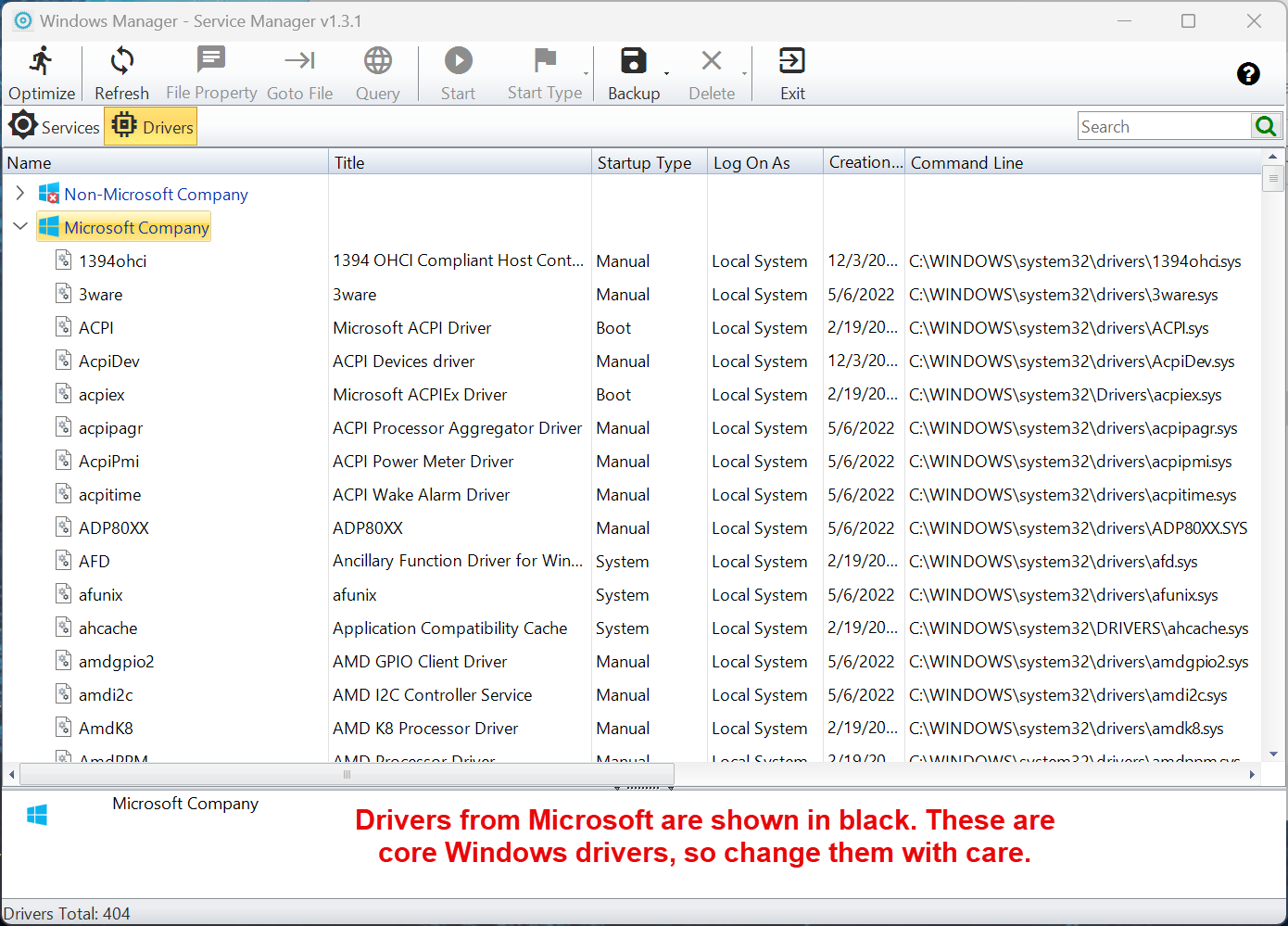
Click OK and the list switches to system drivers, grouped into Non-Microsoft Company and Microsoft Company with the same colors as services. Most built-in Windows drivers are signed through a system catalog rather than an embedded signature; the program verifies these catalog signatures, so they are correctly placed in the Microsoft Company group. WHQL-certified third-party drivers (for example virtual machine, VPN or audio drivers) are shown in brown in the Non-Microsoft Company group.
In the drivers view, Start / Stop is unavailable: starting or stopping drivers at will can easily make hardware stop working or even crash the system. To make changes, change the startup type and restart, or use Device Manager.
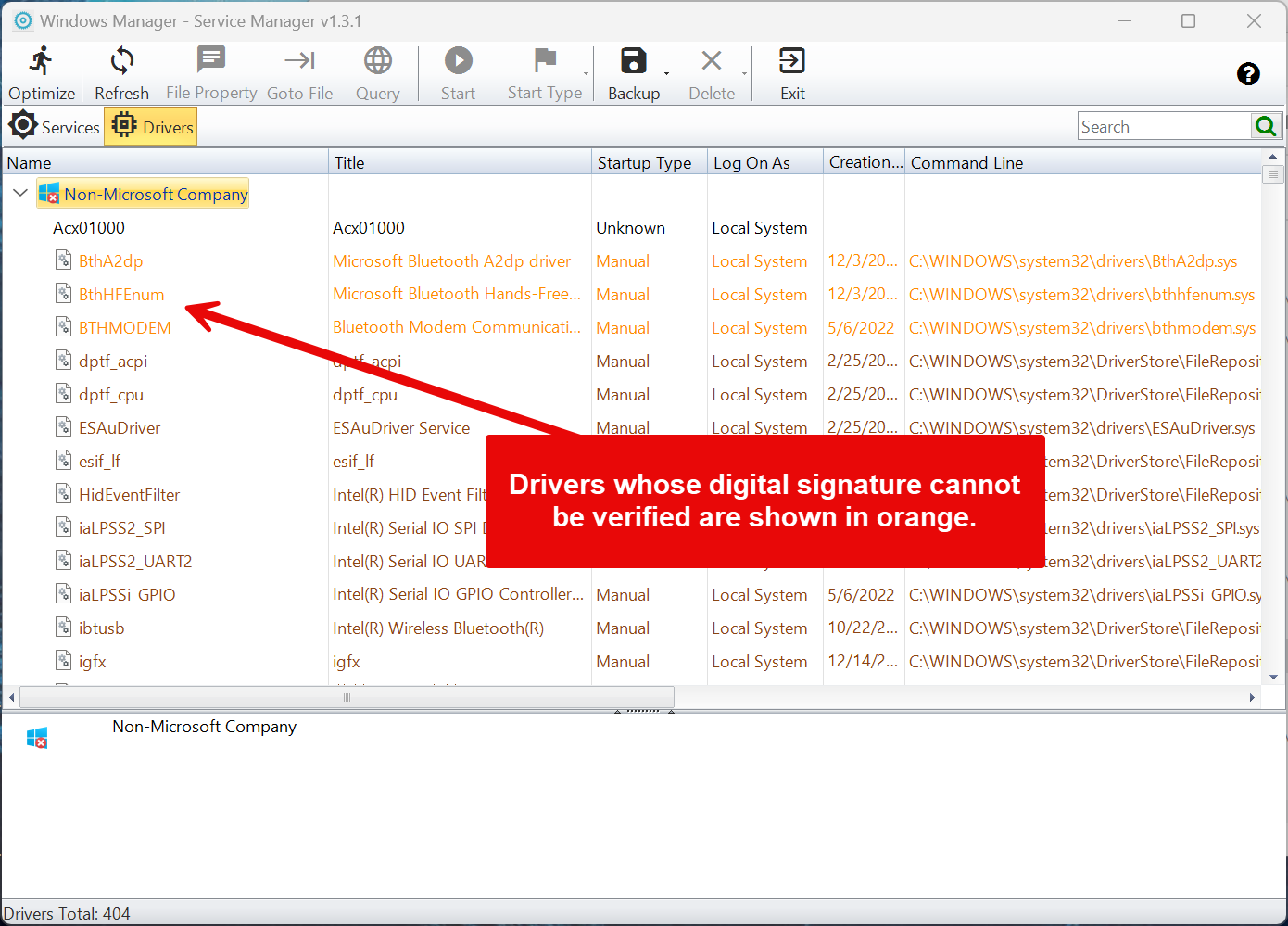
A driver's startup type can be Boot, System, Automatic, Manual or Disabled. Boot and System drivers load very early during Windows startup; disabling a critical one (such as a disk, file system or ACPI driver) can make Windows unable to start. If you only want to turn off a piece of hardware, right-click the device in Windows Device Manager and choose “Disable device”.
6. Start and stop services and change the startup type
Start / Stop
Select a service: if it is running, the toolbar shows Stop; if it is stopped, it shows Start. The action runs immediately, a notification appears in the lower-right corner on success, and the Status column is updated. A service whose startup type is Disabled cannot be started; change it to Manual or Automatic first. Stopping a service only lasts until the next restart, after which the service runs according to its startup type. Stopping may fail if other running services depend on it.
Start Type menu
- Automatic: Starts with Windows.
- Automatic (Delayed Start): Starts about two minutes after startup has finished and the other automatic services are running, which reduces resource contention during boot. Services only.
- Manual: Does not start at boot; it is started by a program, the user or a trigger when needed. Many system services use Manual by default.
- Disabled: Never starts. Features and services that depend on it stop working as well.
- Boot / System: Drivers only; loaded during the boot phase and during kernel initialization respectively.
The menu item for the current startup type is grayed out. If a service has triggers, the startup type column shows “Manual (Trigger Start)”, “Automatic (Trigger Start)” or “Automatic (Delayed Start, Trigger Start)”. A new startup type takes effect at the next startup.
Add Trigger / Remove Trigger
- Remove Trigger: Removes all triggers of the service. Many system services come with triggers for device arrival, events, Group Policy and so on; after removal none of these conditions will start the service. Before removing them, the program automatically saves all of the service's original triggers; if they cannot be read, nothing is removed.
- Add Trigger: If this service's triggers were previously removed with this program, the saved original triggers are restored exactly. Otherwise a “start when the network is available” trigger is added: Windows starts the service automatically when the computer gets its first IP address. Available for services set to Automatic, Automatic (Delayed Start) or Manual; not available for disabled services.
7. Optimize System Services: disable unneeded services by scenario
Click Optimize on the toolbar to open the “Optimize System Services” window, subtitled Tune up system services to improve performance and security. Each item describes a usage scenario in one sentence, followed by the current Start Type and Status of the related service; hover over an item to see the official service description. Services that do not exist on your computer are not listed.
- Checked means the service for that item will be disabled. Items that are already disabled are checked when the window opens and are shown in red with a block icon.
- Unchecked means restore: the service is set back to its Windows default startup type (and started immediately if the default is Automatic).
- Some items contain several services (for example system diagnostics, printing, Remote Desktop, smart cards, sensors and sound). Checking the parent item checks all of its services; the arrow in the lower-left corner expands or collapses all child items.
Available items and their services:
- Use the Windows classic interface to improve system performance (
Themes) - There are no compatibility problems with my applications (
PcaSvc, Program Compatibility Assistant) - Disable the monitoring of system events (
SENS) - I don't use Security Center (
wscsvc) - Disable search indexing (
WSearch) - I don't want to send error reports to Microsoft (
WerSvc) - I don't want to upload usage data to Microsoft (
DiagTrack, telemetry) - My computer has no Bluetooth or wireless network adapter (
RmSvc, Radio Management) - I don't use a Microsoft account to sign in to my computer (
wlidsvc) - Disable the discovery of UPnP devices on the local network (
SSDPSRV) - Disable AutoPlay for CDs, DVDs, and removable devices (
ShellHWDetection, also disablesstisvc) - I don't use a scanner, digital camera, or image acquisition features (
stisvc) - Disable Windows Firewall (
MpsSvc) - Do not use the IPv6 protocol on an IPv4 network (
iphlpsvc; also sets the registry valueDisabledComponentsto disable IPv6 tunnels such as 6to4, ISATAP and Teredo and to prefer IPv4. Native IPv6 on your network still works. Unchecking restores the original value.) - Disable automatic Windows updates (
wuauserv) - I don't synchronize the date and time with an Internet time server (
W32Time) - I don't have to worry about data usage limits (
DusmSvc) - Disable the system diagnostic services (
DPS,WdiServiceHost,WdiSystemHost,diagsvc,dmwappushservice) - I don't have a printer and don't use a network printer (
Spooler,PrintNotify) - I am a single user with one internet connection (
lmhosts,LanmanServer; after disabling them this PC can no longer share files and printers) - I don't have any Microsoft health devices
- I don't use Remote Desktop (
SessionEnv,TermService,UmRdpService) - I don't use smart cards (
SCardSvr,ScDeviceEnum,SCPolicySvc,CertPropSvc) - My computer does not have sensors (
SensorService,SensrSvc,SensorDataService) - I don't want my computer to make any sound (
Audiosrv,AudioEndpointBuilder)
Buttons
- Apply: Available when something has changed. A progress window, “Optimizing services...”, appears while the startup types are changed and the services stopped or started one by one; the list then reloads.
- Restore All: After you confirm “Are you sure you want to restore all services to default?”, all items are unchecked and applied immediately, returning every listed service to its default startup type.
- Cancel: Closes the window without saving unapplied changes.
8. Backup and restore
The Backup menu on the toolbar offers two kinds of backup. Make at least one before you change any service or driver.
Method 1: back up all services and drivers (registry file)
- Back Up All Services and Drivers: Exports the whole registry key
HKEY_LOCAL_MACHINE\SYSTEM\CurrentControlSet\Servicesto a .reg file; the default file name isBackupServices(yyyymmdd).reg. When it succeeds you can open the backup file in File Explorer. The program remembers the last folder you used. - Restore All Services and Drivers: Select a previous .reg backup and confirm “Are you sure you want to restore all services and drivers from the selected backup file? A restart is required for the changes to take effect.” The file is imported into the registry; on success the message “All services and drivers have been restored.” appears, and the changes take effect after a restart. If the import fails (for example, the file is not a registry file or some protected keys cannot be written), “Operation failed” is shown together with the error details. Even after a failure, part of the backup may already have been written, so check your services after restarting.
This method saves the complete configuration of all services and drivers, which makes it a good safety net before major changes. Importing overwrites the settings contained in the backup but does not remove services installed after the backup was made.
Method 2: back up startup types (recommended for everyday use)
- Back Up Startup Types of All Services: Records the startup type of every service in the list (including the delayed-start setting; for services with triggers, all triggers are saved too and restored along with the startup type), then confirms that the startup types have been backed up. In the drivers view the menu becomes Back Up Startup Types of All Drivers; the service and driver backups are independent. A new backup overwrites the previous one.
- Restore Startup Types of Services ▸ Restore Selected: Restores the selected service to the startup type recorded in the backup. Available only if that service is in the backup.
- Restore Startup Types of Services ▸ Restore All Non-Microsoft Services: Restores only the services in the Non-Microsoft Company group—ideal for undoing everything in one step after troubleshooting third-party services.
- Restore Startup Types of Services ▸ Restore All: Restores the startup types of all services in the list.
A confirmation appears before restoring, and when it finishes the program tells you to restart for the changes to take effect. Services whose startup type already matches the backup are skipped. Without a backup, the restore menu is unavailable.
9. Delete services and invalid services
- Delete Service: Removes the selected service from the system (only the service registration; the program file is kept). If the service's program file still exists, you are asked to confirm (“The file of … still exists. Are you sure you want to delete it?”); gray invalid services are deleted directly.
- Delete Service and File: Deletes the service and then its program file. If the file is in use, it is scheduled for deletion after a restart (“The file will be deleted after reboot.”); if it cannot be deleted, “Operation failed” is shown. To prevent system files from being deleted by mistake, this command is unavailable (use Delete Service instead) when: the program file does not exist; the file is signed by Microsoft; the file is in the Windows folder and has no verifiable signature; the file is in the driver store (DriverStore); or the file is shared with other services (such as svchost.exe).
A deleted service cannot be brought back from a startup type backup; only the .reg backup from Method 1 in section 8 can restore it. For a service that still works but that you simply don't want to run, disabling it is safer than deleting it.
When the 1-Click Cleaner in Windows Manager removes invalid services, it only deletes services whose program file really no longer exists and is not located in the Windows folder. It never deletes drivers, to avoid removing anything by mistake.
10. Notes
- Back up first, then change. Take a snapshot with Back Up Startup Types of All Services before making changes. Before changing many services or deleting services, also export a .reg backup.
- Do not disable system services you don't know. Disabling core services (such as RPC, DCOM, Windows Event Log or networking services) can leave you without Internet access, unable to sign in, or even unable to boot. If unsure, use Query to learn what the service does, or set it to Manual instead of Disabled.
- Be even more careful with drivers. Disabling a critical driver can cause a blue screen after restart. Don't change drivers when the system is working properly; to turn off a piece of hardware, disable the device in Device Manager.
- Think twice about security-related items. Disabling Windows Firewall, Security Center or automatic Windows updates lowers your system's security. Only do so if you have other protection installed and understand the consequences.
- Watch dependencies. The “Services Depended On” area at the bottom lists the services this service depends on. If you disable a service that others depend on, those services cannot start either.
- Check before removing triggers. Removing triggers clears all trigger conditions of a service. The program saves the original triggers, and Add Trigger restores them exactly; however, the saved record exists only in the current user's settings, so be careful with Microsoft services.
- Most changes need a restart. Changed and restored startup types take effect at the next startup; Start / Stop takes effect immediately but only lasts until the next restart.
- Administrator rights are required. The program runs as administrator; a few protected services (for example those of some security software) may still refuse changes, which is normal.
- What if Windows no longer starts? After three failed startups in a row, Windows automatically opens the advanced startup options. Choose “Troubleshoot → Advanced options → System Restore”, or “Startup Settings → Safe Mode”, then restore the startup types with this program.
11. Typical workflow
Scenario 1: Track down a third-party service that causes slowdowns or instability
- Windows Manager main window → Optimizer → Service Manager.
- Click Backup ▸ Back Up Startup Types of All Services.
- Expand the Non-Microsoft Company group, use Query to learn about suspicious services, and set the suspected third-party services to Disabled (or Manual) one by one.
- Restart and check whether the problem is gone. If it is, re-enable the services one at a time to find the real culprit.
- When you are done, use Backup ▸ Restore Startup Types of Services ▸ Restore All Non-Microsoft Services to restore the rest in one step, then restart.
Scenario 2: Turn off system services you don't need
- First click Backup ▸ Back Up All Services and Drivers to export a .reg file.
- Click Optimize and check only the items that match your situation—for example, without a printer, check “I don't have a printer and don't use a network printer”.
- Click Apply, wait for it to finish, and restart.
- If a feature stops working, open Optimize again, uncheck the related item and apply. To undo everything, click Restore All.
Scenario 3: Remove services left over after uninstalling software
- Find services shown in gray whose Available column says “No (deletable)”.
- After confirming they belong to software you have uninstalled, click Delete ▸ Delete Service.
Try it now
Service Manager belongs to the Optimizer toolbox of Windows Manager together with Startup Manager and Task Scheduler Manager. To find the processes that consume resources and the services behind them, use it together with Process Manager. More on the product page.
Get started: Download Windows Manager — open Optimizer → Service Manager, back up the startup types first, then use Optimize to turn off the system services you don't need.
