After you sign in to Windows, many programs start on their own—sync clients, input methods, GPU utilities, chat apps, and more. Some are unnecessary, yet they still slow boot and logon and use memory and CPU. At other times, you need a trusted tool to run automatically after logon.
Startup Manager in Windows Manager brings the most common auto-start locations into one window: registry Run/RunOnce, per-user startup folders, and Microsoft Store (UWP) apps. Enable or disable items, start or stop processes immediately, clean up in bulk, or use a wizard to add new entries. In-app help matches this article: green = newly added, red = invalid (target missing), gray = disabled.
What follows covers the main window, day-to-day management, five ways to add items, plus Disable auto-startup in Settings and Advanced Startup.
1. What can Startup Manager do?
- Speed up boot and logon. Disable unneeded auto-start entries to cut background processes and reach a usable desktop sooner.
- See where items come from. The left tree groups startup folder, registry, and Windows apps so you do not have to hunt through Registry Editor and multiple folders.
- Troubleshoot safely. Temporarily disable everything, restart, then re-enable in batches to see whether an auto-start app is causing problems.
- Manage in one place. Enable or disable, delete, edit, move to another Run key or startup folder, go to file, and search the web for unknown names.
- Go further. Advanced Startup handles deep registry locations (Winlogon, AppInit, and others). Service Manager and Task Scheduler Manager are one click away. Settings also offers Disable auto-startup to block entire Run/RunOnce or startup-folder classes, including future entries.
2. How to open Startup Manager
In the Windows Manager main window, go to:
Optimizer → Startup Manager
The tool opens in its own window. Get a trial from the download page if needed. Run as administrator when changing all-users registry or startup folder entries.
3. Main window layout
The window has three areas:
- Left location tree: Filter by startup location. Under General Startup: startup folder, registry (All Users / Current User Run, RunOnce, Wow64, Others), and Windows apps. Under Others: Advanced Startup, Service Manager, Task Scheduler Manager.
- Center list: Items for the selected location—Name, Path, Available, Running, Digital Signature, and more. The checkbox on each row means the item is enabled (checked = run at logon).
- Bottom details: File version info for Win32 programs; publisher and version for Windows apps.
Row colors match in-app help:
- Green: Newly added, not yet in the “known items” list.
- Red: Invalid—the target file is missing (Available = No). Safe to delete.
- Gray: Disabled (unchecked).
- Normal color: known, enabled entries.
The status bar shows the list count and the selected item’s location (for example, a registry path). The ? help button summarizes this and links to Online Help for this page.
4. View and manage startup items
4.1 Browse by location
Click General Startup for a combined view, or expand Startup Folder and Registry. Windows apps are listed separately; enable and disable work differently there (no delete, edit path, or go to file).
4.2 Enable and disable
Check or uncheck the box. The program moves registry values between Run and Run- (disabled suffix), or moves startup-folder shortcuts to a DisableStartup folder. Windows apps update the related State value. The toolbar Enable/Disable button and the context menu do the same thing.
4.3 Start and stop
For valid Win32 or Windows app entries, Start runs the program now. Stop ends a running process without signing out—useful for quick tests.
4.4 Edit, move, delete
- Edit: Change name, target, or location (registry / startup folder).
- Move to: Move to another Run key or startup folder (registry and .lnk only).
- Delete: Remove from registry or folder (not for Windows apps).
- Goto File: Open the executable in File Explorer (not for Windows apps).
- Query: Search the item name in your browser to identify unknown programs.
Press F5 or click Refresh after external registry or folder changes.
5. Toolbar and batch actions
Common toolbar buttons:
- Refresh (F5): Reload the current list.
- Start / Stop: Run or end the selected process.
- Enable / Disable: Toggle the checkbox state.
- Batch: Disable All (uncheck all in the list), Stop All (end all running auto-start processes), Stop and Disable All—each asks for confirmation.
- Add, Delete, Move to, Goto File, Edit, Query, Settings, Exit. Settings opens Tweak Settings with Disable auto-startup (see section 9).
Right-click the list or an item for enable/disable, batch, delete, goto file, edit, query, and similar actions (not refresh, add, settings, or exit).
6. Add startup items (five methods)
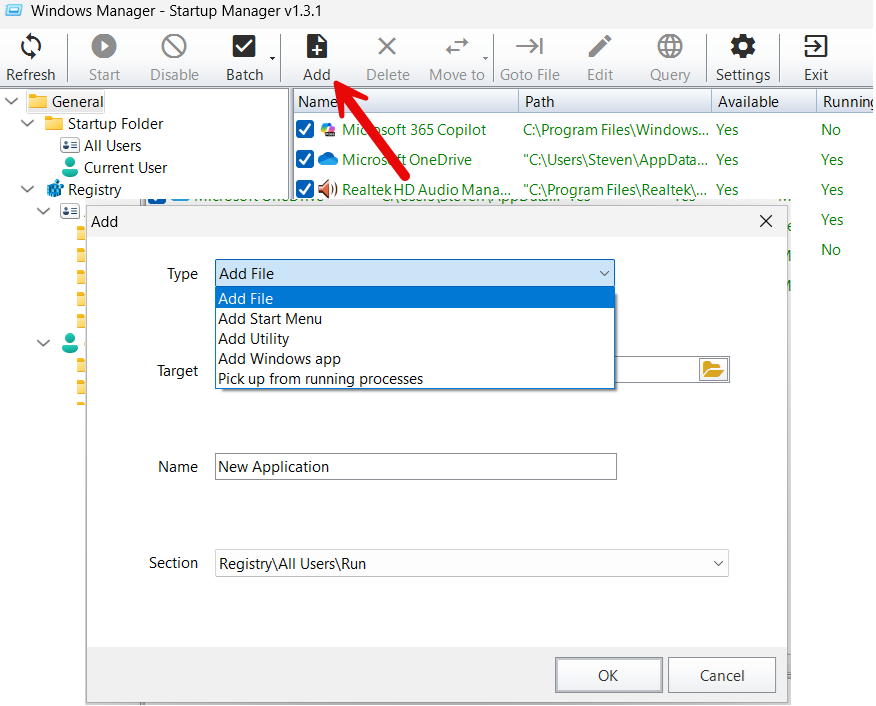
Click toolbar Add. The dialog has Type, Target (full command line), Name (list display name), and Section (location). New items are enabled by default and often appear in green.
6.1 Add File
Use this when you know the .exe or .bat path. Type, browse, or drag a file into Target. Name is filled from the file description and can be edited. If the custom name differs from the description, an _ prefix is added when saved.
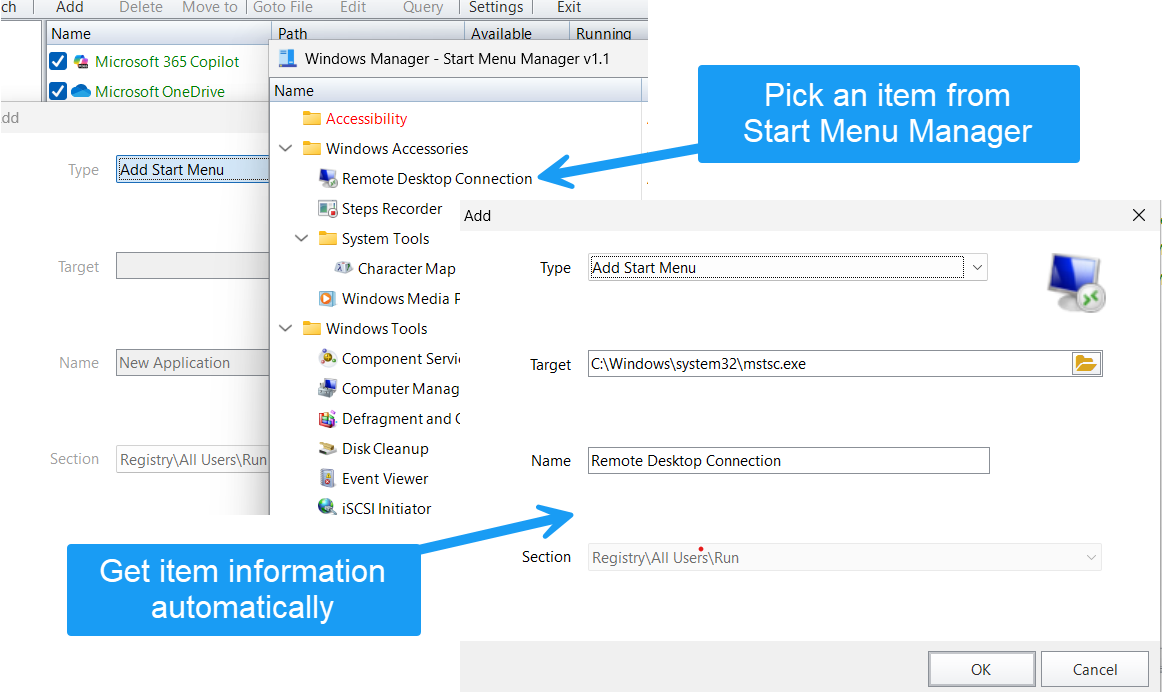
6.2 Add Start Menu
Pick a shortcut from installed software. This opens Start Menu Manager in selection mode; target and name are filled automatically.
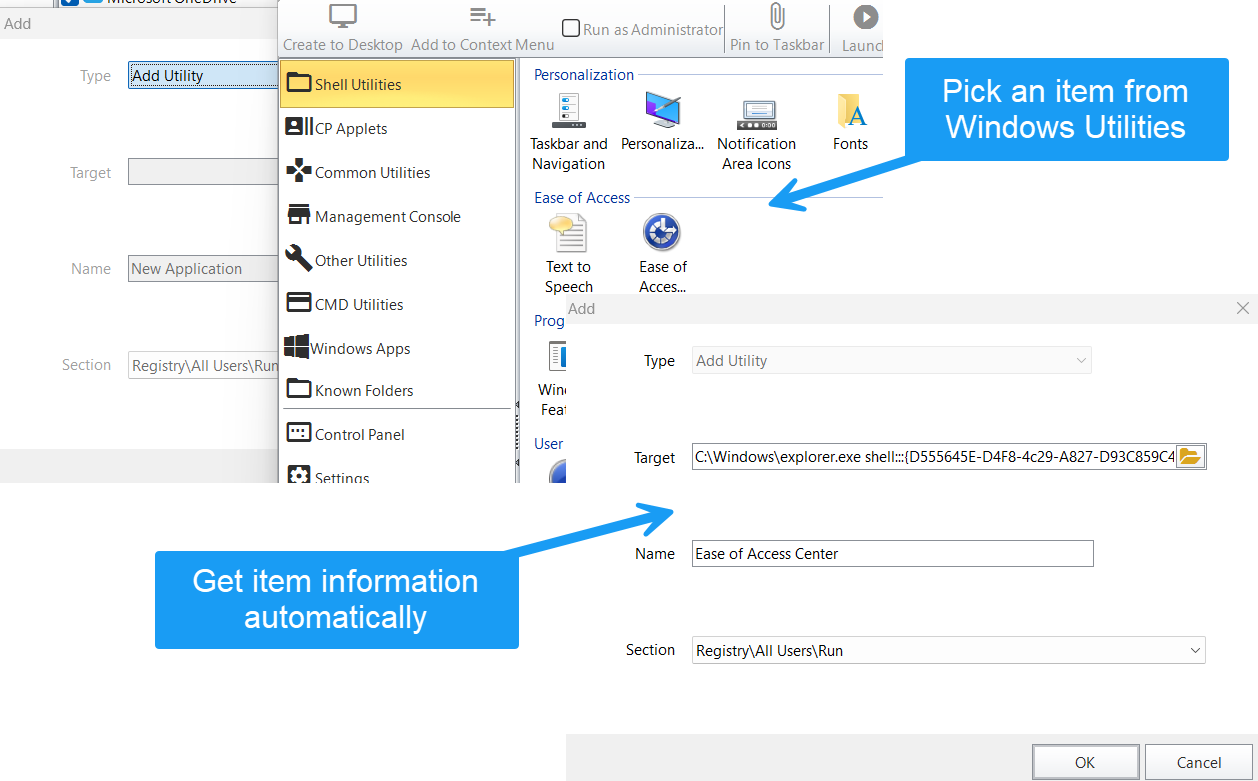
6.3 Add Utility
Add shell tools, Control Panel applets, MMC snap-ins, and similar items. Opens Windows Utilities; selection may use forms like explorer.exe shell:::{...}.
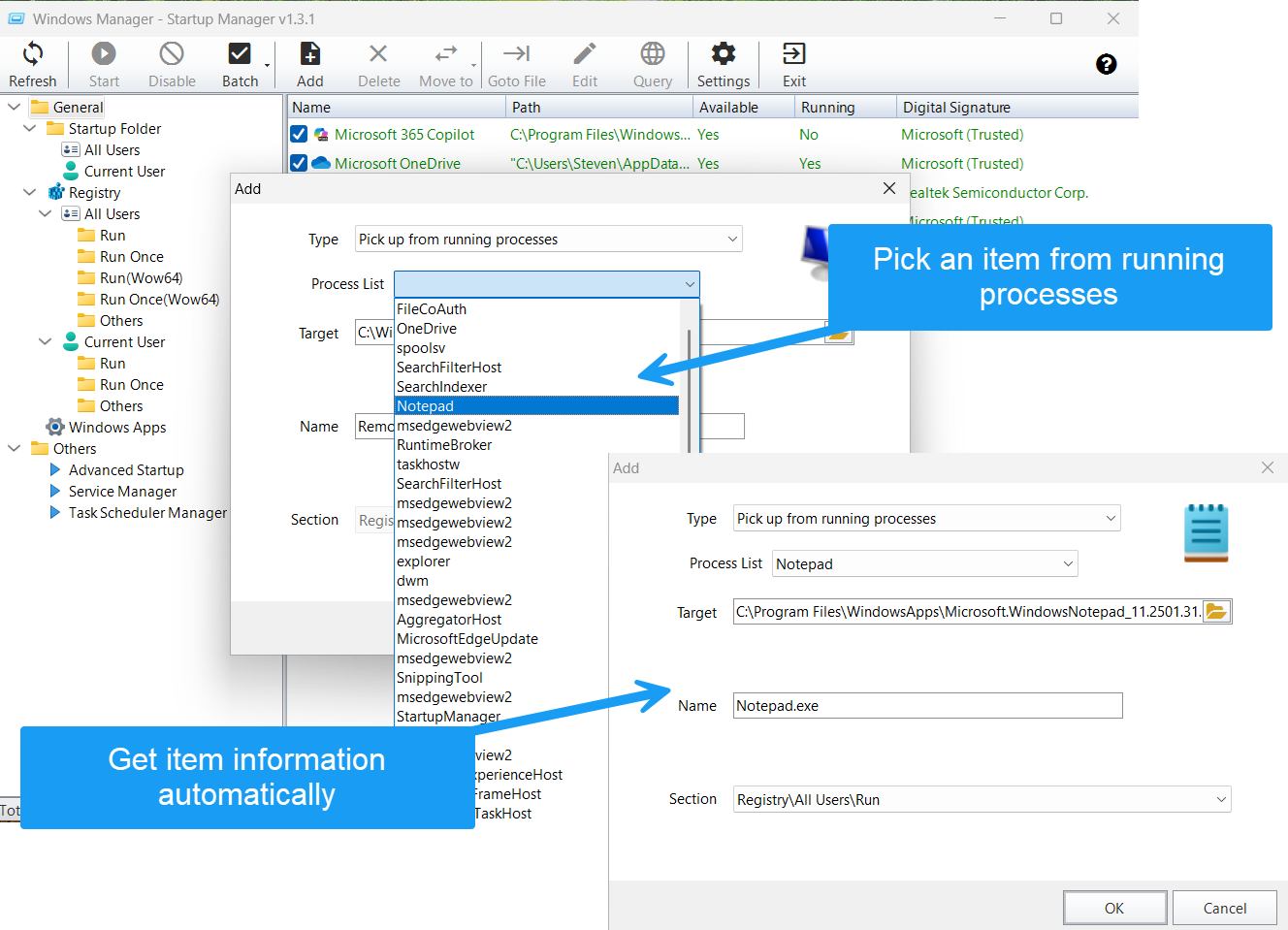
6.4 Pick from running processes
Use this when the program is already running. Choose from the drop-down; target is the process executable (some system services are filtered out).
6.5 Add Windows app
Add a Microsoft Store / UWP app. After selection, the entry is saved as explorer.exe shell:appsFolder\...—a good way to run store apps at logon.
7. How to choose Section (location)
When adding or editing an item, pick where it should be stored:
- Registry\All Users\Run / RunOnce (and Wow64): all users,
HKLM. - Registry\Current User\Run / RunOnce: current user only,
HKCU. - Startup folder\All Users / Current User: shortcut in the matching Startup folder.
Prefer Current User for personal apps. Use All Users when every account should run it (often needs admin). Run or the startup folder suits everyday auto-start; RunOnce may be removed after one run. Others (RunOnceEx, RunServices, and so on) appear in the list but are not offered in the Add wizard.
8. Advanced Startup and related tools
8.1 Advanced Startup
Others → Advanced Startup opens a separate window for deep registry auto-start: Winlogon (Shell, Userinit), AppInit DLLs, shell execute hooks, Active Setup, and more. Enable/disable, delete, restore defaults, goto file—change only if you understand the entry.
8.2 Service Manager and Task Scheduler Manager
Also under Others: Service Manager and Task Scheduler Manager for services and scheduled tasks that affect startup. They complement Run and startup folders in the main window.
9. Disable auto-startup in Settings
Beyond unchecking items in the list, Startup Manager offers system-level blocking: toolbar Settings → Tweak Settings. The ? help and the group box Disable auto-startup feature contain six checkboxes for six common location types.
After you click OK, the program tells you to restart or sign out. Then every existing item in checked locations—and any program that tries to add itself there later—will not auto-start with Windows. This is stricter than disabling items one by one and helps stop unknown software from re-adding Run or startup-folder entries.
9.1 Six location options
Labels match the left tree, for example “Disable all startup items in [Registry\All Users\Run]”:
- Registry\All Users\Run — HKLM Run for all users.
- Registry\Current User\Run — HKCU Run for the current user.
- Registry\All Users\RunOnce — all-users RunOnce.
- Registry\Current User\RunOnce — current-user RunOnce.
- Disable startup folder for current user — current user’s Startup folder.
- Disable startup folder for all users — all-users Startup folder (often needs admin).
Check all six, or only the locations you want to tighten—for example Current User\Run alone.
9.2 Two mechanisms (registry vs startup folder)
The options share one dialog but work differently underneath:
- Four registry options: Explorer policy under the current user (for example
DisableLocalMachineRun,DisableCurrentUserRun,DisableLocalMachineRunOnce,DisableCurrentUserRunOnce) blocks that Run/RunOnce class. Uncheck, click OK, and restart to remove the policy. - Two startup-folder options: Move all shortcuts from Startup to a sibling
DisableStartupfolder and remove the original Startup folder. Unchecking moves files back—the same idea as per-item disable in the main list, but for the whole folder.
This does not cover Windows apps (UWP), Advanced Startup, services, or scheduled tasks. Use Service Manager and Task Scheduler Manager (section 8) for full coverage.
9.3 vs per-item management in the main list
Disable auto-startup blocks an entire location class. Checkboxes in the main list manage individual entries while that location still allows auto-start. If a Run key is policy-blocked, items may still appear but will not start with Windows until you clear the policy, restart, and re-enable what you need.
In-app help notes that this feature can shorten startup time, reduce background processes, and lower the risk of unwanted programs auto-starting. To undo it, clear the relevant checkboxes here or re-enable individual items in the main list.
10. Important notes
- Enable only trusted programs; too many startup items slow the PC.
- Before disabling, confirm the item is not required (GPU, input method, security software, and so on).
- Red invalid entries can be deleted safely; the program also supports a
DeleteInvalidItemslaunch argument to clean them silently. - Windows apps and some shell command lines cannot be edited like normal executables.
- After Batch → Stop and Disable All, re-enable items one by one if something breaks.
- Disable auto-startup in Settings requires restart or sign out; undo the same way in Settings and restart again.
- Use Service Manager and Task Scheduler together with Startup Manager for all auto-start channels.
Tip: On your first cleanup, disable half of the suspicious items, restart, and see how the PC feels before turning off more. That avoids shutting down something essential all at once.
11. Common tasks
Clean up for speed
- Optimizer → Startup Manager → select General Startup.
- Uncheck unneeded items, or Batch → Disable All then re-enable essentials.
- Delete red invalid entries; press F5 to refresh.
- Restart or sign out and compare boot/logon speed.
Add a new auto-start program
- Click Add and pick type (file / Start Menu / utility / process / Windows app).
- Confirm target, name, and section → OK.
- Verify the new checked entry under the right category → sign out and test.
Block a location system-wide
- Toolbar Settings → check locations under Disable auto-startup (for example Current User\Run + current user startup folder).
- OK → restart or sign out as prompted.
- Confirm items no longer auto-start; to restore, uncheck in Settings and restart again.
Troubleshooting
- Batch disable all → restart.
- If the problem goes away, re-enable in groups to find the culprit.
- Use Query and Goto File on suspicious entries.
Try it now
Startup Manager is a core Optimizer tool in Windows Manager, alongside Settings Security and Move System Folders for startup, system entry points, and folder paths. See the product page.
Download Windows Manager and open Optimizer → Startup Manager.
