Timed shutdowns, reminder toasts, killing a runaway app when CPU spikes, backing up as soon as a USB drive is plugged in, turning off the display when the PC locks—you can piece this together with Task Scheduler and third-party tools, but it usually means jumping between several interfaces.
My Task in Windows Manager puts two kinds of automation in one window: jobs written to Windows Task Scheduler, and live monitoring that needs the program to keep running. Nine tabs on the left define when something happens; Select Action on the right defines what happens—shutdown, run a file, show a reminder, turn off the monitor, and more.
Below we walk through every tab, when you can close the app, and when you must leave it running.
1. What can My Task do?
- Scheduled Task. Run once, daily, weekly, monthly, or at logon—stored in Task Scheduler so you can close My Task afterward.
- Resource monitoring. React to CPU load, a process’s CPU or disk I/O, network throughput, or idle keyboard/mouse time.
- Break reminders. The Take Rest tab nudges you away from the screen on a fixed interval (default action: dark screen and lock).
- Devices and sessions. USB plug-in/plug-out, remote connect/disconnect, lock/unlock, logon/logoff, and similar events.
- Rich actions. Power off, hibernate, run files, open URLs, toast reminders, restore points, empty Recycle Bin, and more—often without extra utilities.
2. How to open My Task
In the Windows Manager main window:
Misc. Utilities → My Task
A separate window opens. Scheduling relies on the Task Scheduler service; if it is stopped, you will see an error when creating a task. Use the Task Scheduler button at the bottom to open Windows Manager’s task list for jobs under the Yamicsoft folder.
3. Main window layout
- Left tabs: nine task types; the right pane shows triggers for the selected tab.
- Upper right: trigger settings (time, thresholds, event lists). Monitoring tabs include a ? help button with a short description.
- Lower right — Select Action: shared by all tabs. Extra fields appear for the chosen action (file path, reminder text, countdown seconds, etc.).
While monitoring runs, the status bar shows Monitoring and a countdown; minimizing the window is fine. Scheduled tasks do not require My Task to stay open.
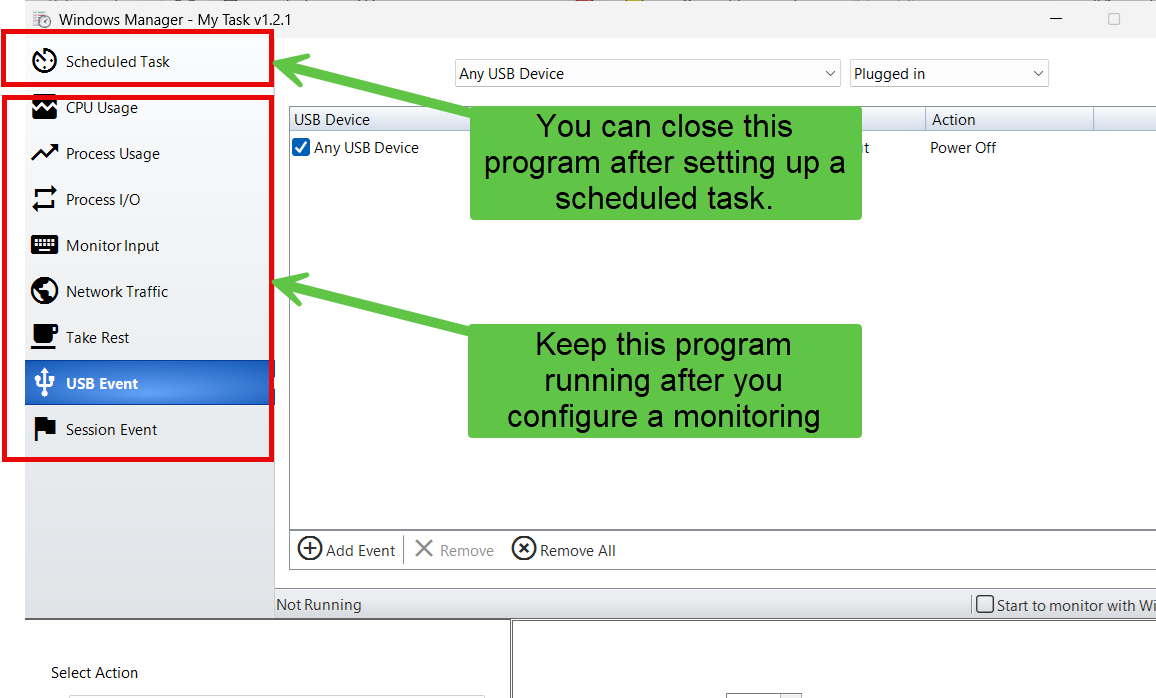
Two modes:
- Scheduled Task: click OK to create the job; when you see the success message, you may close My Task. Windows runs it at the scheduled time.
- Other eight tabs: click OK to start monitoring; My Task must keep running (minimize if you like). The button switches to Stop; exiting while monitoring prompts for confirmation.
4. Scheduled Task
The usual case: Windows handles when; Select Action handles what.
4.1 Task name
Enter a Task Name (required). Duplicate names ask whether to overwrite. Tasks are stored under a Yamicsoft folder in Task Scheduler.
4.2 Triggers
- Run Once: pick date and time.
- Every Day / Week / Month: repeat on a schedule; weekly allows weekdays and “every N weeks”; monthly lets you pick days of the month.
- Logon: runs after sign-in; optional Delay in seconds.
- Repeat Task: set Interval and Duration (minutes, hours, or days). Interval must not exceed duration.
For shutdown, restart, logoff, hibernate, lock, standby, and similar actions, enable Countdown duration so users get a warning. Countdown is available for run-once and calendar-style triggers; it is disabled for Logon.
4.3 Create
Click OK when triggers and action are set. Success means the scheduled task was created and you can close the program. If sleep is still enabled, you may be asked to disable it first—sleep can block scheduled runs.
5. CPU Usage
Watches total CPU load. The status bar shows live percentage even before you start monitoring.
- Set a threshold and lower than / above than (e.g. above 90%).
- Duration (minutes): the condition must hold continuously before firing—reduces false alarms from brief spikes.
- Optional Beep in the last 5 seconds and There is no keyboard and mouse input (activity resets the timer).
Configure Select Action, then OK to monitor. After one trigger, monitoring stops; click OK again to restart.
6. Process Usage
Monitors one process CPU usage—useful when a single app hogs the CPU.
- Pick a process from the list (non-system processes); refresh to update.
- Same threshold, duration, beep, and idle-input options as CPU Usage.
- If the process exits, start action runs the action when the process ends unexpectedly.
Select a process before clicking OK.
7. Process I/O
Triggers on a process’s disk read/write rate (bytes per second)—helpful for spotting heavy sync or suspicious activity.
- Select the process; use the search box to filter.
- Enable read rate and/or write rate conditions with thresholds.
- Duration, beep, and idle-input options match Process Usage.
- Current read/write rates appear in the status area for tuning thresholds.
8. Monitor Input
Fires after no keyboard or mouse input for the set time—lock the PC, turn off the display, or run a script when you walk away.
- Set idle duration in minutes.
- Any input restarts the countdown; remaining seconds show in the status bar.
9. Network Traffic
Reacts when combined upload+download on a chosen adapter crosses a threshold for a set duration (kbps).
- Network Adapter: active connected adapters only.
- Threshold, lower/above, duration; optional beep and idle-input reset.
- Live speeds display before monitoring starts—use them to pick realistic values.
10. Take Rest
Periodic break reminders. Switching to this tab sets Dark Screen to Lock Desktop by default; you can switch to Reminder, turn off the monitor, etc.
- Trigger every N minutes (1–300).
- Optional Beep in the last 5 seconds.
- Start the rest process at Windows startup: creates a logon task so monitoring begins after boot (My Task must still be running—usually minimized).
The status bar shows remaining time and rest count; each trigger restarts the cycle.
11. USB Event
Run an action when a USB storage device is plugged in or plugged out—backup on insert, shutdown on remove, and so on.
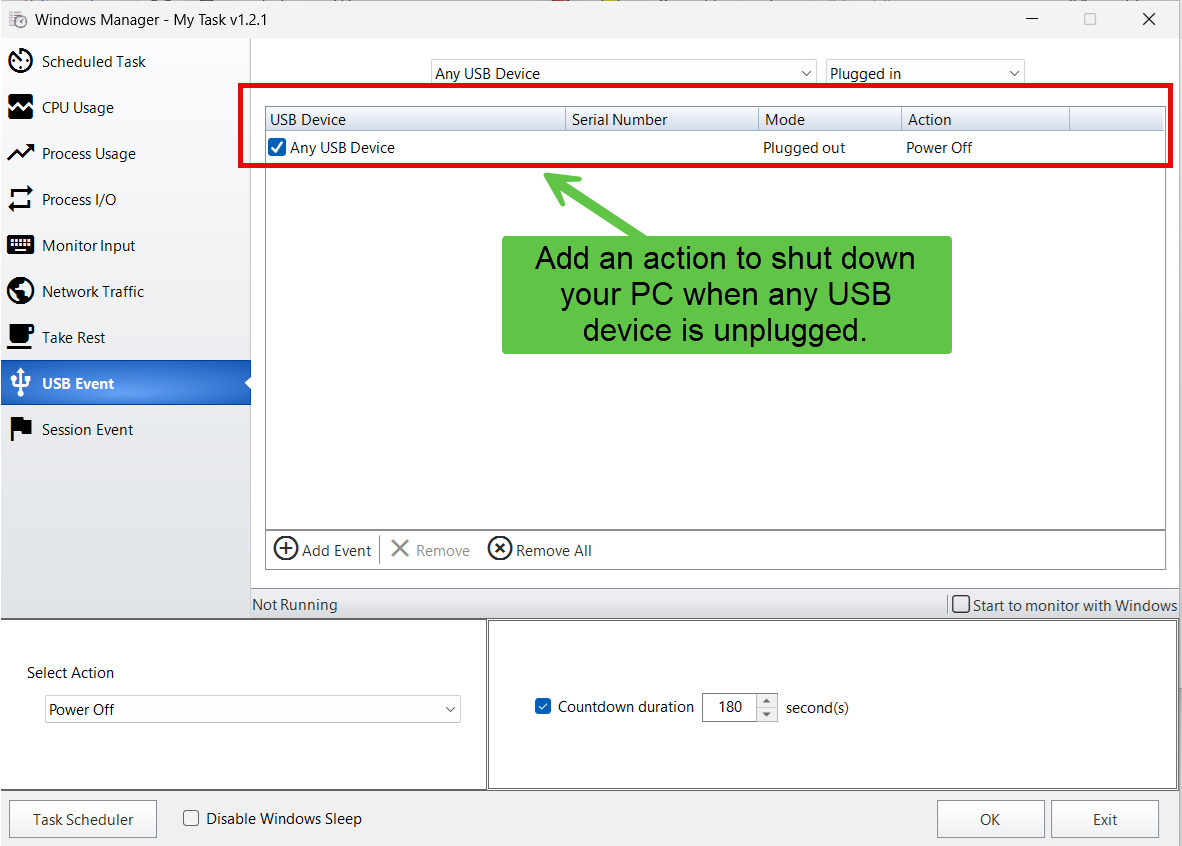
- Add Event: pick a device (or Any USB Device), plug-in/plug-out mode, and an action from Select Action.
- Enable or disable rules with checkboxes; remove selected or all.
- Start to monitor with Windows: begin USB monitoring at logon without clicking OK each time.
At least one enabled rule is required to start monitoring.
12. Session Event
Respond to session changes: remote connect/disconnect, lock/unlock, logon/logoff, remote control mode changes.
- Add Custom Event: choose an event and action, add to the list.
- Add Rule Event: one-click presets such as Turn off the monitor when the system locked.
- Rules persist in the registry; use checkboxes and remove as needed.
- Start to monitor with Windows for automatic session monitoring at logon.
Keep My Task running while session monitoring is active.
13. Select Action
The dropdown is shared across tabs; the panel below changes per action:
- Power Off, Turn Off, Stand By, Restart, Log Off, Hibernate, Lock Workstation: countdown optional in Scheduled Task; immediate run when monitoring fires.
- Dark Screen to Lock Desktop: countdown seconds; default for Take Rest.
- Run File: path and arguments; optional max runtime; pick system commands via Windows Utilities.
- Terminate: end a process by name (pick from the list).
- Open URL: open a link in the default browser.
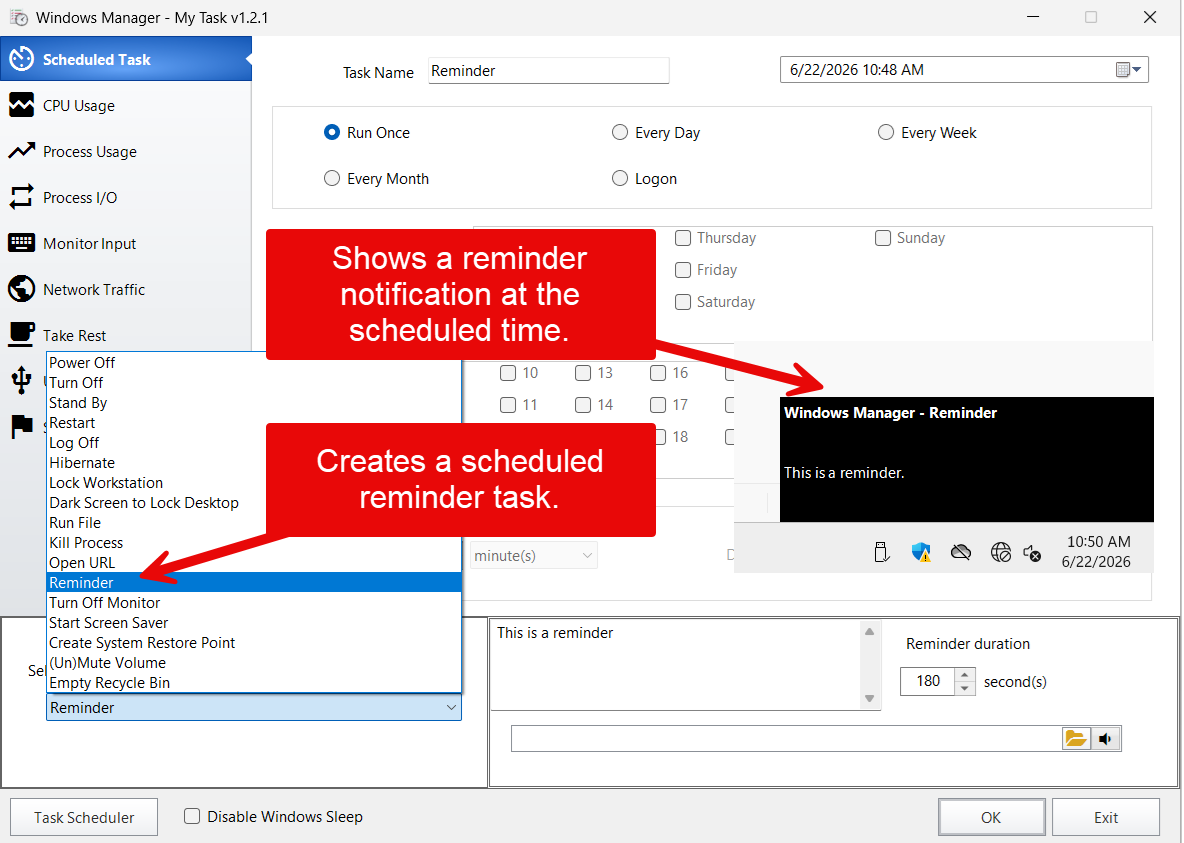
- Reminder: message text, Reminder duration (how long the toast stays), optional .wav sound. Shows as Windows Manager - Reminder in notifications.
- Turn Off Monitor, Start Screen Saver, Create System Restore Point, (Un)Mute Volume, Empty Recycle Bin: little or no extra setup.
Monitoring runs actions directly; scheduled tasks store parameters and launch My Task’s helper at trigger time.
14. Bottom options
- Task Scheduler: open Windows Manager’s task scheduler tool for the Yamicsoft folder.
- Disable Windows Sleep: prevents sleep so scheduled tasks are less likely to be missed. Hover the checkbox for details; creating a scheduled task may also prompt you to disable sleep.
- OK / Stop: creates a scheduled task or toggles monitoring. Tabs and Select Action lock while monitoring runs.
- Exit: closes the window; confirms if monitoring is active. Monitoring also keeps the system awake so watches are not interrupted.
15. Notes
- Creating Scheduled Task entries may require administrator rights; the Task Scheduler service must be running.
- Sleep and hibernate can skip scheduled runs—disable sleep or enable “wake to run” in the system scheduler for critical jobs.
- Monitoring stops when you exit My Task. Use Start to monitor with Windows (Take Rest, USB, Session) or your own startup entry for boot-time monitoring.
- Test destructive actions (shutdown, terminate) with Reminder or Run File first.
- Process lists hide common system processes; start the target app and refresh if it is missing.
- USB rules target USB disk drives; network thresholds are in kbps—watch live speeds in the status bar.
16. Example workflows
Nightly shutdown
- Misc. Utilities → My Task → Scheduled Task.
- Name the task → Every Day at 23:00 → Power Off → countdown 60 seconds → OK.
- Close My Task after success.
CPU alert
- CPU Usage → above 85% for 5 minutes → Reminder with your text → OK; minimize, do not exit.
Hourly break
- Take Rest → every 60 minutes → Dark Screen to Lock Desktop or Reminder.
- Enable Start the rest process at Windows startup if needed.
Try it now
My Task unifies time-based and condition-based automation—alongside Startup Manager and JumpList Quick Launcher in Windows Manager. See the product page for more.
Get started: Download Windows Manager → Misc. Utilities → My Task.
