Overview
Windows Utilities is a launcher inside Windows Manager. It gathers Windows shell items, classic Control Panel applets, built-in tools, Microsoft Management Console snap-ins, extra commands, Command Prompt tools, and known folders into one window. Select an item and open it, or keep it nearby by creating a desktop shortcut or adding it to the context menu for the folder background and the desktop.
The left side lists the pages. The toolbar works on the item you select. The question mark at the right of the toolbar shows a short description and a link to this page.
1. Shell Utilities
Shell Utilities opens Windows shell items, including personalization settings, Ease of Access, programs and features, and user folders.
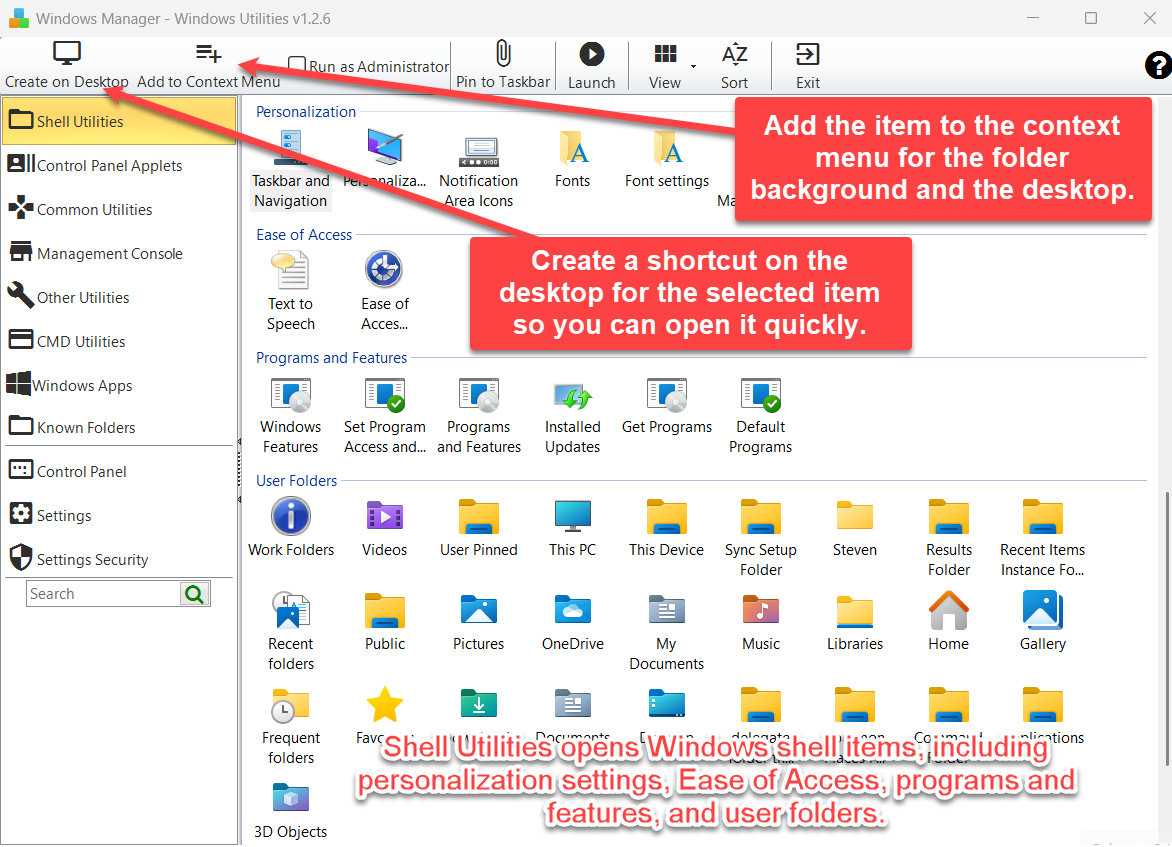
Typical items include Personalization, Window Color and Appearance, Ease of Access Center, Programs and Features, Default Programs, and folders such as Documents, Downloads, and Pictures. Double-click an item, or select it and click Launch.
Two toolbar actions are marked on the screenshot:
- Create on Desktop creates a shortcut on the desktop for the selected item so you can open it quickly.
- Add to Context Menu adds the item to the context menu for the folder background and the desktop.
2. Control Panel Applets
Control Panel Applets opens classic Control Panel items, including system settings, hardware and sound, the file system, network and Internet, security and maintenance, and colors and appearance.
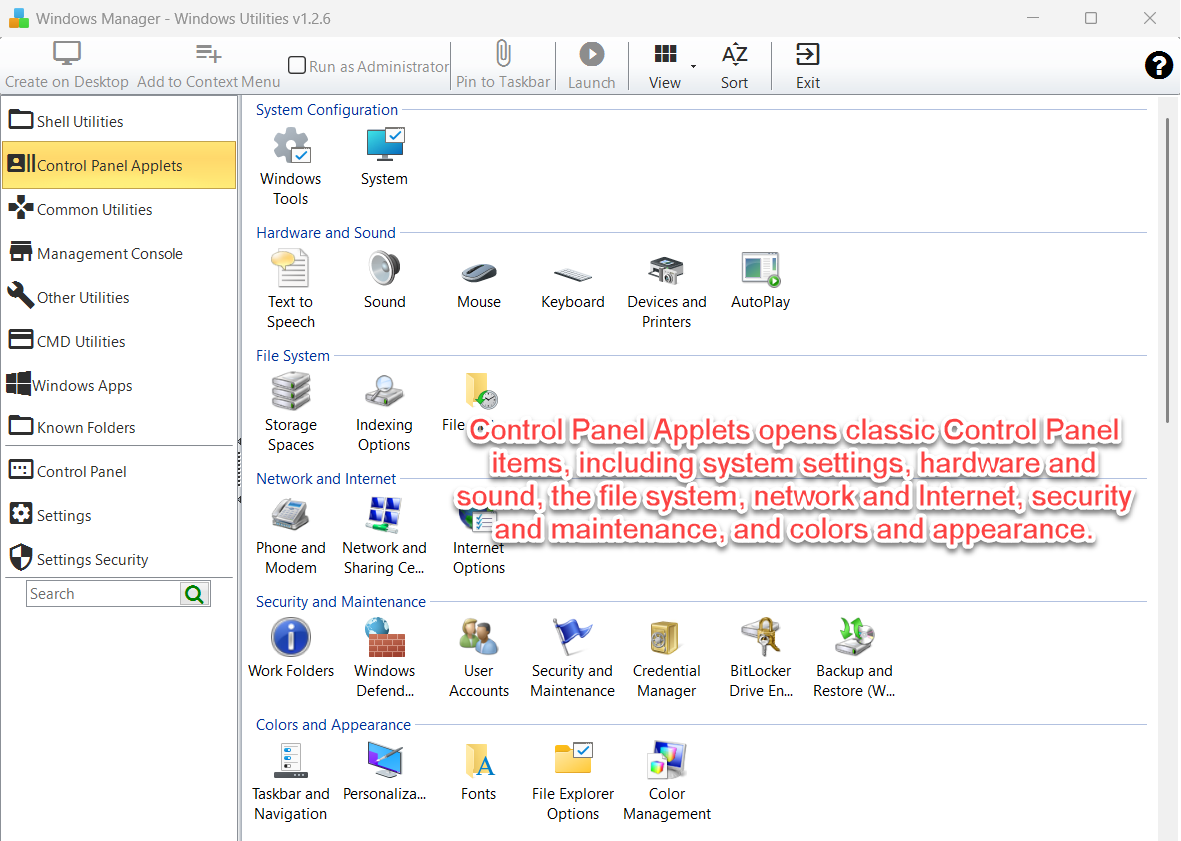
On Windows 10 the list is built from the classic pages in the Windows Settings index, so it can include subpages as well as the main applets. On Windows 11 that index is no longer supplied. Windows Utilities then reads the Control Panel items Windows has registered, which is the same set you see in All Control Panel Items. Either way, Launch opens the selected applet with control.exe or the shell.
3. Common Utilities
Common Utilities opens built-in Windows tools, including system, maintenance, security, media, accessibility, and network tools.
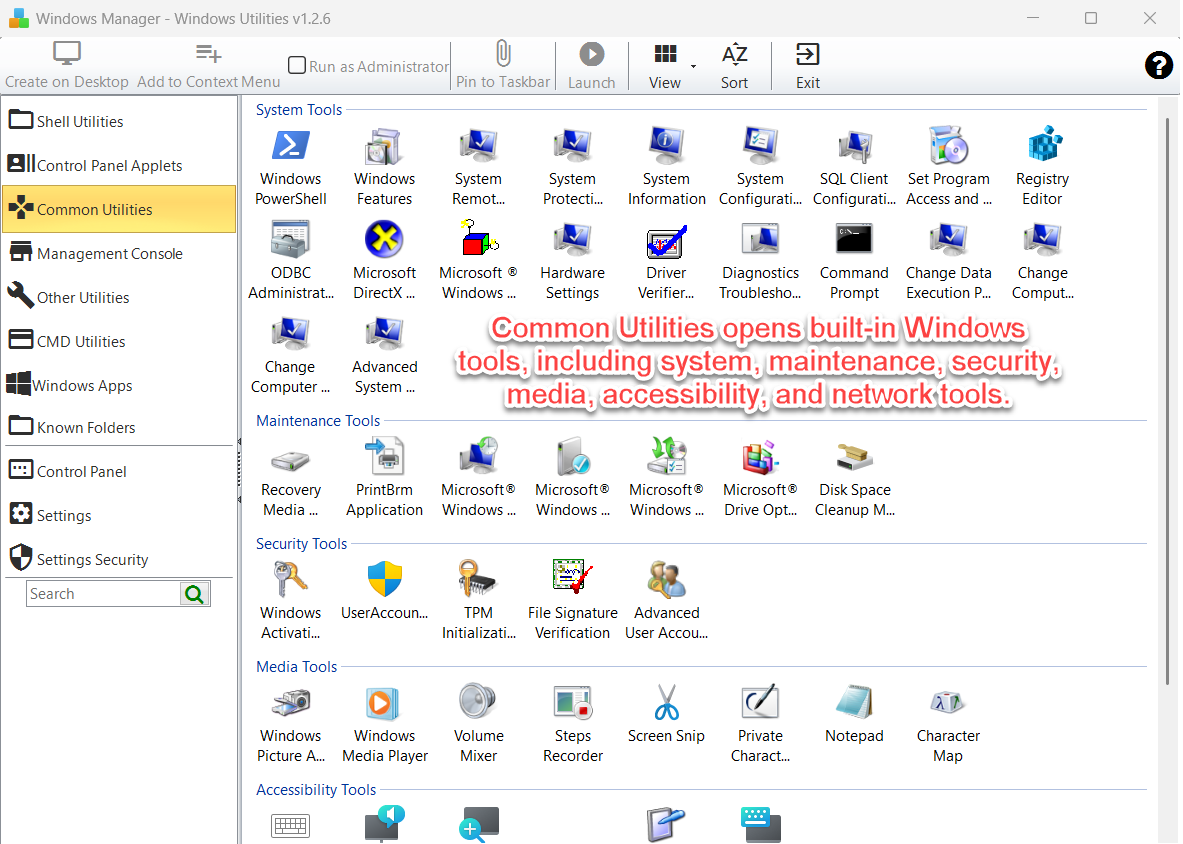
This page is the short path to tools such as System Information, Resource Monitor, Registry Editor, Task Manager, Disk Cleanup, Character Map, Magnifier, and the network troubleshooters. Each entry starts the matching Windows program.
4. Management Console
Management Console opens Microsoft Management Console tools, including Computer Management, Device Manager, Event Viewer, Services, and Local Group Policy Editor.
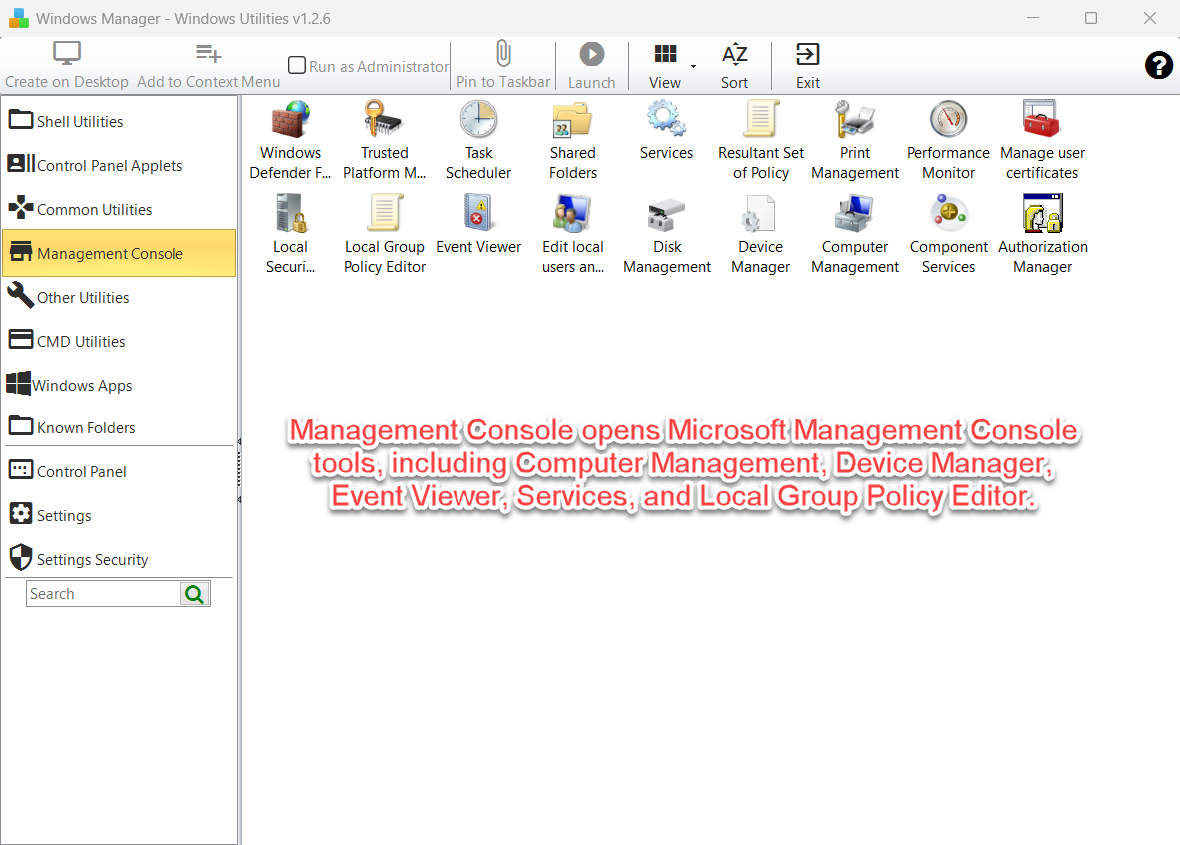
These items start mmc.exe with the matching console file, such as compmgmt.msc, devmgmt.msc, eventvwr.msc, services.msc, and gpedit.msc. Some consoles are available only on Windows editions that include them, and some ask for administrator permission.
For a fuller view of devices or logs, Windows Manager also includes Device Manager and Event Viewer.
5. Other Utilities
Other Utilities runs extra Windows commands, including shutdown, restart, sleep, lock, and tools such as volume, Task View, and the disc tray.
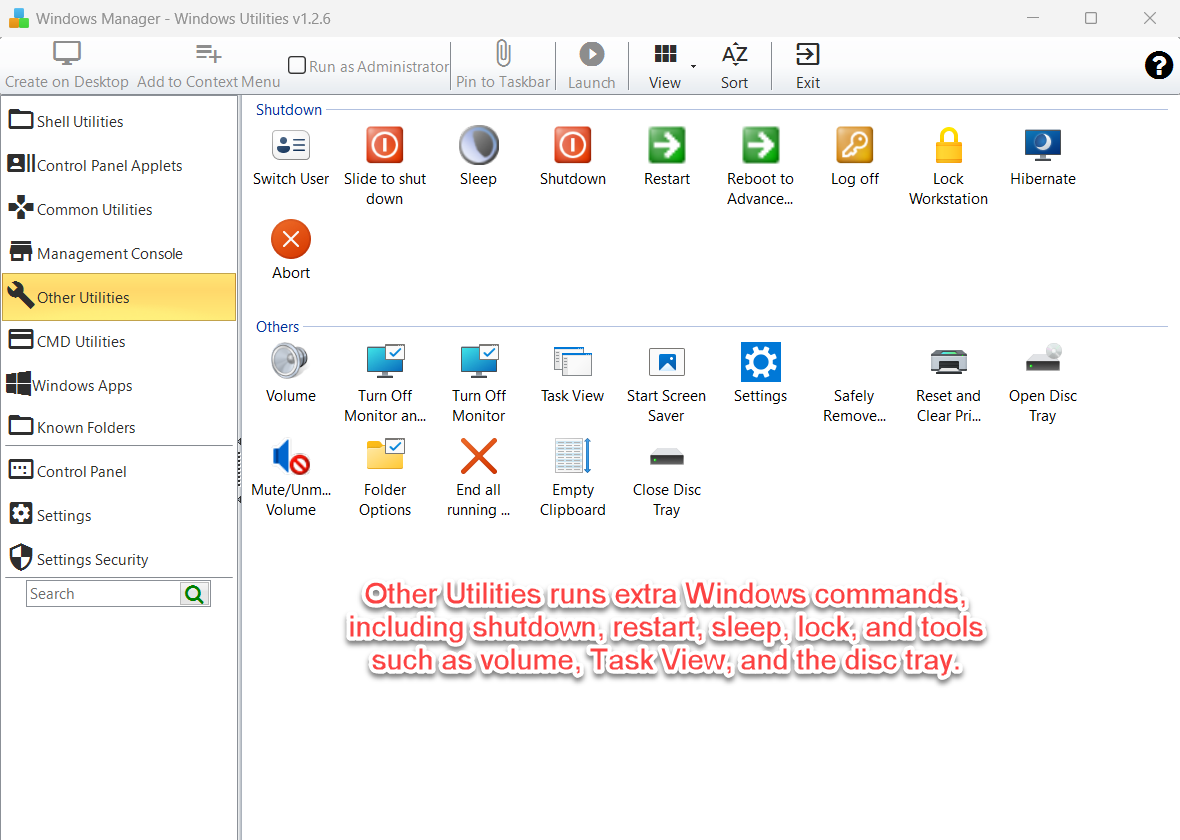
Power commands act as soon as you launch them. Shut down, restart, sleep, hibernate, and log off do not ask for a second confirmation inside Windows Utilities. Abort cancels a shutdown or restart that is still waiting. End all running programs closes programs that belong to the current user. Use it only when you intend to stop that work.
Open Disc Tray and Close Disc Tray control an optical drive when the computer has one. Clear Print Spooler stops the print spooler, deletes queued printer files, and starts the spooler again. Windows asks for administrator permission before that command runs.
6. CMD Utilities
CMD Utilities opens command-line tools in a Command Prompt window, including system, file, disk, and network commands.
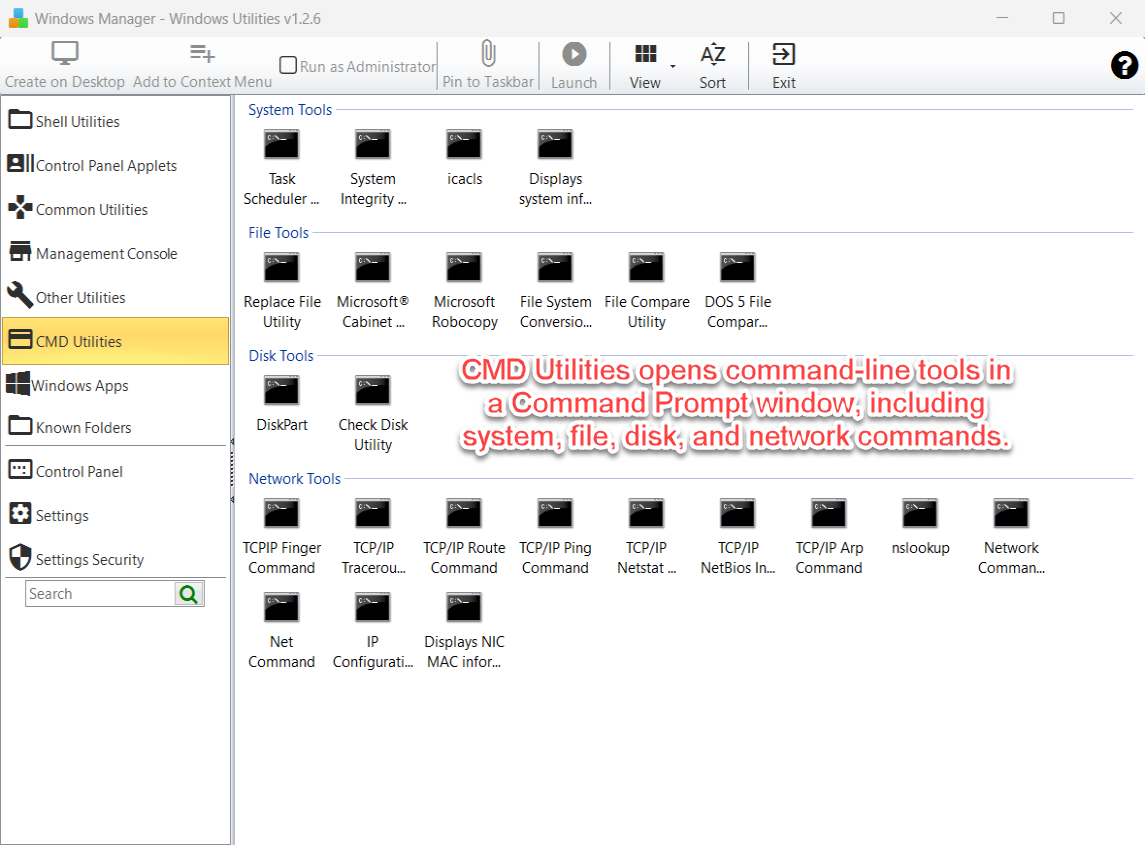
Each item runs in cmd.exe /k, so the window stays open and you can read the result. Commands that end with /?, such as robocopy.exe /? or netstat.exe /?, print help instead of changing anything. System File Checker (sfc.exe /scannow) and Check Disk need an administrator Command Prompt. Turn on Run as Administrator before you launch those items.
7. Known Folders
Known Folders opens special Windows folders, including Desktop, Documents, Downloads, Start Menu, Pictures, and Music.
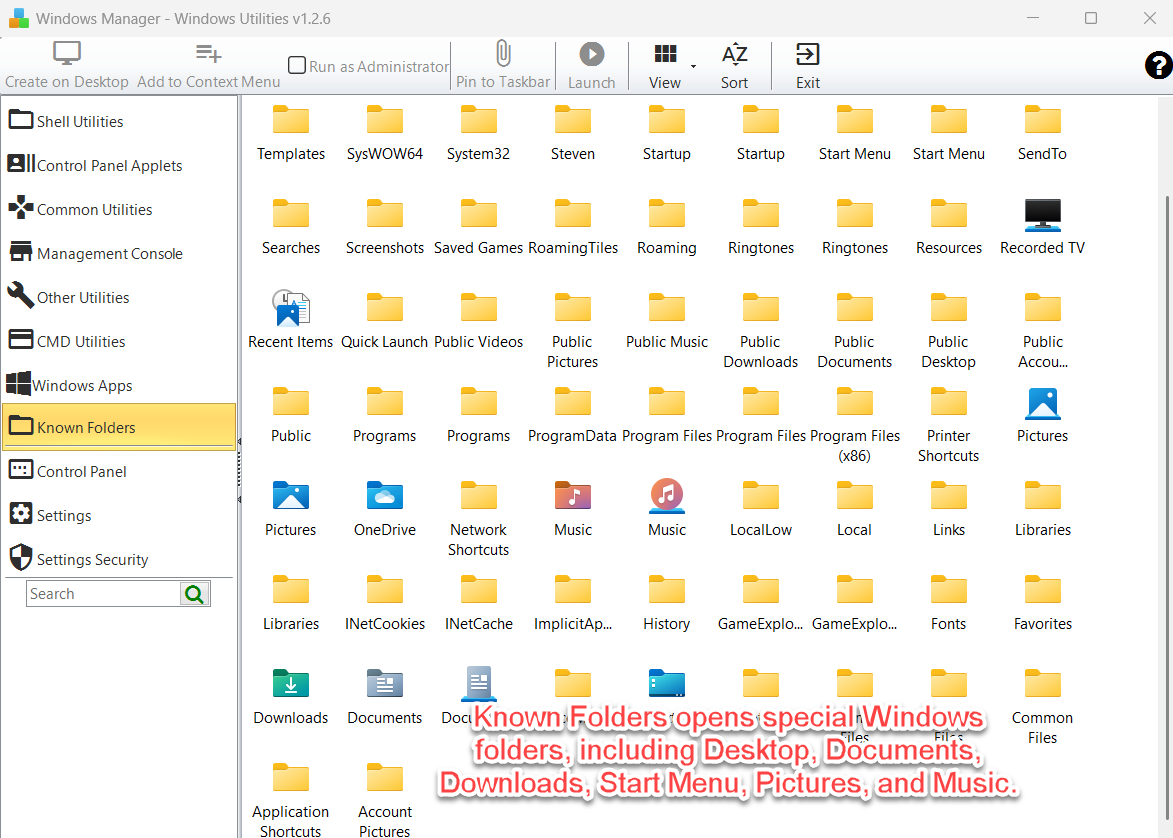
Launch opens the folder in File Explorer. The list includes both the current user's folders and shared folders such as the Public desktop and the Start Menu for all users. Creating a desktop shortcut here points at the folder, which is useful for locations that are awkward to find, such as Startup or SendTo.
8. Toolbar
Select an item first. The toolbar then applies to that item.
- Create on Desktop creates a shortcut on the current user's desktop. If Run as Administrator is checked, the shortcut is marked to run elevated and shows the User Account Control shield.
- Add to Context Menu adds a command at the bottom of the menu that appears when you right-click the empty background of a folder window or the empty desktop. It does not appear when you right-click a file or a folder icon. The command is stored under
HKEY_CLASSES_ROOT\Directory\Background\Shell, so Windows may ask for administrator permission. - Pin to Taskbar pins the selected item to the taskbar. Pin to Start pins it to Start. Pin to Start is hidden on Windows 11, because pinning to Start is not reliable there.
- Launch opens the selected item. Double-click does the same.
- View switches Large Icon, Small Icon, and List. Sort changes the order of the current page. The search box filters the current page by name.
- Exit closes Windows Utilities.
Four buttons on the left open other places and do not replace the current page:
- Windows Apps opens Windows Apps Uninstaller.
- Control Panel opens the classic Control Panel.
- Settings opens Windows Settings.
- Settings Security opens Settings Security in Windows Manager.
9. Notes
- Create on Desktop, Add to Context Menu, Pin, and Launch all need a selected item. If nothing is selected, nothing is created.
- The context-menu command is only for the folder background and the desktop background. To edit other right-click menus, use Context Menu Manager.
- Shutdown, restart, sleep, hibernate, log off, and ending running programs take effect immediately. Read the item name before you launch it. Use Abort only for a shutdown or restart that has not finished yet.
- Registry Editor, Group Policy, System File Checker, and clearing the print spooler can change the system. Run them only when you know the result you want.
- A known folder that has been redirected, for example Documents moved to another drive, opens at its current location.
- Search looks at the page you are on. Switch pages if the item you want is in another group.
10. How to use it
Open a Windows tool
- Open Windows Utilities from Windows Manager.
- Choose Shell Utilities, Control Panel Applets, Common Utilities, Management Console, Other Utilities, CMD Utilities, or Known Folders.
- Type part of the name in the search box if the list is long.
- Double-click the item, or select it and click Launch.
Keep an item one click away
- Select the item.
- Leave Run as Administrator unchecked unless the tool must be elevated.
- Click Create on Desktop for a desktop shortcut, or Add to Context Menu for the folder background and desktop menu.
- Confirm the shortcut or the new menu command before you rely on it.
Try it
Windows Utilities is the index for tools that already ship with Windows. To remove Microsoft Store apps, use Windows Apps Uninstaller. To clean right-click menus, use Context Menu Manager. The rest of Windows Manager is on the product page.
Get started: Download Windows Manager, open Windows Utilities, and launch the tool you need from one list.
