A replaced network card, an old USB disk, or a printer that is no longer attached can leave a device record in Windows. That record can block a new device from using the same address, and it still appears when you show hidden devices.
Device Manager in Windows Manager lists the devices on this PC, shows which ones are hidden, and lets you restart, disable, or uninstall them. It also exports third-party drivers before a clean install and keeps a history of USB storage devices.
1. What can Device Manager do?
- List devices by class. See every device, only present devices, or only hidden devices.
- Work on the selected device. Restart it, disable or enable it, uninstall it, and read its properties.
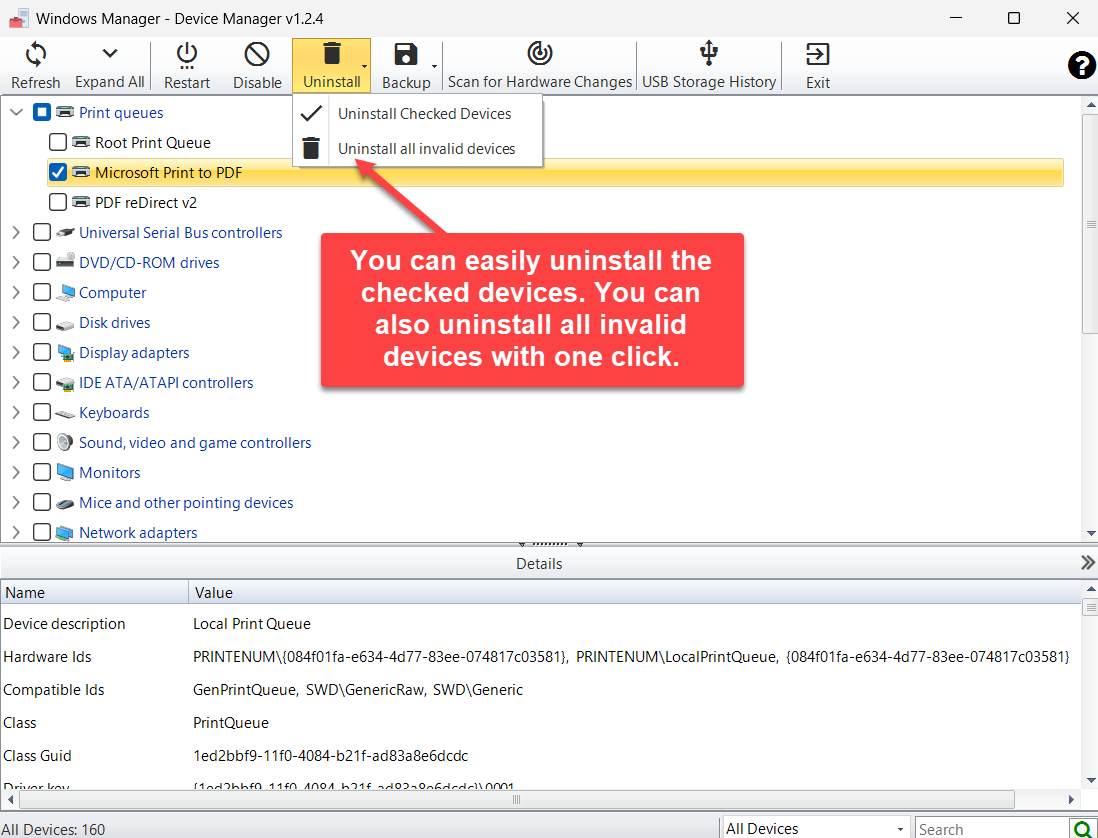
- Remove leftover devices. Uninstall the devices you checked, or uninstall all invalid devices in one step.
- Scan for hardware changes. Ask Windows to detect hardware again.
- Back up third-party drivers. Export every third-party driver package, then restore those packages to matching devices.
- Review USB storage history. See devices that are connected now or were connected before, including the drive letter and plug-in dates.
2. Read the device list
Devices are grouped by class, such as Disk drives, Display adapters, and Print queues. Use Expand All to open or close every group. The status bar shows how many devices are visible. The list on the right filters the view:
- All Devices: present devices and hidden devices.
- Hidden Devices: devices that are not present.
- Present Devices: hardware that is on the computer now. Uninstall all invalid devices is unavailable in this view.
Type in Search to show only matching names. Click a class name to expand or collapse its devices.
3. Restart, disable, or inspect one device
Select a device in the tree. You can restart it, disable it, or uninstall it. The Details pane lists properties such as the device description, hardware IDs, class, and driver key. Right-click a detail row to copy the selected line or every line.
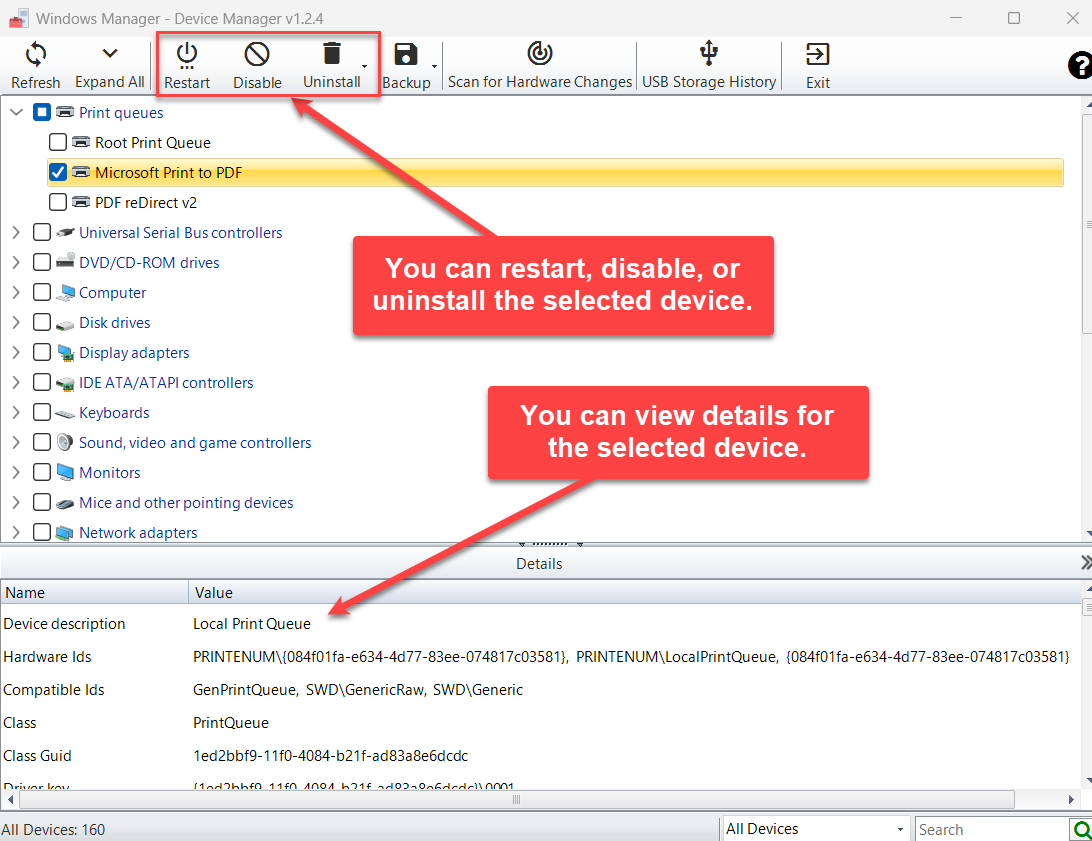
Disable changes to Enable when the selected device is already disabled. A disabled device is shown in red. Restart, disable, and enable apply to the selected device, not to every checked box.
5. Back up and restore third-party drivers
Before a clean install, export the drivers Windows will not bring back by itself. Backup → Backup Drivers runs pnputil /export-driver * and writes every third-party driver package from the driver store into the folder you choose.
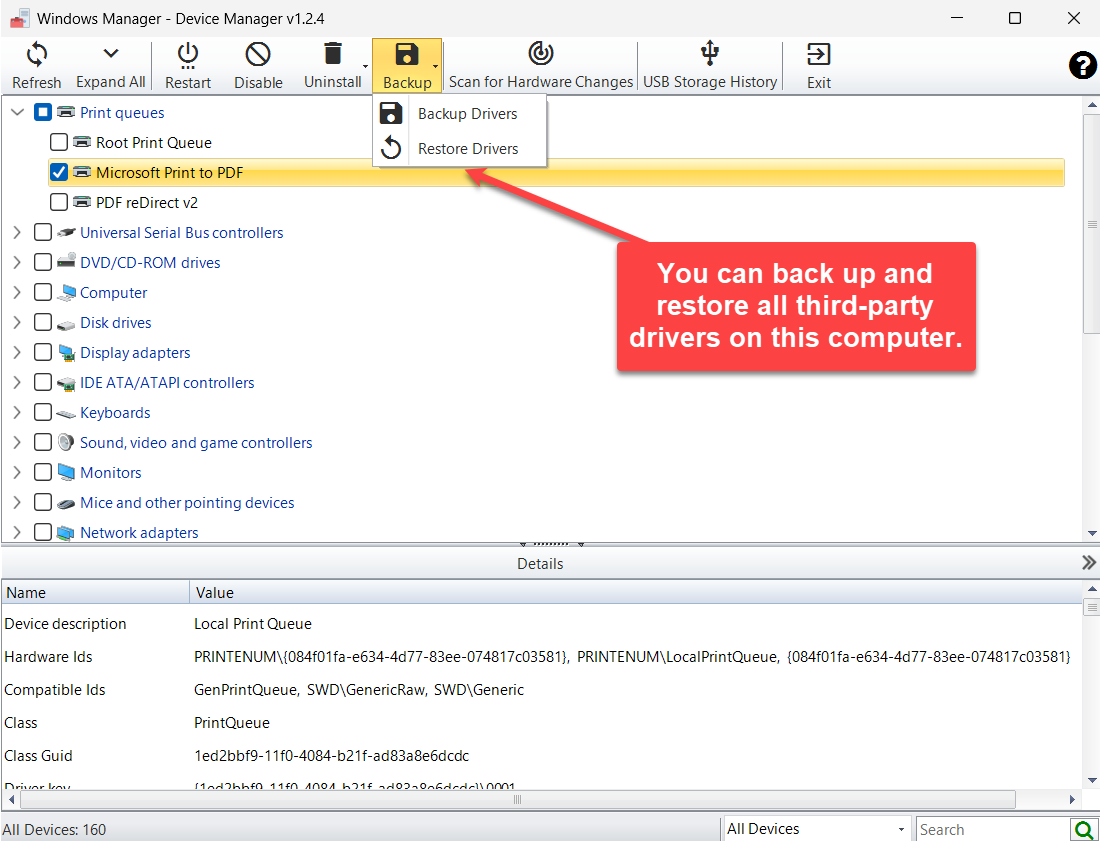
Restore Drivers runs pnputil /add-driver on the INF files in the folder you select, including subfolders, and installs them onto matching devices. Windows inbox drivers are not part of this backup. After a clean install, Windows supplies those itself.
Scan for Hardware Changes tells Windows to look for hardware again, then refreshes the list.
6. USB storage history
USB Storage History lists USB storage devices that are connected now or were connected before. Columns include the name, drive letter, connection state, installation date, last plugged-in date, last unplugged date, and device instance path.
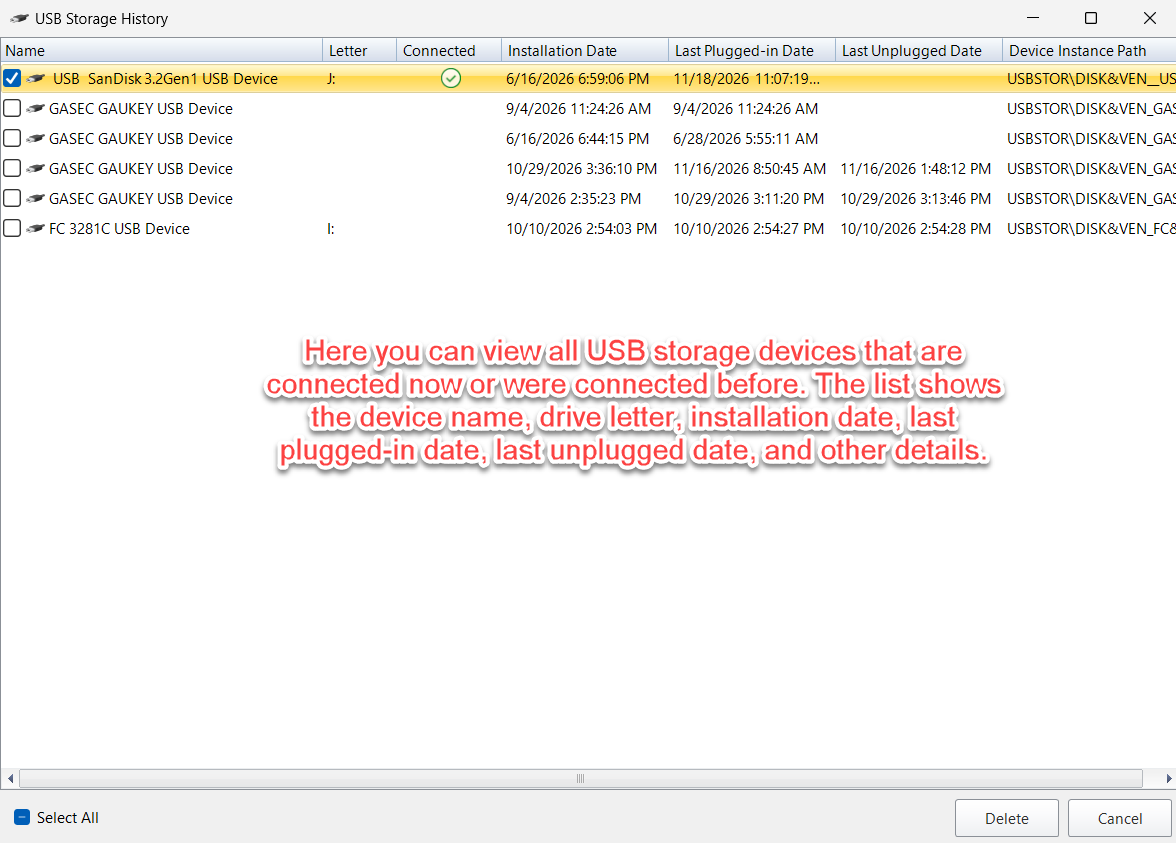
A letter appears when Windows still has that volume assigned in Mounted Devices. Check the rows you want to remove, then click Delete. That uninstalls those USB storage records.
7. Important notes
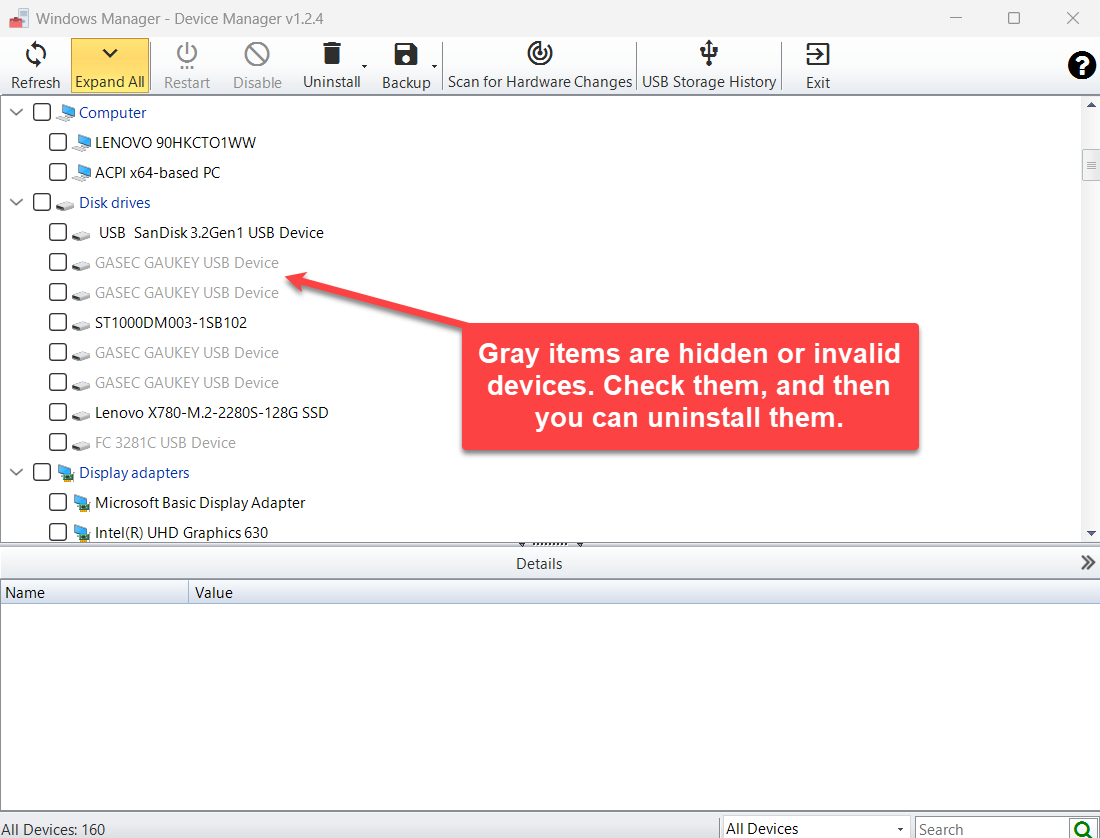
- Gray and red are not the same. Gray means hidden or invalid: the device is not present. Red means the device is present and disabled.
- Uninstall all invalid devices removes gray items only. A checked device that is still present is left in place.
- Think before you delete a gray USB device you still own. The record is only a leftover. Plugging the device in later lets Windows install it again.
- The driver backup is third-party only. Do not expect the folder to contain every inbox driver from Windows.
- Read the command window during backup and restore. pnputil prints which packages were exported or installed. A restore can finish with a notice even when some packages were already present.
8. FAQ
What do gray devices mean?
They are hidden devices. The hardware is not present, but the device record remains. This program treats that same set as invalid devices.
Can I delete them?
Yes. Check them and use Uninstall Checked Devices, or use Uninstall all invalid devices. The command removes the record, the same way Uninstall works on a hidden device in Windows Device Manager.
Does backup include every driver?
It includes every third-party driver package in the driver store. Drivers that come with Windows are not exported.
Where is the drive letter in USB Storage History?
The letter is read from Mounted Devices and matched to the USBSTOR device instance. A device with no assigned letter stays blank.
Try it now
Device Manager is the place to see what is connected, clear hidden device records, and keep third-party drivers before you reinstall Windows. For installed programs, use Smart Uninstaller. For a hardware summary, use System Information.
Get started: Download Windows Manager, open Device Manager, and review the gray items before you uninstall them.
