When Windows or a program fails, the detail is usually already in the event log: a service that stopped, a disk warning, a driver that did not load, or an application crash. The built-in Event Viewer (eventvwr.msc) shows every record, but the same error is often repeated dozens of times, and the view you need is buried under Information events.
Event Viewer in Windows Manager reads the logs on this computer and keeps the query small. The window subtitle is “View and analyze system error logs for troubleshooting”. It opens on the System log, the last 7 days, and only Critical and Error. Identical event IDs are grouped, each row can be searched on the web, and the current result can be saved as a CSV file.
Hover the ? at the right of the title bar for that short description. Click Online Help under the tip to open this page.
1. What can Event Viewer do?
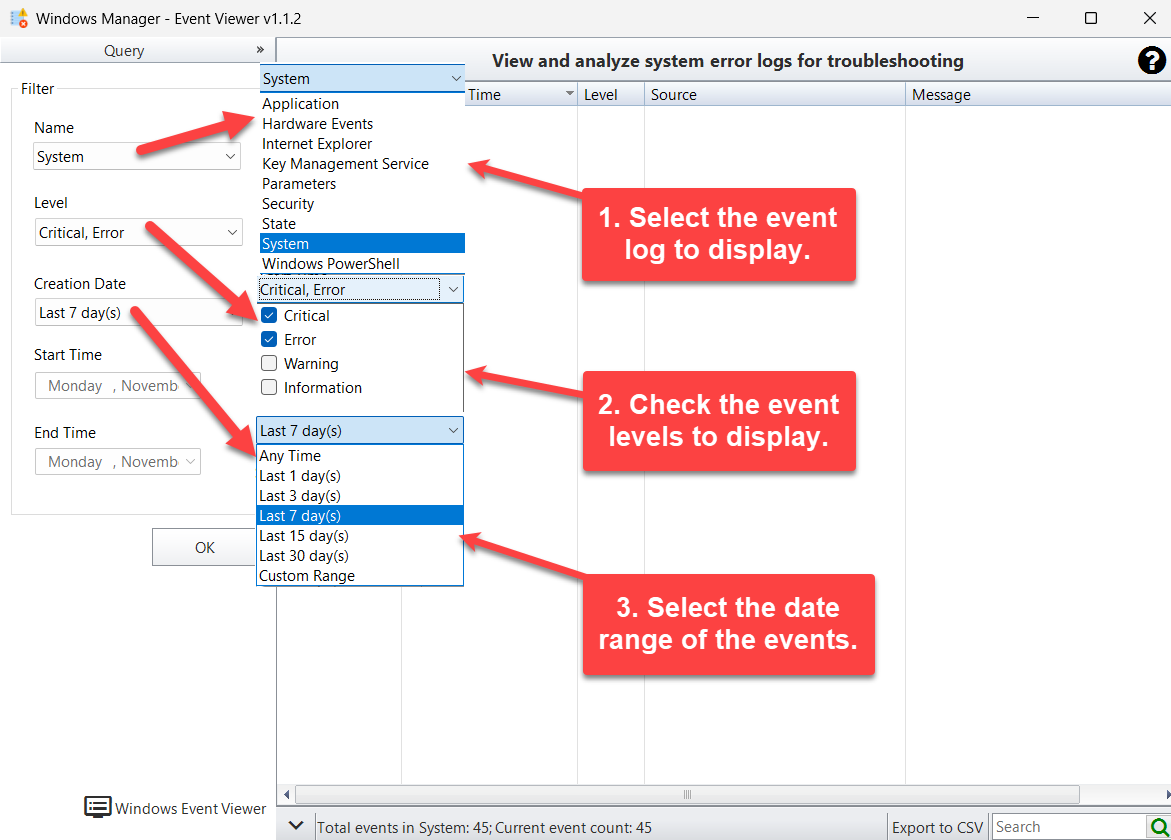
- Choose a log. The Name list is the event logs on this PC, such as Application, System, Security, Hardware Events and Windows PowerShell. System is selected the first time.
- Filter by level. Critical, Error, Warning and Information. Critical and Error are checked by default.
- Filter by date. Any Time, the last 1, 3, 7, 15 or 30 days, or a custom start and end date. The default is the last 7 days.
- Group the same event ID. Repeats of one ID sit under a single parent, newest first, so one failure is not a long list of copies.
- Search the error text. Search the Internet looks up the event message. The search box on the status bar filters the rows already loaded.
- Export to CSV. ID, creation time, level, source and message are written for every event row in the current query.
- Open the Windows tool. Windows Event Viewer starts
eventvwr.mscwhen you need the full Microsoft console.
The program only reads logs. It does not clear them. For a service named in the Source column, continue in Service Manager. For a process that is still running, use Process Manager.
2. How to open Event Viewer
In the Windows Manager main window, open:
Information → Event Viewer
The button text is “View and analyze system error logs for troubleshooting”. The window title is “Windows Manager - Event Viewer” plus the version. The program asks for administrator rights, which is required to read logs such as Security. Download a trial from the download page if Windows Manager is not installed.
The same Information page also opens System Information, Hardware Monitor and Process Manager. Use those when the log points at hardware, a disk, or a process rather than at a single event ID.
3. Filter the log
The left panel is titled Query. It is collapsed after the first automatic query. Click the Query bar to open Filter, change the conditions, then click OK. OK runs the query and collapses the panel again. Clicking the event list also collapses it.
Name
Name is the log, not the event name. The list comes from the logs registered on this computer. System is the usual place for service, driver and disk errors. Application holds crashes and messages from installed programs. Security holds audit events and is often very large. Other logs appear when Windows or a program has created them, for example Hardware Events or Windows PowerShell.
Level
- Critical — a failure that stopped a major function. Checked by default.
- Error — a significant problem, such as a service that terminated. Checked by default.
- Warning — a condition that is not a failure yet. Unchecked by default.
- Information — normal activity. Unchecked by default, and often the largest part of a log.
If every level is unchecked, the list is cleared. The status bar then shows a total of 0 and a current event count of 0.
Creation Date
The choices are Any Time, Last 1 day(s), Last 3 day(s), Last 7 day(s), Last 15 day(s), Last 30 day(s) and Custom Range. A “last N days” range includes today and goes back N days. Dates are compared in local time.
Custom Range enables Start Time and End Time. Only the date is used, not the clock time. If the start date is after the end date, the query does not run and a notice says “The start date cannot be later than the end date.”
While the log is read, a wait window is shown. A large log with Any Time, or the Security log with Information checked, can take longer. Prefer a short date range and only the levels you need.
4. Grouped event list
Events that share an ID are placed under one parent row. The parent shows the ID. Each child is one event, with these columns:
- ID — the event identifier.
- Creation Time — local date and time. The column sorts newest first.
- Level — Critical, Error, Warning or Information, with the matching system icon.
- Source — the provider, such as Service Control Manager or Microsoft-Windows-DistributedCOM.
- Message — the formatted description. If the message file is missing, the event is still listed and this cell is blank.
Grouping uses the ID only. Two sources that happen to use the same number share one group. The button in the middle of the status bar expands every group or collapses them. Column widths and the window size are remembered.
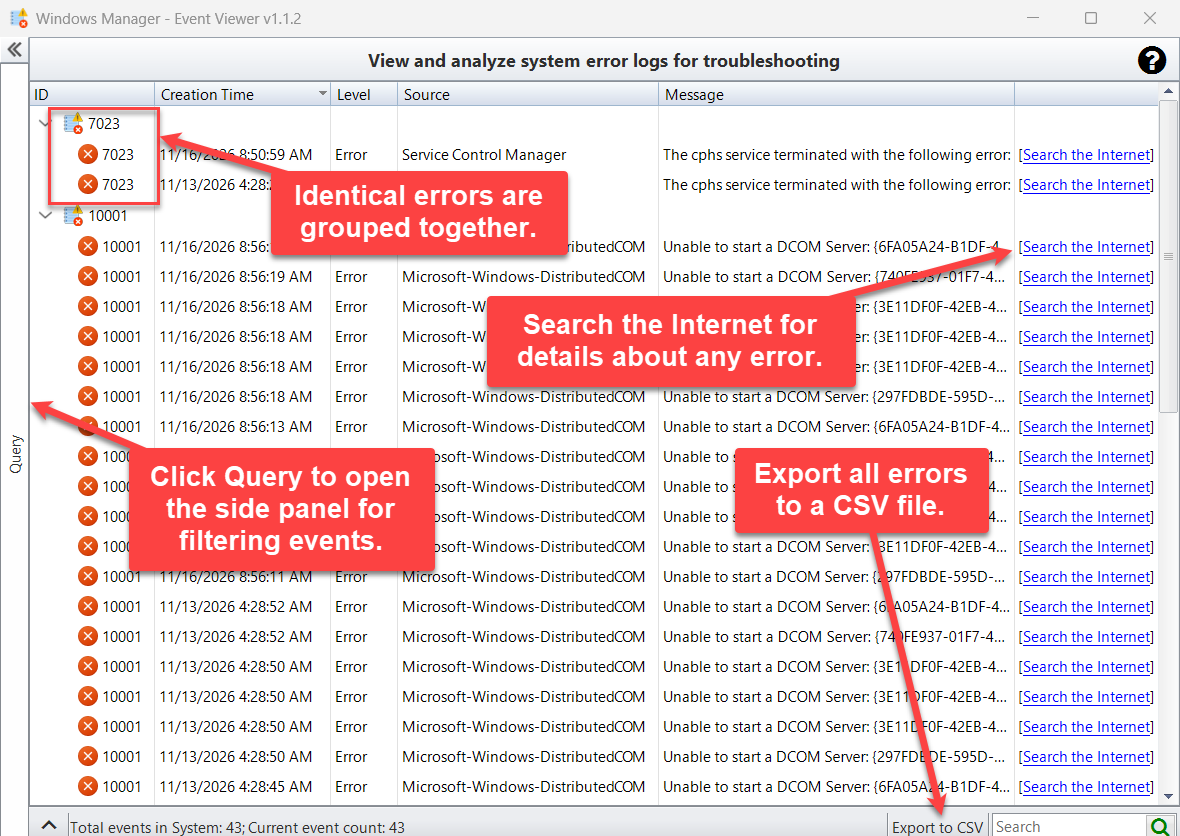
The status bar reports two numbers, for example “Total events in System: 43; Current event count: 43”. Total events is how many records matched the log, level and date. Current event count is how many event rows are under the groups. They normally match.
5. Search the Internet
Each event row ends with Search the Internet. The link sends the message text to a web search, limited to the first 180 characters. A blank message does nothing, so a row whose description could not be loaded has no useful search.
The message can contain a computer name, a user name, a file path or a service name. Read it before you search if the PC holds information you do not want to send to a search engine. Searching the event ID together with the source, for example “7023 Service Control Manager”, is often enough to identify a known failure.
6. Search the list
The Search box on the right of the status bar filters the rows already loaded. Matching is not case-sensitive and uses the visible columns: ID, time, level, source and message. The number of matches appears on the search button.
A group stays visible, shown unavailable, when the ID itself does not match but a child event does. Clear the box to show every row again. This search does not read the log a second time, and it does not change the status-bar totals.
7. Export to CSV
Click Export to CSV on the status bar. If the query returned no event rows, the program says “There are no events to export.” Otherwise you choose a file. The suggested name looks like EventViewer_System_20261118_091500.csv, using the log name and the current local time.
The file is UTF-8 with a byte order mark, so Excel can open non-English text. The header is ID, Creation Time, Level, Source, Message. Only child event rows are written. The group parent is not a data row. Values that contain a comma or a line break are quoted. A message that starts with =, +, - or @ gets a leading apostrophe so Excel does not treat it as a formula.
The status bar shows “Exporting, please wait...” and then “Exported” with the file path. You are asked “Export completed. Open the CSV file now?” The export follows the current query, not the search box: rows hidden by Search are still included.
8. Windows Event Viewer
Windows Event Viewer at the bottom of the Query panel starts eventvwr.msc from the Windows system folder. Use it when you need to clear a log, open a log on another computer, create a custom view, or read the XML details of one event. Those actions are outside this program.
9. Notes
- Read-only. Nothing in this window deletes an event or clears a log. Filtering only changes what is displayed.
- This computer only. The log list is the local machine. There is no remote computer field.
- Administrator rights. The program runs elevated so protected logs can be read. If a log still cannot be opened, the error text is shown and the previous list is left as it was.
- Default view is intentionally narrow. System, last 7 days, Critical and Error. Switch to Application, or check Warning, when the failure you want is not in that set.
- Information is noisy. Checking Information on Any Time can load a very large log. Narrow the date first.
- Same ID, different meaning. Groups are by ID alone. Confirm the Source before you treat every child as the same problem.
- Missing message. A blank Message means Windows could not format the description. The event is still real. Open Windows Event Viewer if you need the raw XML.
- Search sends text off the PC. Use Search the Internet only for messages you are willing to submit to a search engine.
- CSV is the query, not the search filter. Clear Search first if you want the file to match exactly what you see.
- A log entry is a clue, not a fix. A Service Control Manager error names a service. Check that service in Service Manager before you disable anything. Disk and hardware warnings belong with Hardware Monitor and System Information.
10. Typical workflow
Find a repeated error after a crash or a slow boot
- Open Information → Event Viewer. Wait for the first query: System, Critical and Error, last 7 days.
- Expand the largest group. Read the Source and the Message, not only the ID.
- Click Search the Internet on one row, or search the ID plus the source yourself.
- If the source is a service, open Service Manager and look up that service. Do not disable a service only because its name appears in a log.
- Click Export to CSV if you want to keep the list or send it to someone who is helping you.
Look at application crashes for a date you choose
- Open Query. Set Name to Application.
- Leave Critical and Error checked. Add Warning only if Error shows nothing useful.
- Choose Custom Range, set Start Time and End Time to the day of the problem, and click OK.
- Use the status-bar search to type a program name from the Message column.
11. FAQ
Does Event Viewer delete or clear Windows logs?
No. Event Viewer in Windows Manager only reads the local event log. It does not clear a log, delete an event, or change audit policy. Use Windows Event Viewer (eventvwr.msc) if you need to clear a log.
Why do I only see Critical and Error events?
The first query uses the System log, the last 7 days, and only the Critical and Error levels. Warning and Information are unchecked. Open Query, check the levels you want, and click OK.
How do I export the Windows event log to CSV?
Filter the list, then click Export to CSV on the status bar. The file contains the ID, creation time, level, source and message of every event row in the current query. The search box does not remove rows from the export.
What is the difference between this tool and Windows Event Viewer?
This tool groups the same event ID, filters by level and date, and exports the current query to CSV. The Windows Event Viewer button opens eventvwr.msc, which can clear logs, attach to another computer, and show the full XML of an event.
Try it now
Event Viewer sits on the Information page of Windows Manager, next to System Information, Hardware Monitor and Process Manager. When an event names a service, follow it in Service Manager. More tools are on the product page.
Get started: Download Windows Manager — open Information → Event Viewer, read the grouped System errors from the last 7 days, then export the list if you need to keep it.
