Checking a connection usually means opening several command windows: one for the path, one for the owner of a domain, one for DNS, and another to see which addresses answer. Network Tools in Windows Manager keeps those checks in one window.
The left side has six pages: Trace Route, Whois, DNS Lookup, IP Scanner, Port Scan and Windows Utilities. The first five run inside this window. Windows Utilities opens the separate Windows Utilities program.
On each of the first five pages, hover the ? for a short tip. Online Help under that tip opens this article.
1. What can Network Tools do?
- Trace the path to a host. Each hop shows three round-trip times, the router, and a location when both a country and a city are known.
- Read a Whois record. The query goes to whois.internic.net, whois.ripe.net or whois.arin.net, and the reply is shown as text.
- Look up DNS records. Choose a public DNS server or the Windows DNS settings, then a record type. The default type is ANY.
- Ping an address range. Addresses that answer are listed with the host name, the round-trip time, TTL and status.
- Find open TCP ports. Type one port, several ports, or a range. Open ports are listed, and Query opens the IANA service-name page for that port.
- Save the table. Trace Route, DNS Lookup, IP Scanner and Port Scan can export the result to an HTML file.
It does not draw a live speed chart. For received and sent speed on one adapter, use Network Monitor. For a saved IP address, gateway and DNS, use IP Switcher. For wireless profiles, use Wi-Fi Manager.
2. How to open Network Tools
In the Windows Manager main window:
Network → Network Tools
The button description reads “Collection of useful essential network tools and utilities”. The window caption is “Windows Manager - Network Tools” plus the version. Download a trial from the download page if you do not have it yet.
Start stays disabled until the page has the text it needs: a host on Trace Route, Whois and DNS Lookup, or both ends of the range on IP Scanner and Port Scan. Port Scan also needs a port list. While a check is running, the other pages are disabled. Start changes to Stop on Trace Route, IP Scanner and Port Scan so you can cancel.
3. Trace Route
Type a host name or an IP address. The box watermark is “Host or IP address”. Click Start. Network Tools runs Windows tracert.exe and fills the table as each line arrives. A notice says “Running trace route. This may take 1-3 minutes to complete.”
The columns are Hop, RTT1, RTT2, RTT3, Router and Location. Each hop is probed three times. A star means that probe did not answer. Request timed out. means all three probes timed out.
Location is written as country, two hyphens, then city, for example Japan--Tokyo or Czechia--Prague. It appears only when the router line contains an IP address and the lookup returns both a country and a city. Hover a filled row to see the address type, country, capital, region, city, postal code, ISP, organization, domain, time zone and coordinates.
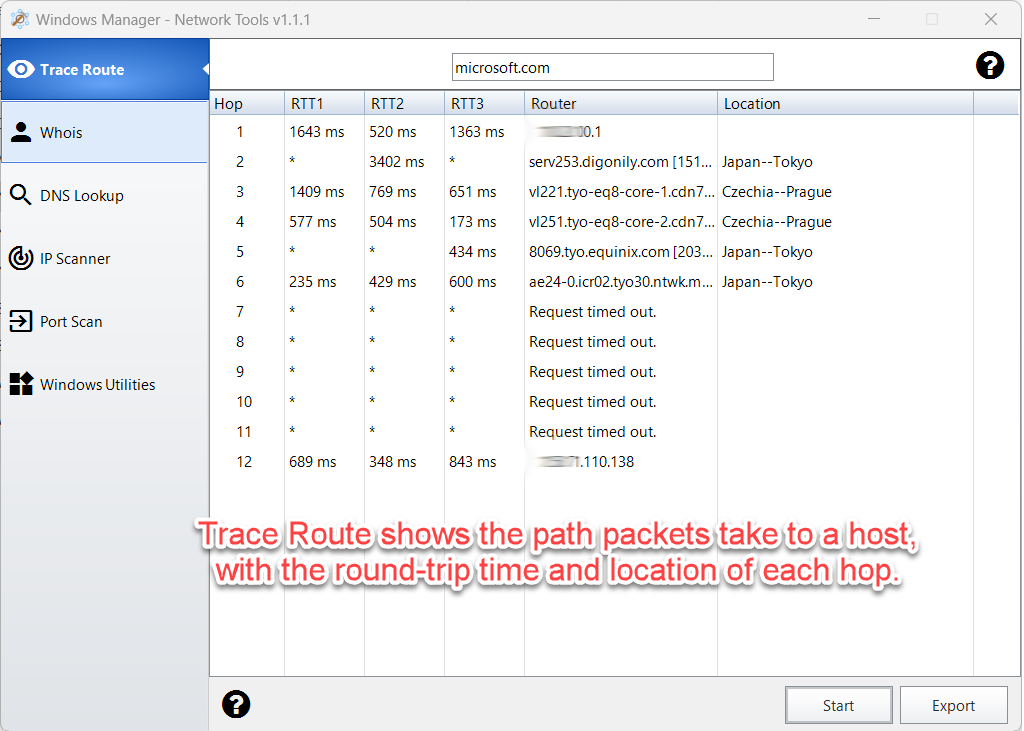
Click Stop to end the trace. Export is available after at least one hop is listed. The HTML file is named from TraceRouter and the time you save it. The Location column is left out of the table. When a row has extra details, those details are written in a Details column instead.
4. Whois
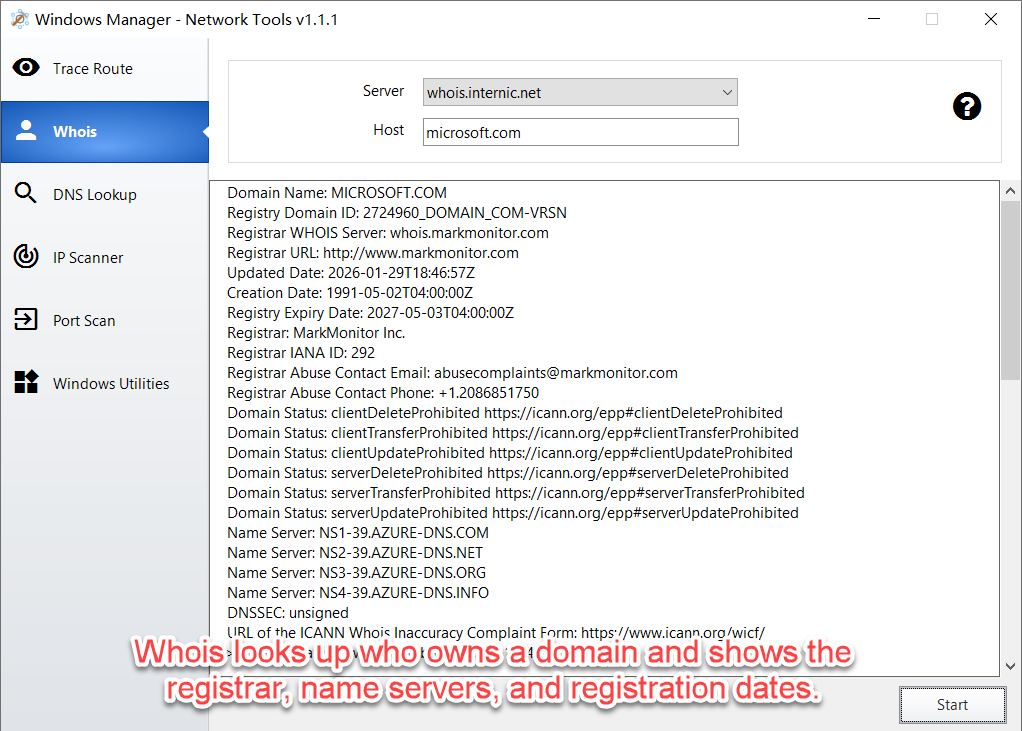
Whois identifies who owns a domain and how to contact them. Choose a Server, type the Host, and click Start. The servers are:
- whois.internic.net — selected by default. Use it for .com and other domains that Internic lists.
- whois.ripe.net — for addresses and domains recorded at RIPE.
- whois.arin.net — for addresses and domains recorded at ARIN.
The query is sent to port 43. The reply, including registrar, dates, name servers and status, is shown in the text box below. A server that does not hold the record may return a short referral instead of the full record. Try the server that covers that domain or address.
5. DNS Lookup
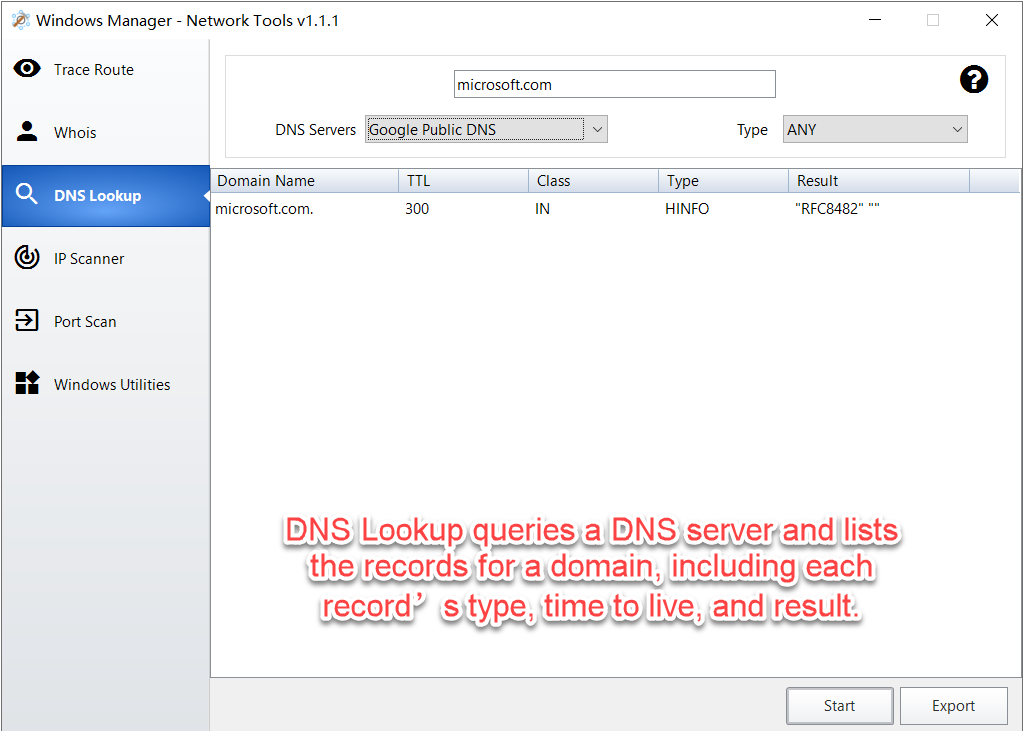
Type a host name or an IP address, choose DNS Servers and Type, then click Start. The server list is:
- Google Public DNS — 8.8.8.8 and 8.8.4.4
- DNS.Watch — 84.200.69.80 and 84.200.70.40
- Cloudflare — 1.1.1.1 and 1.0.0.1
- Level3 — 209.244.0.3 and 209.244.0.4
- Verisign — 64.6.64.6 and 64.6.65.6
- Windows DNS Settings — the DNS servers configured in Windows
Type lists the DNS record types, and ANY is selected at first. The table columns are Domain Name, TTL, Class, Type and Result. The rows are the records that server returned. If the query fails, the error is shown in a message.
6. IP Scanner
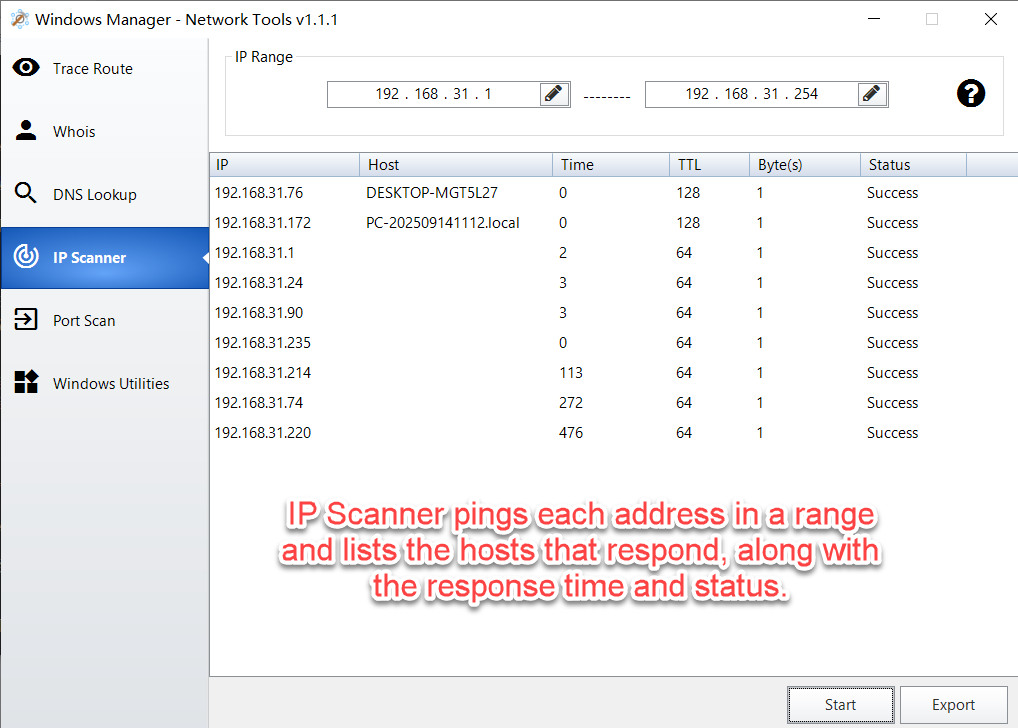
Set the start and end of the IP Range, then click Start. If the start address is higher than the end address, the two are swapped. Changing the start address also copies that address into the end box, so set the end address after the start address.
Each address is pinged, with a wait of up to five seconds. Only addresses that answer are added. The columns are IP, Host, Time, TTL, Byte(s) and Status. Status is Success. Host is the name returned by a reverse lookup, or blank when there is no name. Time is the round-trip time in milliseconds. A progress count shows how many addresses have been tried.
A range larger than 65,536 addresses is refused with “The scan range is too large. Narrow it and try again.” Click Stop to cancel a scan that is still running.
7. Port Scan
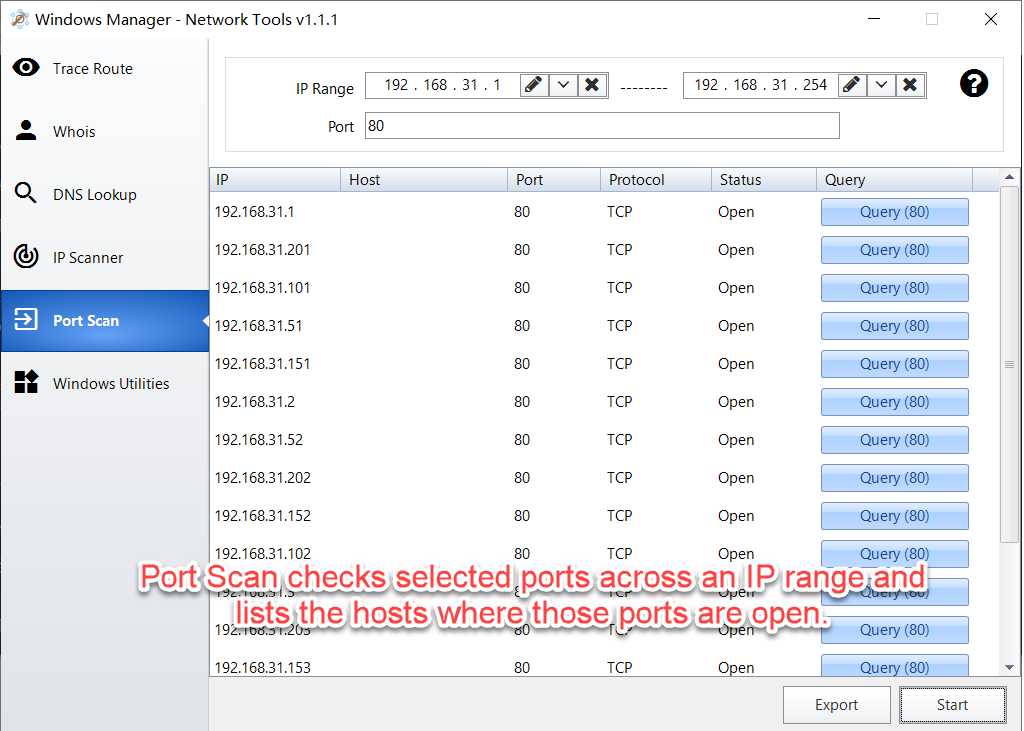
Set an IP range and a Port list, then click Start. The watermark shows the format: 22;80;100-999;8080. Separate ports with a semicolon. A hyphen marks a range, and a reversed range such as 90-80 is put in order. The same start-address rule as IP Scanner applies: set the end address after the start address.
Each check is a TCP connection with a wait of up to four seconds. A row is added only when the port is open. The columns are IP, Host, Port, Protocol, Status and Query. Protocol is TCP and status is Open. Query opens the IANA service-name list for that port number.
The number of addresses multiplied by the number of ports cannot be more than 100,000. A larger job shows the same “scan range is too large” message. Closed ports are not listed, and UDP is not scanned.
8. Windows Utilities
The last page does not run a check inside Network Tools. Selecting Windows Utilities starts windowsutilities.exe from the Windows Manager folder. That window is the catalog of Windows tools, including network tools such as Remote Desktop and Quick Assist. How to use it is in the Windows Utilities guide.
9. Export and history
Export on Trace Route, DNS Lookup, IP Scanner and Port Scan asks where to save an HTML file. The suggested name includes the tool and the date and time. After the file is written, Network Tools asks “Export completed. Open the HTML file now?” Whois has no Export button. The reply stays in the text box.
Host boxes and IP boxes keep previous entries in the drop-down list. The clear button on a box asks “Are you sure you want to delete the history?” Choosing Yes removes that list and shows “The history has been deleted.”
10. Notes
- Scan only networks you are allowed to test. IP Scanner and Port Scan send traffic to every address in the range. Keep the range small.
- A missing location is normal. Timeouts, private addresses and lookups without both a country and a city leave Location empty.
- Whois depends on the server you pick. The three servers do not all hold the same records.
- ANY is not every record. The DNS table is whatever that server returned for the type you chose.
- Silent hosts stay off the IP Scanner list. No ping reply means no row. It does not mean the address is unused.
- Port Scan is TCP only. An open row means a TCP connection succeeded. UDP ports are not tested.
- One check at a time. The other pages stay disabled until the current trace, lookup or scan finishes or you click Stop.
- The ? tip and this page are the same article. Online Help on every page opens this guide.
11. FAQ
Why is the Location column blank on some hops?
Location is filled only when the router line contains an IP address and the lookup returns both a country and a city. A timed-out hop, a private address, or a result that lacks one of those two fields leaves the cell empty. Hover a row that has a location to read the extra details.
Why does DNS Lookup with type ANY show only one record?
The table shows what the selected DNS server returned. Many public servers answer ANY with only some records. Choose a specific type, such as A, AAAA, MX or NS, when you need that record.
Why does IP Scanner miss a device that is online?
Only addresses that answer the ping are listed. A device that blocks ICMP, or that does not reply within five seconds, does not appear. There is no row for a failed ping.
Which ports does Port Scan check, and what does Query do?
It tries a TCP connection to each port in the box. Open ports are listed as TCP. Query opens the IANA service-name page for that port. Closed ports and UDP ports are not listed.
Try it now
Network Tools sits with the other network tools in Windows Manager. Network Monitor watches received and sent speed. IP Switcher applies a saved address, gateway and DNS. Wi-Fi Manager is for saved wireless profiles. More tools are on the product page.
Get started: Download Windows Manager — open Network → Network Tools, type a host on Trace Route, and read the hop times and location.
