Downloads, Notepad, a work document, a favorite site—things you open every day. Hunting through the Start menu or File Explorer each time is slow and breaks your flow. Windows has plenty of built-in shortcuts, but assigning a custom combo to any file, folder, or program is another matter.
Hotkey Manager in Windows Manager fills that gap: assign global hotkeys to files, folders, Favorites .url links, Start menu items, Windows utilities, or Microsoft Store apps. Once configured, press the combo from almost any app to launch the target.
Note: Hotkeys work only while this program is running (you can minimize it to the system tray). When you exit Hotkey Manager, every registered hotkey is unregistered and stops working. Below we cover the layout, adding and editing entries, options, and backup.
1. What can Hotkey Manager do?
- Custom global hotkeys. Bind Ctrl, Alt, and Shift combinations to frequent targets—they work from the desktop, browser, or other foreground apps.
- Six ways to add targets. Files, folders,
.urllinks, Start menu items, built-in Windows utilities, and UWP apps. - One list to manage them all. See title, key combo, and enabled/disabled status; enable, disable, or remove entries individually.
- Drag and drop. Drop a file or folder onto the list, then record the hotkey in the dialog that appears.
- Backup-friendly. The list is stored in the registry and can be exported or imported as a
.regfile after a reinstall or PC swap.
2. How to open Hotkey Manager
In the Windows Manager main window:
Customization → Hotkey Manager
A separate configuration window opens. If you have not installed the product yet, get the trial from the download page.
3. Main window layout
The window has three main areas:
- Left list: Configured hotkeys with Title, Hotkey, and Status (Enabled / Disabled). Selecting a row fills the edit area at the bottom.
- Right buttons: Six Add actions, plus Enable, Disable, Remove, Remove All, Backup, Restore, and Options.
- Bottom Edit area: Change the selected item's title and hotkey, then click Save. Click the hotkey field to record a new combination.
List items also have a right-click menu (Enable, Disable, Remove) with the same actions as the buttons.
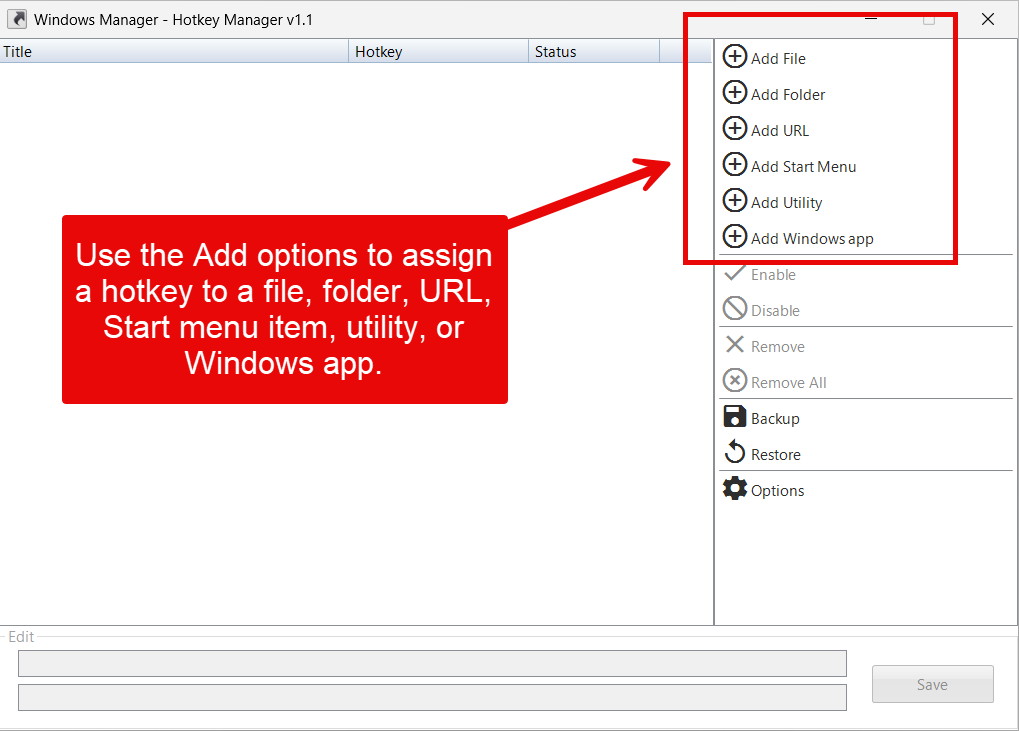
What the six Add buttons do:
- Add File: Pick any executable or shortcut (including
.lnk). - Add Folder: Pick a folder—File Explorer opens when the hotkey fires.
- Add URL: Choose a
.urlshortcut from Favorites; opens in the default browser. - Add Start Menu: Opens Start Menu Manager in selection mode to pick an item.
- Add Utility: Pick a tool from the Windows Utilities list (Registry Editor, Disk Cleanup, etc.).
- Add Windows app: Pick an installed Microsoft Store app.
4. Add hotkeys
4.1 Basic steps
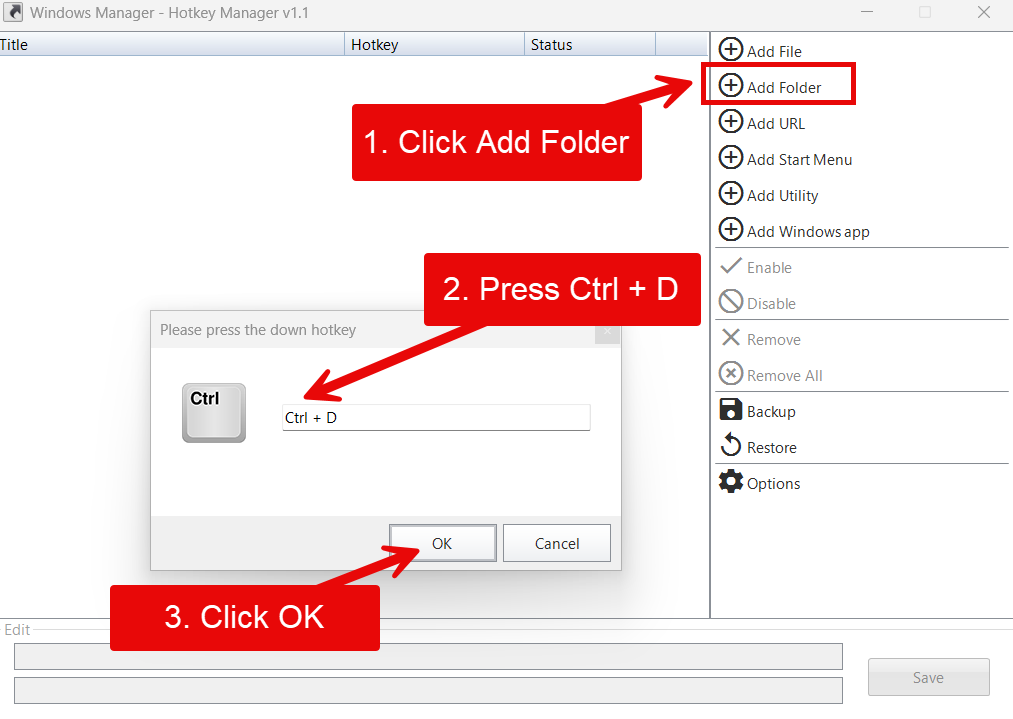
Regardless of which Add button you use, the flow is similar:
- Click the matching Add button on the right (or drag a file or folder onto the list).
- Select the target in the file or folder dialog (some methods open a helper picker first).
- In the Please press down the hotkey dialog, press the combo you want (e.g. Ctrl + D).
- Click OK. The new row appears with status Enabled and the hotkey works immediately.
4.2 While recording a hotkey
- Combinations can include Ctrl, Alt, Shift, plus letters, numbers, and other keys.
- If Windows or another app already uses that combo, registration may fail—try a different one.
- Closing the dialog without pressing a valid combo cancels the add.
4.3 Drag and drop
You can also drag files or folders from File Explorer onto the list; the hotkey dialog appears next. The program supports drag-and-drop from a standard (non-elevated) Explorer window into the elevated Hotkey Manager window.
5. Edit and manage
5.1 Change title or hotkey
- Select the row you want to change.
- Edit Title or click the Hotkey field to record a new combo.
- Click Save. If the hotkey changed and the item is enabled, the program re-registers the new combo automatically.
5.2 Enable, disable, and remove
- Disable: Keeps the row but unregisters the hotkey; the row appears disabled.
- Enable: Re-registers a disabled hotkey.
- Remove / Remove All: Deletes rows and unregisters hotkeys; you are asked to confirm first.
Every add, edit, or delete is saved to the registry automatically and reloads the next time you open the program.
6. Using your hotkeys
With Hotkey Manager still running, press the combo from almost anywhere to open the target:
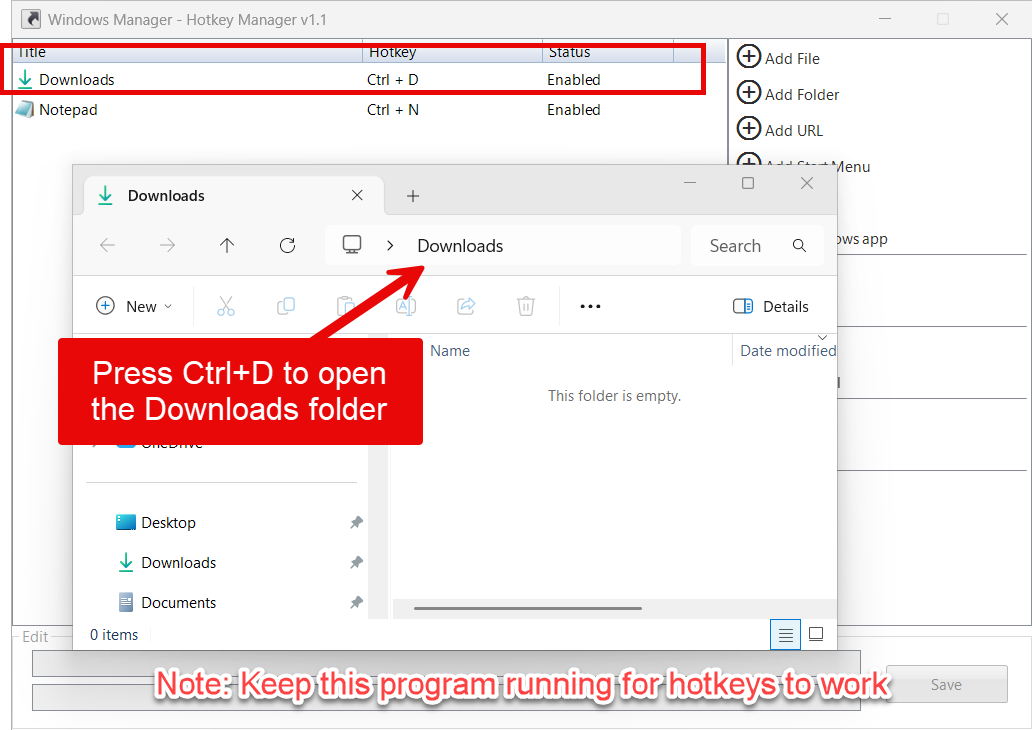
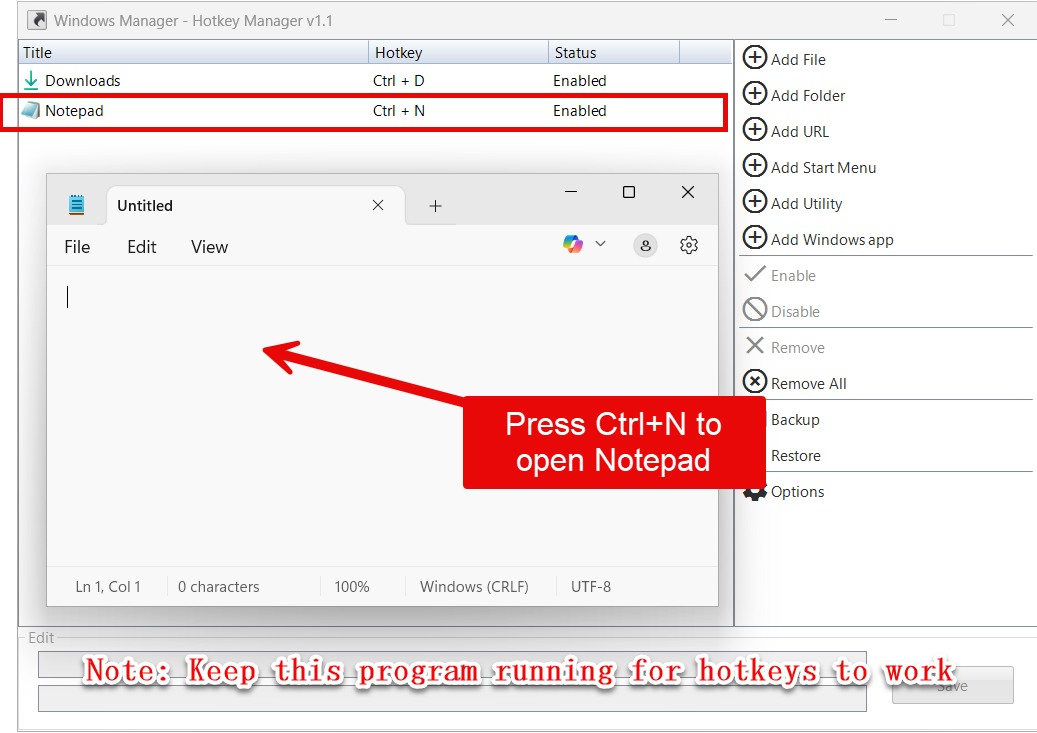
In these examples, Ctrl + D opens Downloads and Ctrl + N opens Notepad. In real use, avoid combos that conflict with Windows or other apps (many programs use Ctrl + N for New).
7. Options
Click Options on the right to open settings. Common choices:
- Start with Windows: Launch Hotkey Manager at logon so hotkeys are available without opening it manually. Pair with minimize-to-tray for a quiet background presence.
- Minimize to system tray when minimizing: Hides the main window and leaves only a notification-area icon. Double-click the icon or right-click and choose Open to restore the window.
- Windows shortcuts: Opens Microsoft's official keyboard-shortcuts page to help you avoid conflicts.
For hotkeys you rely on every day, enable both Start with Windows and Minimize to system tray when minimizing, then minimize instead of exiting.
8. Backup and restore
- Backup: Export the current list to a
.regfile (default name includes the date). After export you can open the folder in File Explorer. - Restore: Import a previously exported
.regfile; the list reloads and enabled hotkeys are registered again.
Back up before replacing your PC or reinstalling Windows so you do not have to recreate every hotkey by hand.
9. Notes
- Keep this program running. Hotkeys are registered to this window's handle; all hotkeys stop working when you exit Hotkey Manager. For long-term use, enable Start with Windows and minimize to the tray instead of closing the app.
- Avoid shortcut conflicts. If a combo is already taken, registration may fail or behave oddly—pick another.
- Tray and window handle. Restoring from the tray is designed to keep hotkeys working; avoid actions that recreate the window handle unexpectedly.
- UWP apps launch through Explorer with special parameters; setup differs slightly from a normal
.exe, but usage is the same. - Start menu / Utility entries open a helper tool inside Windows Manager briefly, then return you to Hotkey Manager when you finish selecting.
10. Workflows
Assign Ctrl + D to Downloads
- Customization → Hotkey Manager → click Add Folder.
- Choose Downloads → press Ctrl + D in the dialog → click OK.
- In Options, enable Start with Windows and Minimize to system tray when minimizing, then minimize the window.
- Press Ctrl + D from anywhere to open Downloads.
Hotkey a favorite program
- Click Add File or Add Utility and pick the program.
- Record a combo that does not clash with the system (e.g. Ctrl + Alt + a letter).
- Disable, edit, or remove entries anytime from the list; changing the title does not affect the hotkey.
Try it now
Hotkey Manager sits alongside JumpList Quick Launcher and Startup Manager under Windows Manager Customization—keyboard combos versus a taskbar right-click launcher. See the product page for more modules.
Get started: Download Windows Manager and open Customization → Hotkey Manager to add your first global hotkey.
