The Bing homepage updates a high-quality landscape or lifestyle photo every day. Many people like it as a desktop wallpaper, but opening the site, saving the image, then setting it under Personalization is tedious and easy to forget.
Bing Images Downloader in Windows Manager puts this in one window: choose a save folder and resolution, download today’s image with one click, optionally set it as the desktop wallpaper, keep or remove the description watermark (font, position, offset), and use the Task menu to create a scheduled task for automatic—or silent—downloads after sign-in.
Below: purpose, operations, and notes that match the UI. The top-right ? shows a short tip; the footer Online Help link opens this article.
1. What can Bing Images Downloader do?
- Download today’s Bing homepage image. Fetch the current Bing picture and save it to a folder you choose.
- Choose resolution. Options such as 800×600, 1024×768, 1280×720, 1366×768, 1920×1080, 1920×1200; the UI also shows your current screen resolution.
- Set as desktop wallpaper. After download, apply it as wallpaper with styles such as Center, Tile, Stretch, Fit, or Fill.
- Manage the description watermark. Remove the caption in the corner, or keep it and customize font, corner position, and X/Y offset.
- Schedule automatic downloads. Create Task opens My Task; Silent Mode reduces prompts when started by Task Scheduler; View Task opens Task Scheduler Manager.
It matches the Bing Images entry in Visual Customizer (which launches this tool). For lock-screen images, use Visual Customizer’s Lock Screen Extractor. For schedules and monitoring, see My Task and Task Scheduler Manager.
2. How to open Bing Images Downloader
In the Windows Manager main window:
Customization → Visual Customizer → Bing Images
This opens the separate window “Windows Manager - Bing Images Downloader”. If needed, get a trial from the download page. An internet connection is required to download images.
3. Main window
The window roughly includes:
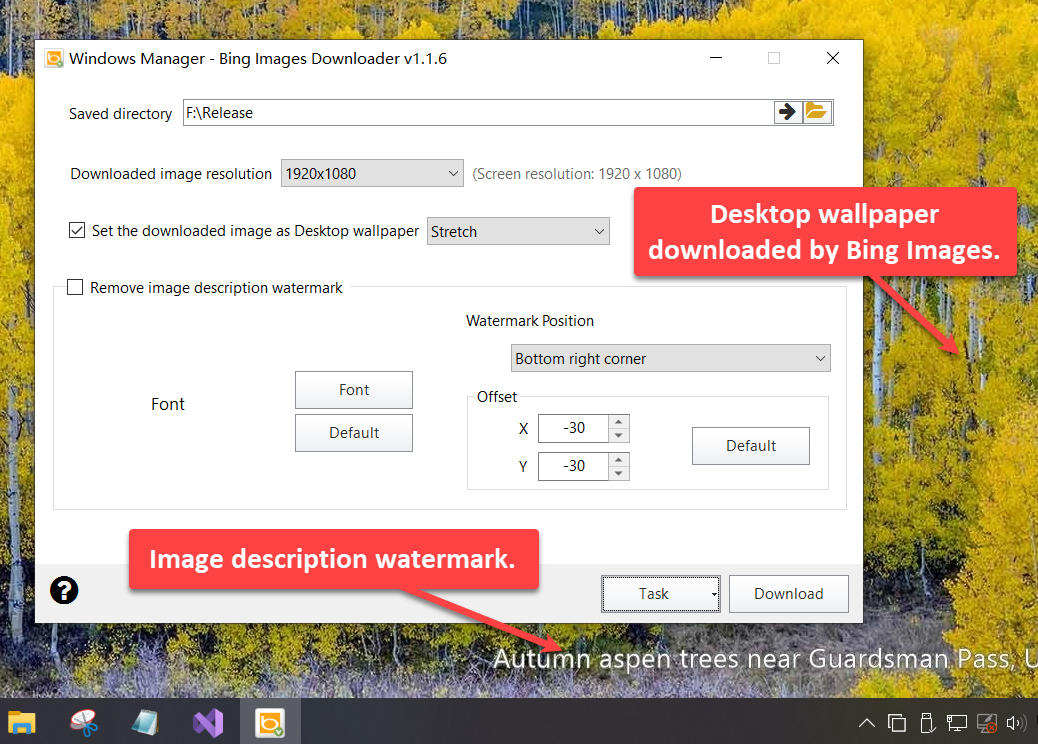
- Saved directory: where images are stored; browse with the folder button, or open the folder with the arrow button.
- Downloaded image resolution: choose the target size; current screen resolution is shown on the right.
- Wallpaper option: check Set the downloaded image as Desktop wallpaper and pick a style (Center / Tile / Stretch / Fit / Fill).
- Description watermark: check Remove image description watermark to skip the caption; otherwise adjust font, position, and offset.
- Bottom buttons: Task (Create Task / Silent Mode / View Task) and Download.
- Top-right ?: hover for a short tip and Online Help link.
4. Download and set as wallpaper
- Under Saved directory, choose an existing folder (you will be prompted if it is empty or invalid).
- Under Downloaded image resolution, pick a size close to or larger than your screen (e.g. 1920×1080).
- To change wallpaper immediately, check Set the downloaded image as Desktop wallpaper and choose a style (Stretch or Fill are common).
- Click Download. Success shows that the Bing image was downloaded; failure or no network shows a matching message.
Settings are saved locally so the last folder, resolution, wallpaper, and watermark options remain next time.
5. Description watermark
Bing images often include a place or topic caption in a corner (annotated in the screenshot as Image description watermark). You can:
- Remove image description watermark: when checked, the downloaded file has no overlay caption; watermark controls are disabled.
- Keep and customize: uncheck to change Font, restore with Default, set Watermark Position (bottom-right / top-right / top-left / bottom-left), and adjust Offset X/Y (or Default for that corner).
After changing offset, click Download again if you want to see the new watermark immediately.
6. Task: automatic download and silent mode
The bottom Task menu has three items:
- Create Task: opens My Task so you can schedule Bing Images Downloader (for example, download and set wallpaper at sign-in).
- Silent Mode: when checked, background runs from Task Scheduler show fewer prompts—useful for unattended wallpaper changes.
- View Task: opens Task Scheduler Manager focused on Yamicsoft-related tasks so you can confirm or edit triggers.
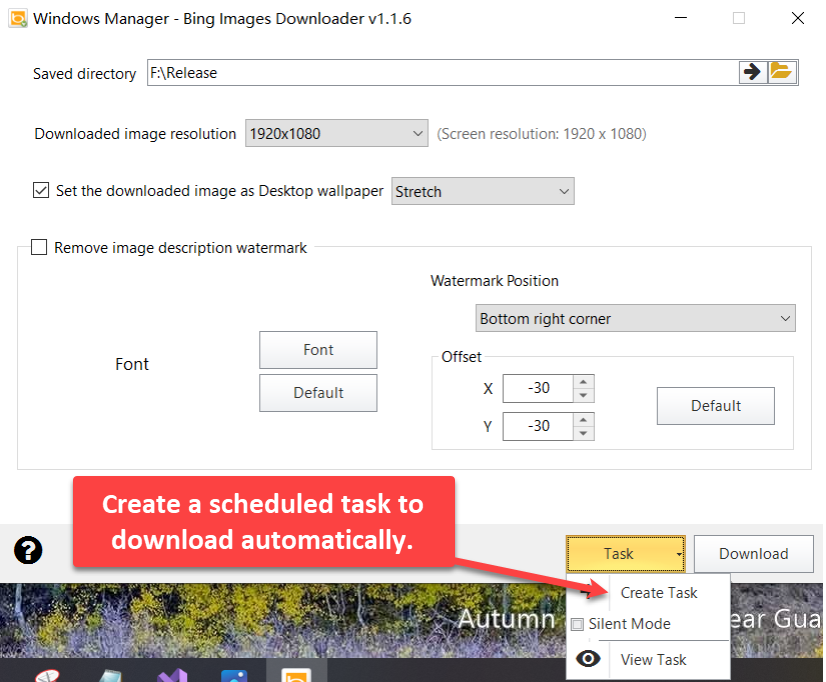
Configure when the task runs in My Task; review or adjust it in Task Scheduler Manager.
7. Notes
- Internet required. Without a connection, download fails and the app reports no internet connection.
- Choose a save folder first. Download cannot start if the path is empty or missing.
- Wallpaper API and style. If the wallpaper does not change, confirm the checkbox and try another style (Fill / Fit, etc.).
- Watermark vs. original image. “Remove description watermark” applies to the caption this tool overlays; follow Bing image usage rules and keep use personal.
- Scheduled tasks and UAC. Task Scheduler can start the tool with silent arguments; configure elevation in the task if needed to avoid repeated UAC prompts.
- Single instance. Only one instance usually runs; starting again activates the existing window.
8. Typical workflow
- Customization → Visual Customizer → Bing Images.
- Pick a save folder; set resolution near your screen (e.g. 1920×1080).
- Check Set the downloaded image as Desktop wallpaper; choose Stretch or Fill.
- Decide whether to remove the description watermark or adjust font and position.
- Click Download and confirm the desktop updated.
- For a daily refresh: Task → Create Task in My Task; enable Silent Mode if you want fewer prompts.
Try it now
Bing Images Downloader is ideal if you want a “picture of the day” on the desktop without saving files by hand. For other look-and-feel options, see Visual Customizer; more features are on the product page.
Get started: Download Windows Manager — open Customization → Visual Customizer → Bing Images, choose a folder, then click Download.
