Copying a large folder by hand is slow, and a second copy often picks up files you did not mean to move. A mirror backup is different again: the destination should match the source, including removing files that are no longer in the source.
Super Copy in Windows Manager is a scheme-based front end for Windows Robocopy. You set the source directory and the destination directory, choose copy, move, or mirror, filter by size, age, attributes, and file type, then save the setup as a scheme. A saved scheme can run immediately or on a schedule through Task Scheduler.
This guide explains each page, what the options change, and the cases where a wrong choice deletes data.
1. What can Super Copy do?
- Copy only new or changed files. Robocopy skips files that are already the same in the destination, so a repeat run updates the backup instead of copying everything again.
- Move files, or move files and directories. After a successful copy, the source files are removed. “Move files only” leaves the source folders in place.
- Mirror a directory tree. The destination is synchronized with the source. Extra files in the destination that are not in the source are deleted.
- Filter what is copied. Exclude files by size, age, last-used date, attributes, name, or folder.
- Save schemes and schedule them. Store the settings under a name, review them in Scheme Manager, and add checked schemes to Task Scheduler.
Super Copy needs robocopy.exe in the Windows system folder. If that file is missing, the program stops and reports a missing executable file.
2. Directories and copy options
On General Options, set where the files come from and where they go, then choose how the copy should behave.
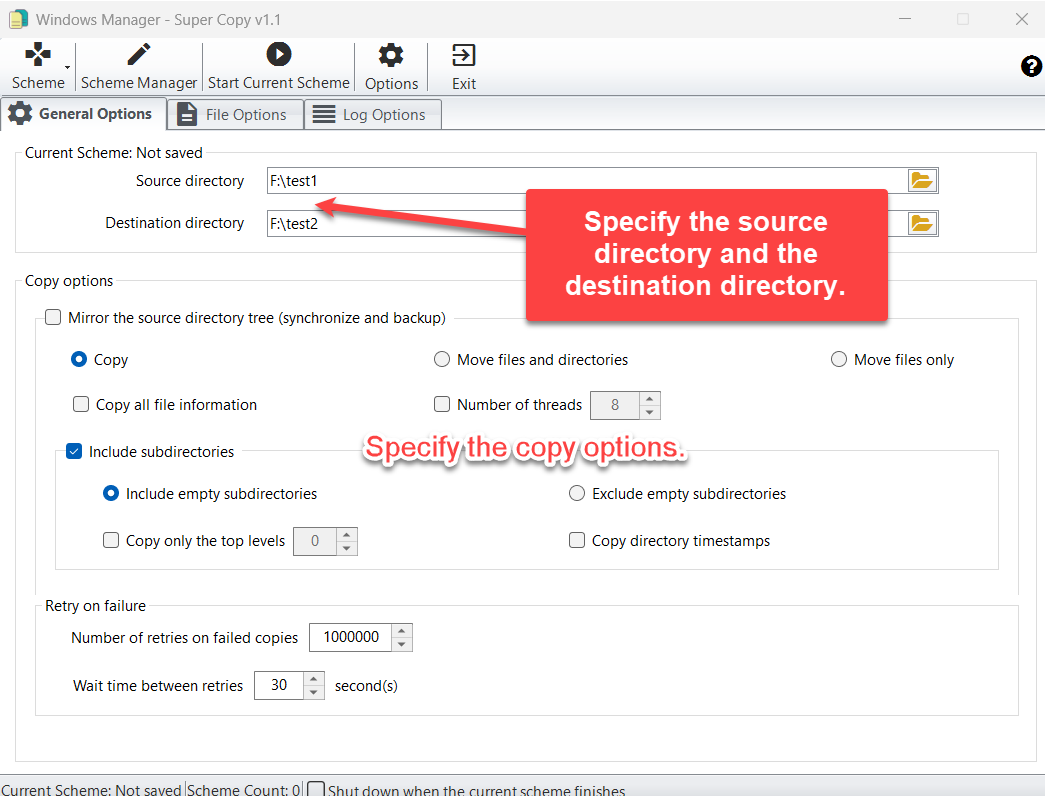
Source directory and destination directory
Type a path or use the folder button. A local folder must already exist. For a network copy, use a UNC path such as \\server\share\folder. The source directory cannot be the folder that contains Super Copy, or a parent of that folder. Leave enough free space on the destination drive.
Copy, move, or mirror
- Copy leaves the source unchanged and updates the destination.
- Move files and directories copies, then deletes the source files and the source folders that were moved.
- Move files only copies, then deletes the source files, but not the source directories.
- Mirror the source directory tree (synchronize and backup) makes the destination match the source. Files that exist only in the destination are removed. While mirror is selected, the other copy options on this page are turned off.
What else is on this page
- Copy all file information copies data, attributes, timestamps, NTFS security, owner, and auditing information. Use this when the destination is NTFS and you need the same permissions.
- Number of threads runs a multithreaded copy. The value can be from 1 to 128. The usual starting point is 8.
- Include subdirectories copies folders under the source. Choose Include empty subdirectories or Exclude empty subdirectories.
- Copy only the top levels limits how deep the folder tree is copied.
- Copy directory timestamps keeps the folder dates, not only the file dates.
- Retry on failure sets how many times a failed copy is retried, and the wait time between retries. The built-in defaults are 1,000,000 retries and 30 seconds.
3. File options
File Options decides which files and folders are included. Leave a box unchecked if you do not want that limit.
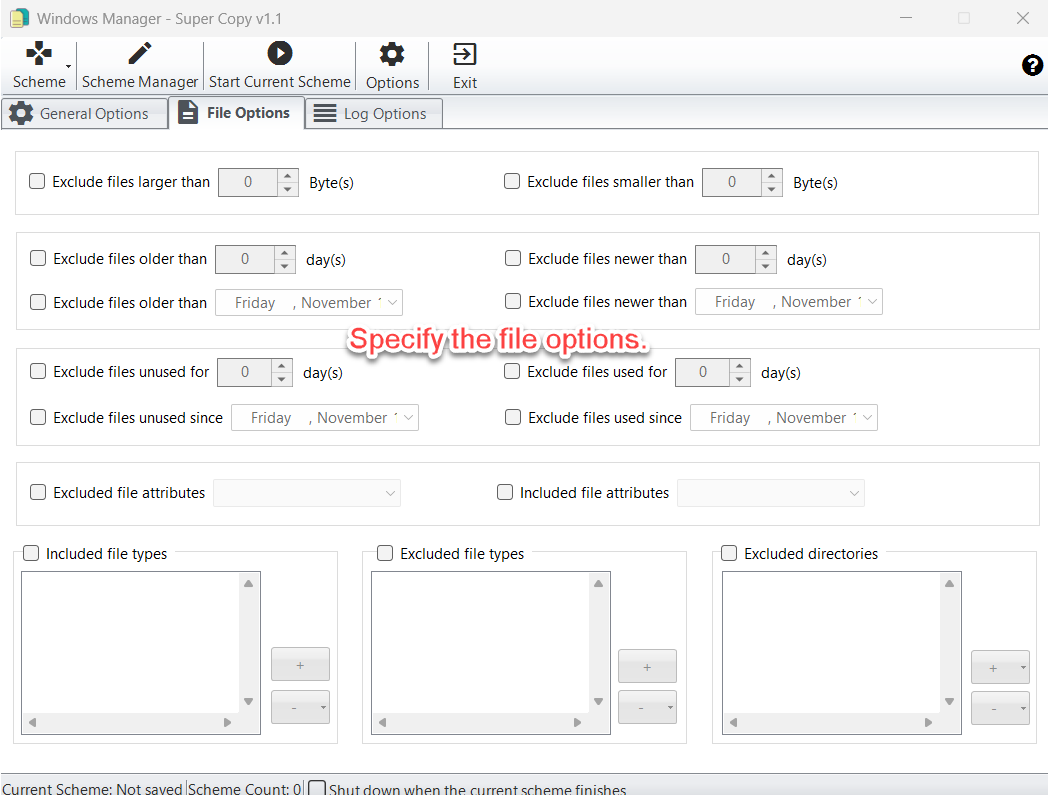
- Size: exclude files larger than, or smaller than, a number of bytes.
- Age: exclude files older than, or newer than, a number of days or a date.
- Last use: exclude files unused for a number of days, used for a number of days, or unused or used since a date.
- Attributes: exclude or include Read-only, Archive, System, or Hidden files.
- Included file types and Excluded file types take names, paths, or wildcards, for example *.txt or abc*.*.
- Excluded directories can be a custom name or a built-in folder such as System Volume Information, $Recycle.Bin, Config.Msi, Temp, or Documents and Settings.
4. Log options
Log Options controls what you see while Robocopy runs, and whether that status is written to a file.
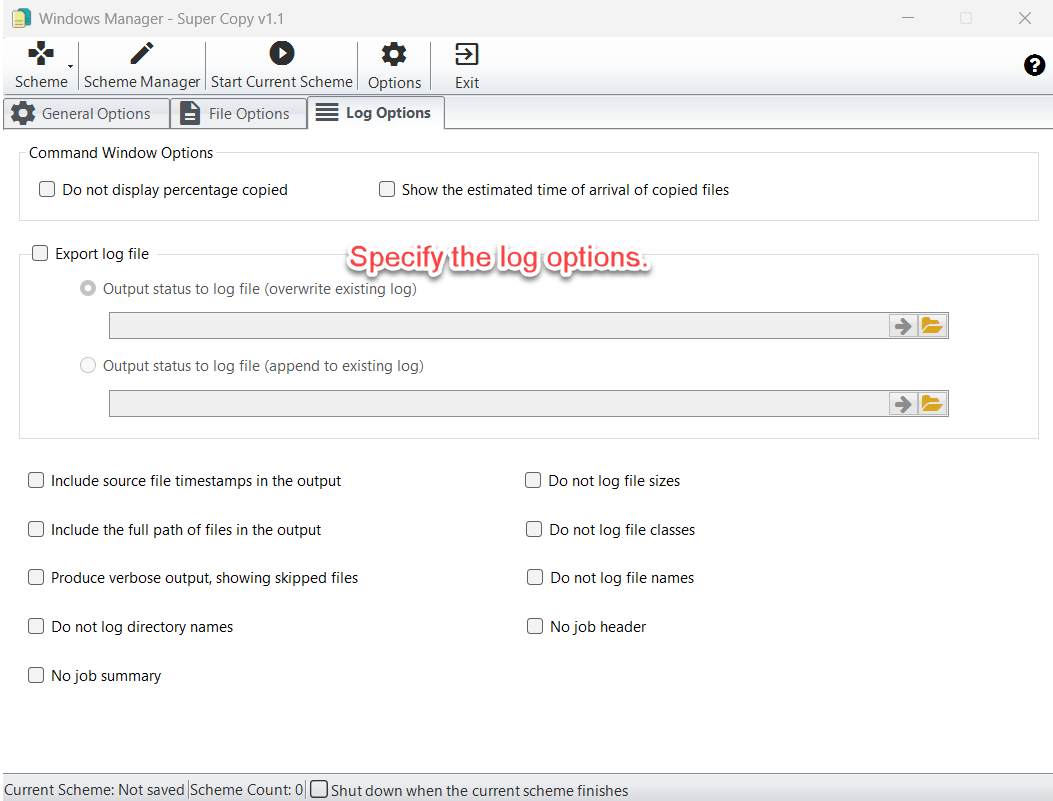
Under Command Window Options you can hide the percentage copied, show the estimated time of arrival of copied files, include timestamps or the full path, show skipped files, or omit directory names, file names, file sizes, file classes, the job header, or the job summary.
Export log file writes the status to a .log file. Choose overwrite or append. The path cannot be empty, and the extension must be .log. While a log file is selected, the command-window options above are not used for that run.
Options on the toolbar also has Do not show command window, which runs the copy without a visible console.
5. Save a scheme
A scheme is the saved copy of the directories and options. Open Scheme, then Save Scheme.
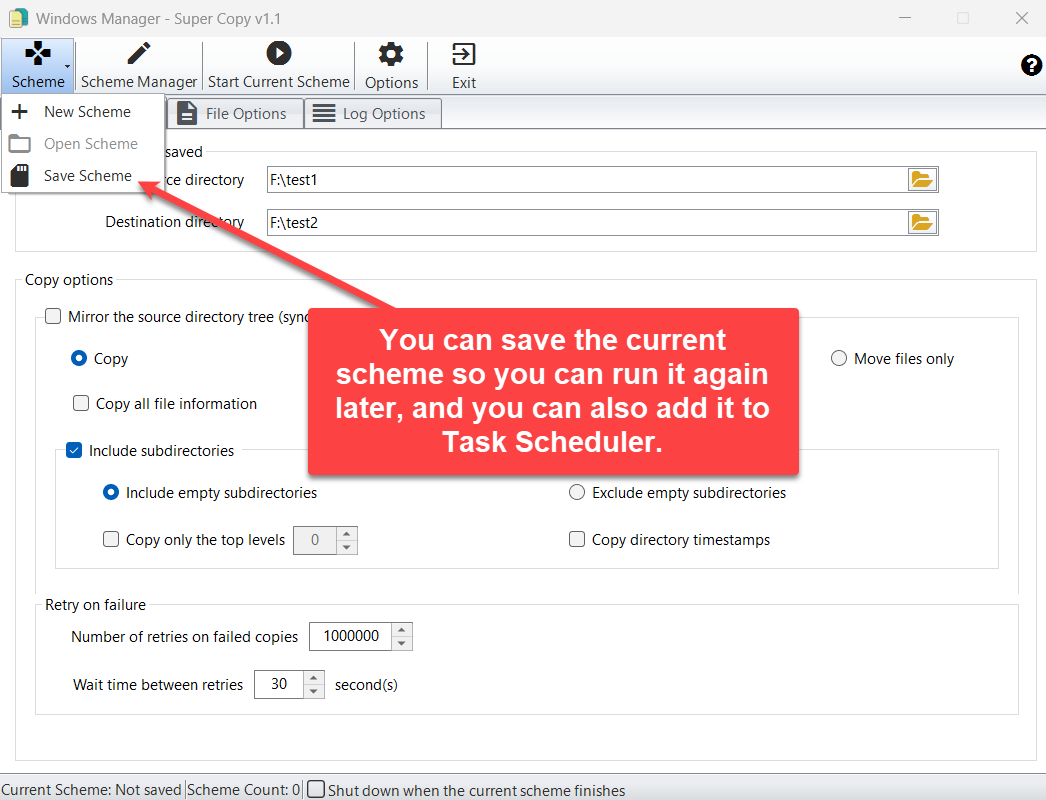
- New Scheme clears the form. The status line shows Current Scheme: Not saved until you save.
- Save Scheme asks for a name the first time. The name cannot contain path characters such as \ or /.
- If the name already exists, Super Copy asks whether to overwrite it.
- Open Scheme loads a saved scheme. If you change it and have not saved, the caption shows that it is not saved.
Saving makes the same backup easy to run again, and it is what Scheme Manager uses when you add a job to Task Scheduler.
6. Scheme Manager and Task Scheduler
Scheme Manager lists every saved scheme: name, source directory, destination directory, and copy mode. View details opens the stored settings for that scheme.
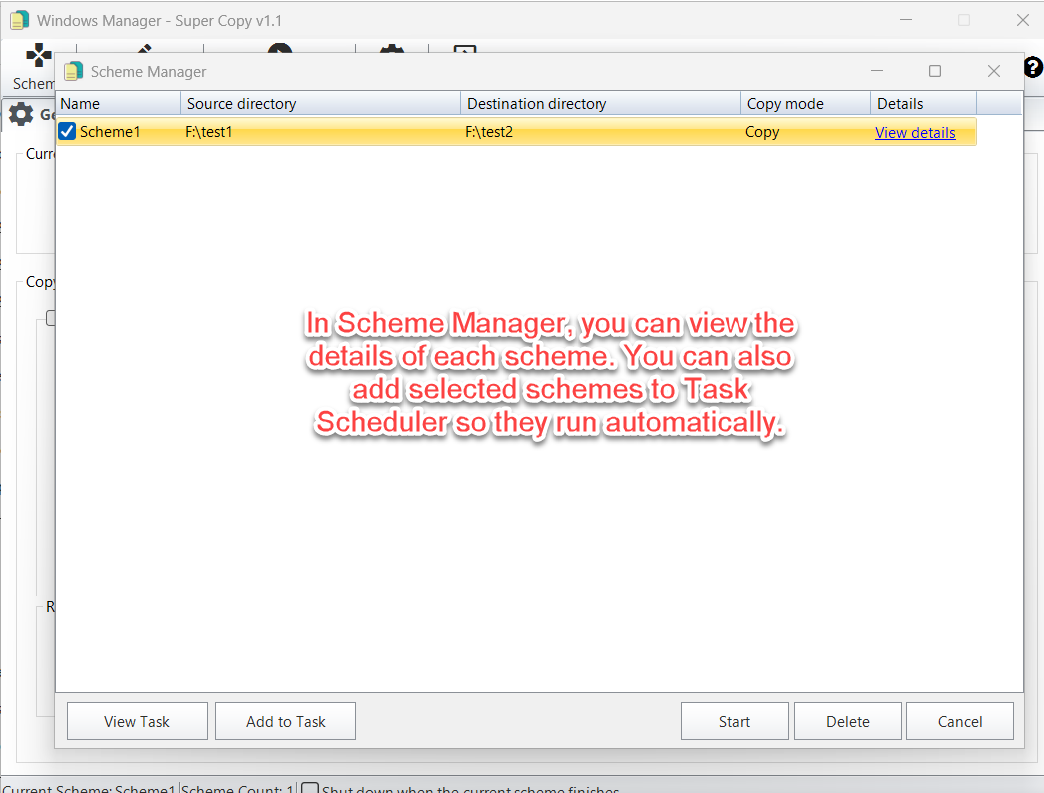
- Check one or more schemes, then click Start to run them now.
- Add to Task sends the checked schemes to Task Scheduler so they run automatically. Several schemes are passed together and run one after another.
- View Task opens Task Scheduler Manager so you can see the Yamicsoft tasks.
- Delete removes the checked schemes after you confirm.
On the main window, Shut down when the current scheme finishes turns the computer off after that one job. In Options, Shut down when all schemes have finished applies when several schemes run together. Shutdown happens only after a copy has actually started. If the paths are empty or the destination does not exist, the computer stays on.
7. Important notes
- Mirror deletes extra files in the destination. Point it at an empty backup folder or at a folder that is already a copy of the source. Do not mirror onto a folder that holds other work.
- Move deletes the source after the copy. Use Copy until you have checked the destination. Use Move only when you intend to relocate the data.
- Do not copy Windows system folders unless you know the result. Excluding System Volume Information and $Recycle.Bin is safer for a user-data backup.
- The source cannot contain this program. Do not set the Super Copy install folder, or a parent of it, as the source.
- Both directories must be valid. An empty path is rejected. A local path that does not exist is rejected. A network path should be a standard UNC path.
- NTFS security needs Copy all file information and an NTFS destination. Without that option, Robocopy copies the file data and the usual attributes and timestamps.
- A log file must use the .log extension. Overwrite replaces the previous log. Append keeps the history of each run.
- Retries can wait a long time. A file that stays locked is retried up to the number you set, with a pause between tries. Lower the retry count if you do not want a scheduled job to sit on a locked file.
8. A safe first backup
- On General Options, set the source directory and a destination folder that is empty or already used only for this backup.
- Leave Copy selected. Do not choose Mirror or Move on the first run.
- Turn on Include subdirectories. Include empty subdirectories only if you need the empty folders too.
- On File Options, exclude System Volume Information and $Recycle.Bin if they appear in the source.
- On Log Options, export a log file so you can see what was copied and what was skipped.
- Choose Scheme → Save Scheme and give it a clear name.
- Click Start Current Scheme and read the log.
- When the result is right, open Scheme Manager, check the scheme, and click Add to Task if it should run on a schedule.
Try it now
Super Copy is the folder copy and backup tool in Windows Manager: one scheme for a manual run, and the same scheme for Task Scheduler. To remove leftover files after a copy, use Junk File Cleaner. To find identical files by content, use Duplicate Files Finder.
Get started: Download Windows Manager, open Super Copy, and save your first scheme before you mirror or move anything.
