Temporary files, leftover installers, crash dumps, and logs build up and take disk space. Searching for them by hand is slow, and it is easy to delete a system file that Windows still needs.
Junk File Cleaner in Windows Manager scans the drives you select for common junk files and folders. After the scan, you can check each full path and file type, then remove the selected items permanently, move them to the Recycle Bin, or move them to a folder you specify.
This guide follows the real window: how to pick drives, read the results, narrow the scan, and what to confirm before anything is deleted.
1. What can Junk File Cleaner do?
- Scan by drive. Open the sidebar and check the drives to scan. The chart shows used space and free space.
- Match junk by file pattern. The default list includes temporary files, temporary help files, error files, Word backups, thumbnail caches, memory dumps, ETL trace logs, and system logs.
- Find leftovers. It can also look for invalid Windows Installer files, invalid Start Menu folders, files in the temporary folder, an invalid Program Files directory, and crash dumps.
- Skip places that should stay untouched. System folders, fonts, the installer cache, and the Recycle Bin are on the skip list, so the scan does not enter them.
- Review before cleanup. Results show the full path and the type. You can clear a check box, open the folder, view properties, or add a folder to the skip list.
2. How do I open Junk File Cleaner?
Open the tool from the Windows Manager main window. Category names can differ slightly between versions. The toolbar is at the top, the drive list is in the left sidebar, and the chart and scan results fill the rest of the window.
Toolbar buttons:
- Scan: start a scan with the selected drives and options.
- Select All / Deselect All: check or uncheck the current results.
- Delete: remove the checked items using the current removal type.
- Properties: show properties for the selected file or folder.
- Open Folder: locate the selected item in File Explorer.
- Options: set file types, skipped folders, extra scan items, and the removal method.
- Add to Skip List: add the folder that contains the selected file so later scans skip that folder.
- Exit: close the window.
The question-mark icon at the upper right shows a short description. Online Help under that description opens this page.
3. Choose drives and start the scan
For the first scan:
- Click the sidebar to open the drive selection panel.
- On the expanded panel, check the drives you want to scan. You can scan only the system drive, or include data drives as well.
- Click Scan.
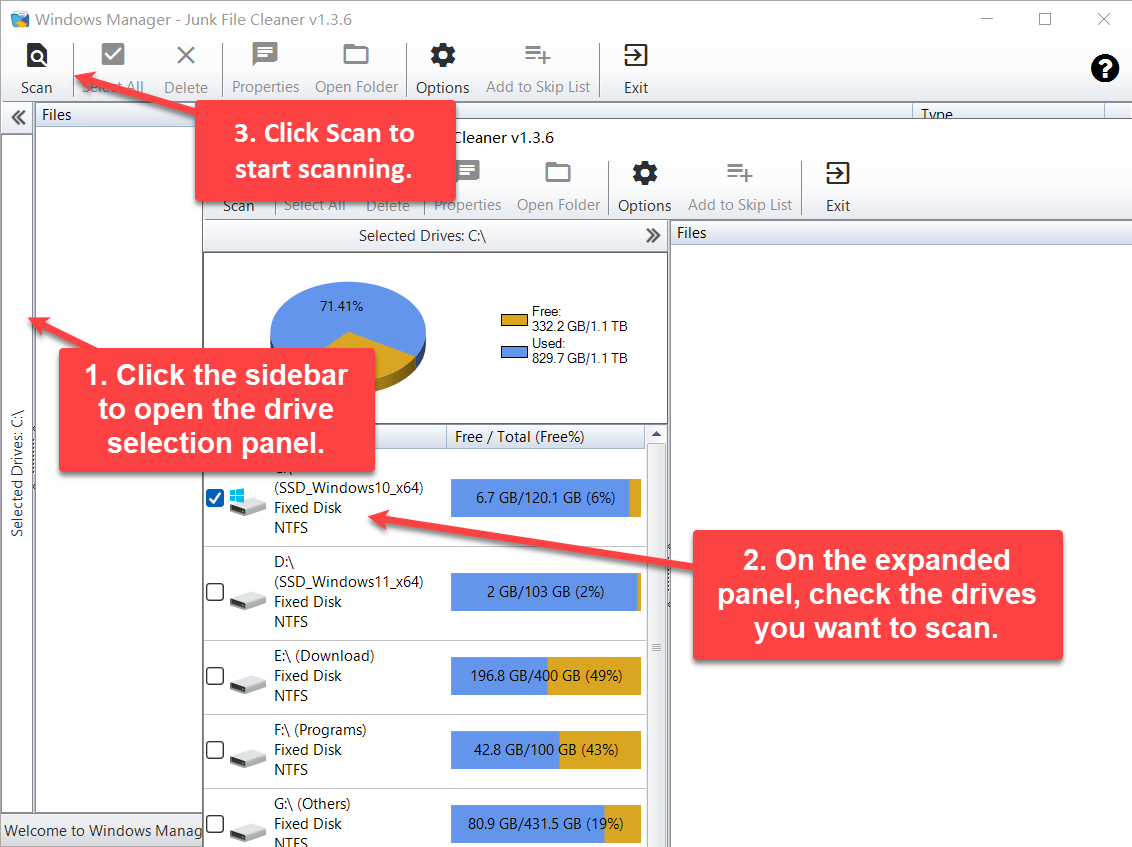
The sidebar title shows the selection, for example Selected Drives: C:\. You can cancel a scan while it is running. When it finishes, the status bar reports how many junk files and folders were found.
If anything was found, Junk File Cleaner asks whether to delete the junk files and folders. Choose Yes to remove the checked items with the current removal type. Choose No to stay on the result list and click Delete after you have reviewed them.
4. Read the scan results
The result list has two columns:
- Files: the full path of each junk file or folder.
- Type: what it is, such as a file in the temporary folder, an invalid Windows Installer file, or a crash dump file.
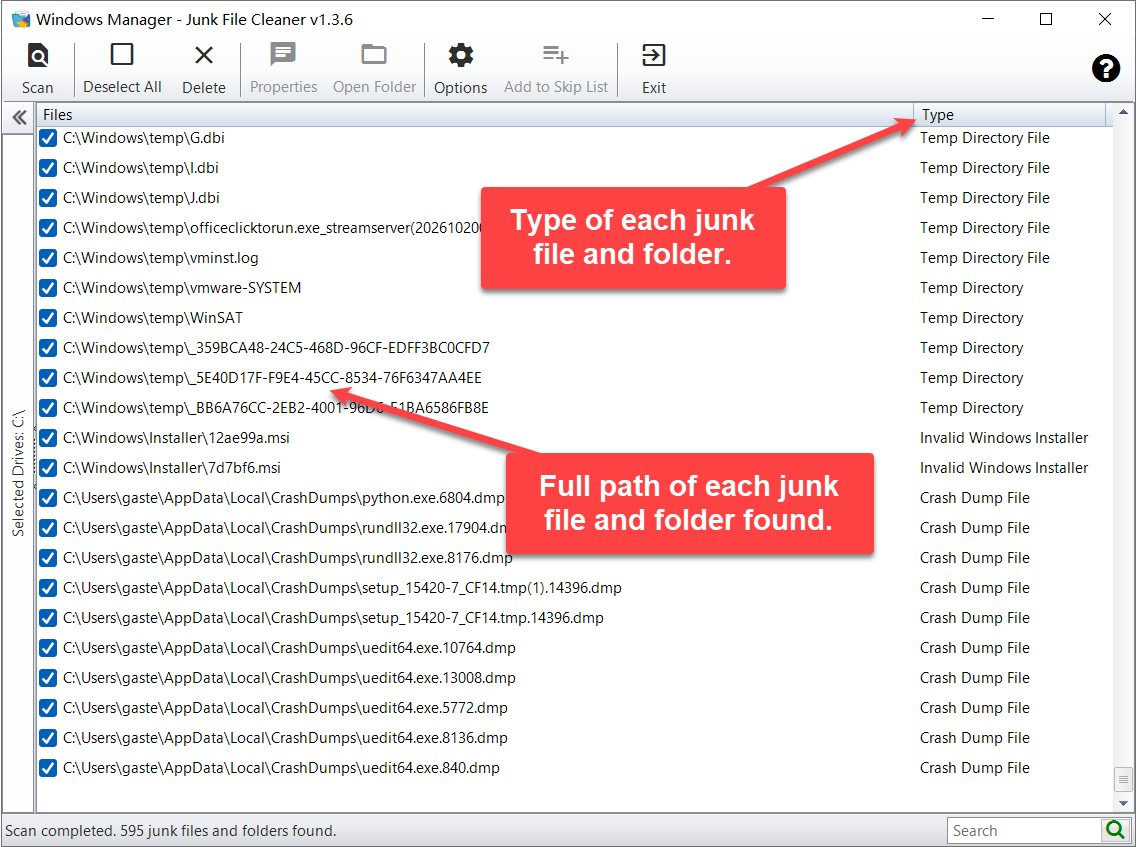
Found items are checked by default. Read the path before you delete anything. Files in a user Temp folder or a crash-dump folder are usually safe to remove. Clear the check box if you are not sure. The search box at the lower right filters the current list by path or name.
Select a row, then use Open Folder or Properties. Both commands are also on the shortcut menu.
5. Remove the items that were found
When the check boxes look right, click Delete. The program recommends closing other programs first, then uses the setting under Options → Removal Type:
- Permanent delete: the files cannot be restored to their original location automatically. You are asked to confirm.
- Recycle Bin: this is the default. You may be asked whether to empty the Recycle Bin first.
- A folder you specify: choose that folder in Options before you delete.
After cleanup, the chart marks the space saved in a separate color.
6. File types: which patterns are scanned
Click Options and open File Type. The list shows the name patterns to scan and a description of each one. Right-click the list to select all, deselect all, add, remove, or edit a pattern.
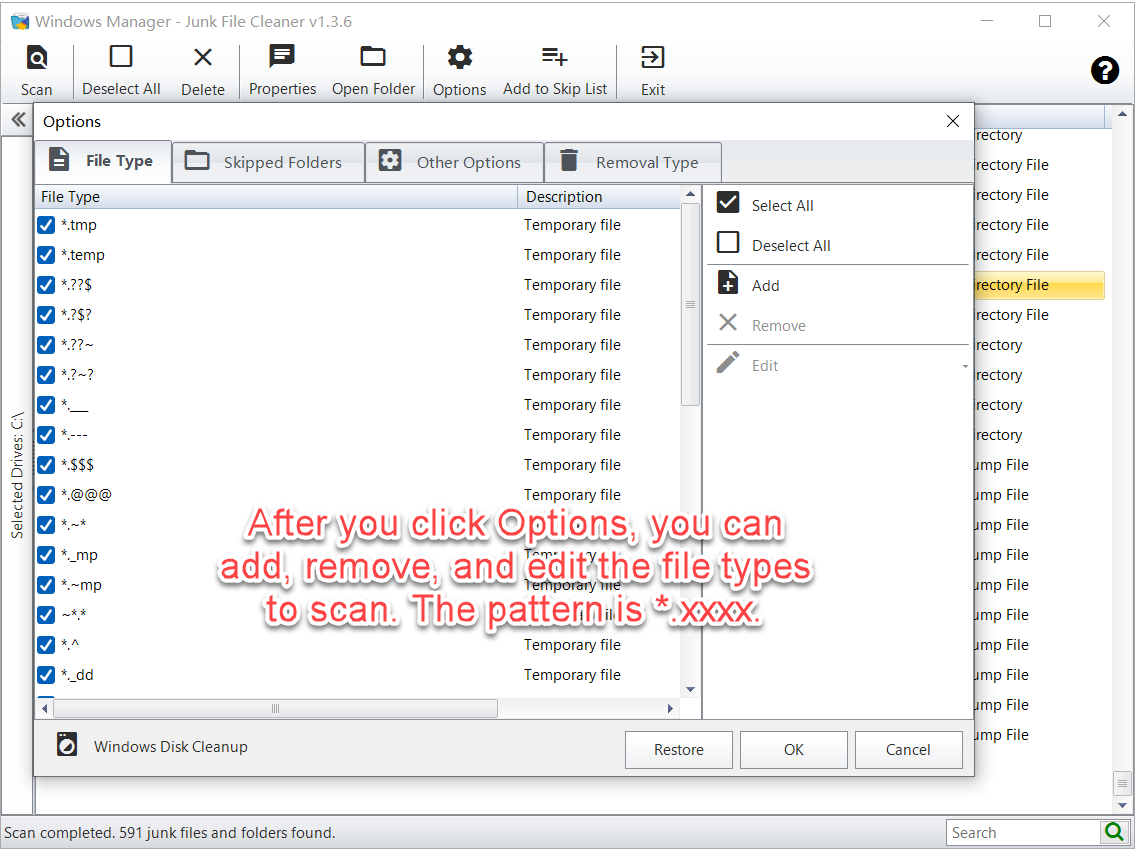
Patterns can use wildcards:
- ? matches any single character.
- * matches zero or more characters.
- # matches a single digit (0–9).
*.tmp, *.log, and *.??$ are valid patterns. A pattern such as *.xxxx means any name with that extension. A custom type needs a description. If the pattern is not valid, the program tells you.
Temporary files (*.tmp, *.temp, and similar patterns), the temporary settings file mscreate.dir, and lost-cluster recovery files (*.chk) are checked by default. Temporary help files, error files, old backups, Word backups (*.wbk), the thumbnail cache (thumbs.db), backup files (*.bak), memory dumps (*.dmp), ETL trace logs (*.etl), and system logs (*.log) are in the list but are not checked until you select them. Clear a check box to stop scanning a type. You do not have to delete the entry.
7. Skipped folders
Skipped Folders lists paths the scan will not enter. Use Add, Remove, and Edit to change the list.
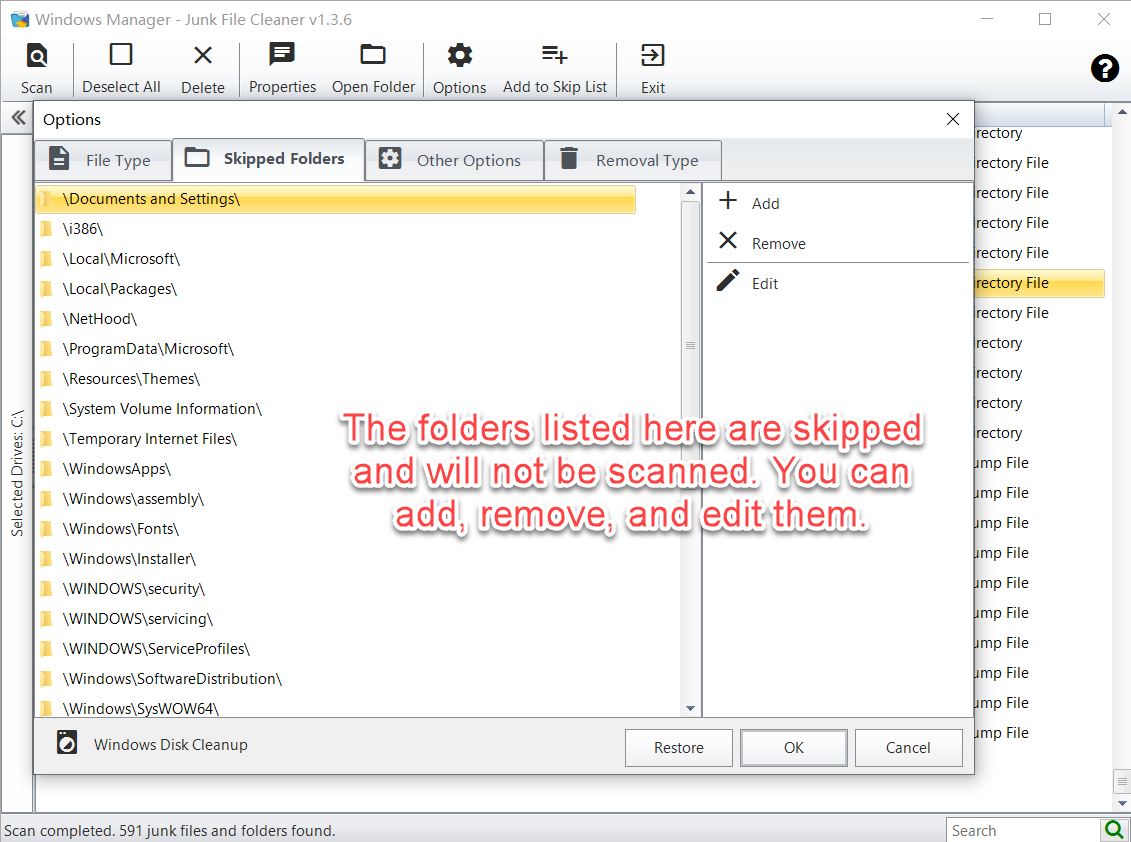
The default list skips system locations such as configuration, drivers, and WinSxS under \Windows\System32\, plus fonts, the installer cache, \WindowsApps\, and the Recycle Bin. Leave these entries in place unless you know a system folder contains leftovers you intend to remove.
Add a folder from the scan results
- Select a file in the scan results.
- Click Add to Skip List.
- The folder that contains the file is added to Skipped Folders in Options. Later scans skip that folder.
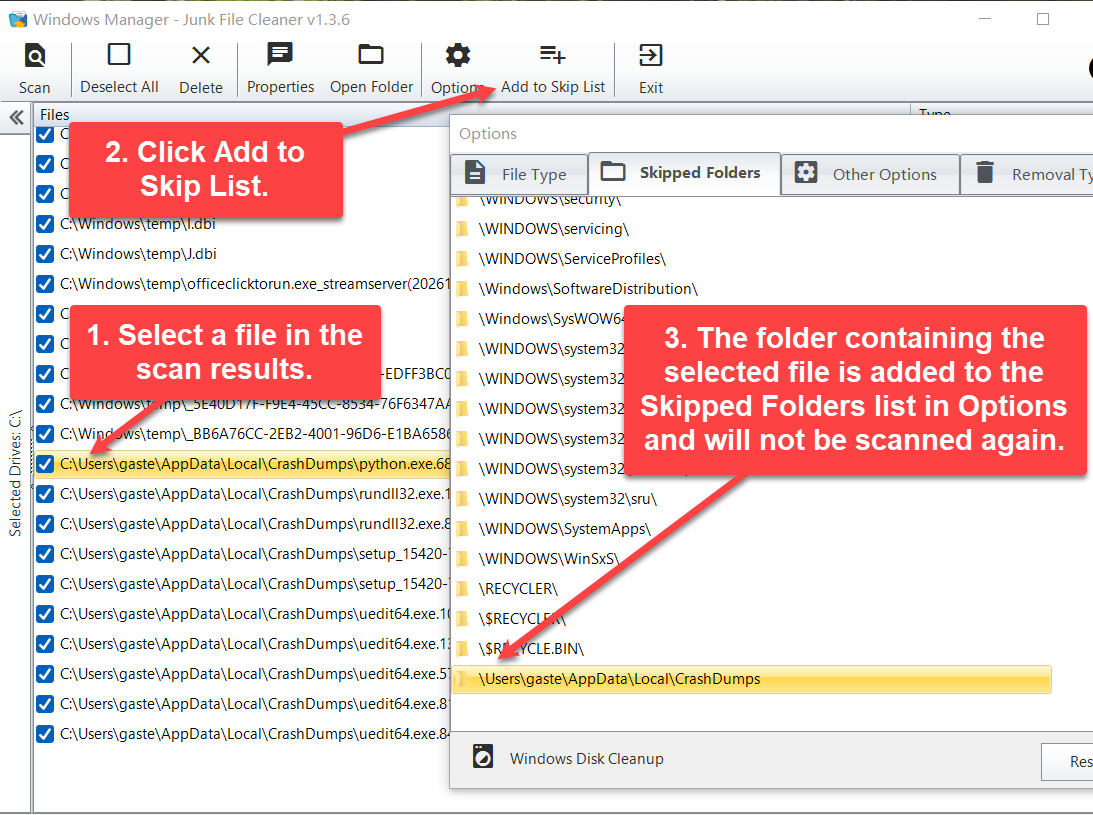
This adds the folder, not the single file. A drive root cannot be added. A folder that is already on the list is not added again.
8. Other options: ignore attributes and extra items
Open Other Options. The upper part has two Ignore groups:
- System files, read-only files, and hidden files.
- System folders, read-only folders, and hidden folders.
These are checked by default. While they stay checked, the scan skips files and folders with those attributes.
The lower list is scanned only when you check an item:
- Shortcuts that do not point to a valid target. This item appears only on a single operating system. It is not scanned when more than one Windows installation is present.
- Invalid Windows Installer files.
- Downloaded program files.
- Hotfix backup files.
- Zero-length (empty) files.
- Crash dump files.
- Invalid Start Menu folders.
- Files in the temporary folder.
- An invalid Program Files directory.
- Files in the temporary CD burning folder.
- Invalid folders.
- Empty folders.
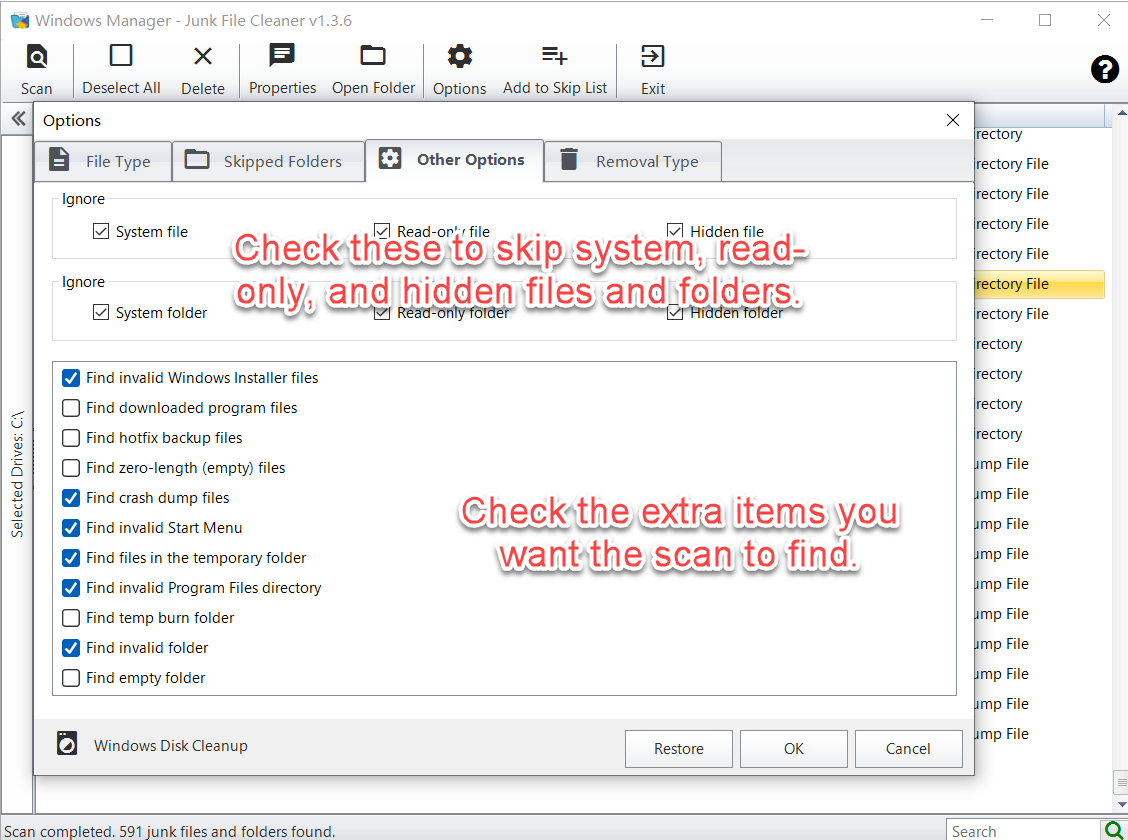
On a first run, invalid installers, crash dumps, invalid Start Menu folders, the temporary folder, an invalid Program Files directory, and invalid folders are scanned. Downloaded program files, hotfix backups, zero-length files, temporary CD burning files, and empty folders stay off until you check them.
Windows Disk Cleanup at the lower left starts the Windows Disk Cleanup tool for drive C:. It is separate from Junk File Cleaner. Use it after this scan when you also want to remove update caches and other data that Windows manages itself.
If Windows.old is on the system partition, a related item appears in Options. That folder is left after an upgrade to Windows 10 or Windows 11, or after Windows is installed on the same partition without a clean install. It can be large. Deleting it means you can no longer return to the previous version of Windows. Remove it only when you no longer need that rollback.
9. Removal type
Removal Type chooses where files go when you click Delete:
- Delete files permanently: they cannot be restored to the original location automatically.
- Move files to the Recycle Bin: the default. You can restore a mistake from the Recycle Bin.
- Move files to the specified folder: use the browse button to pick a folder on a drive that has free space.
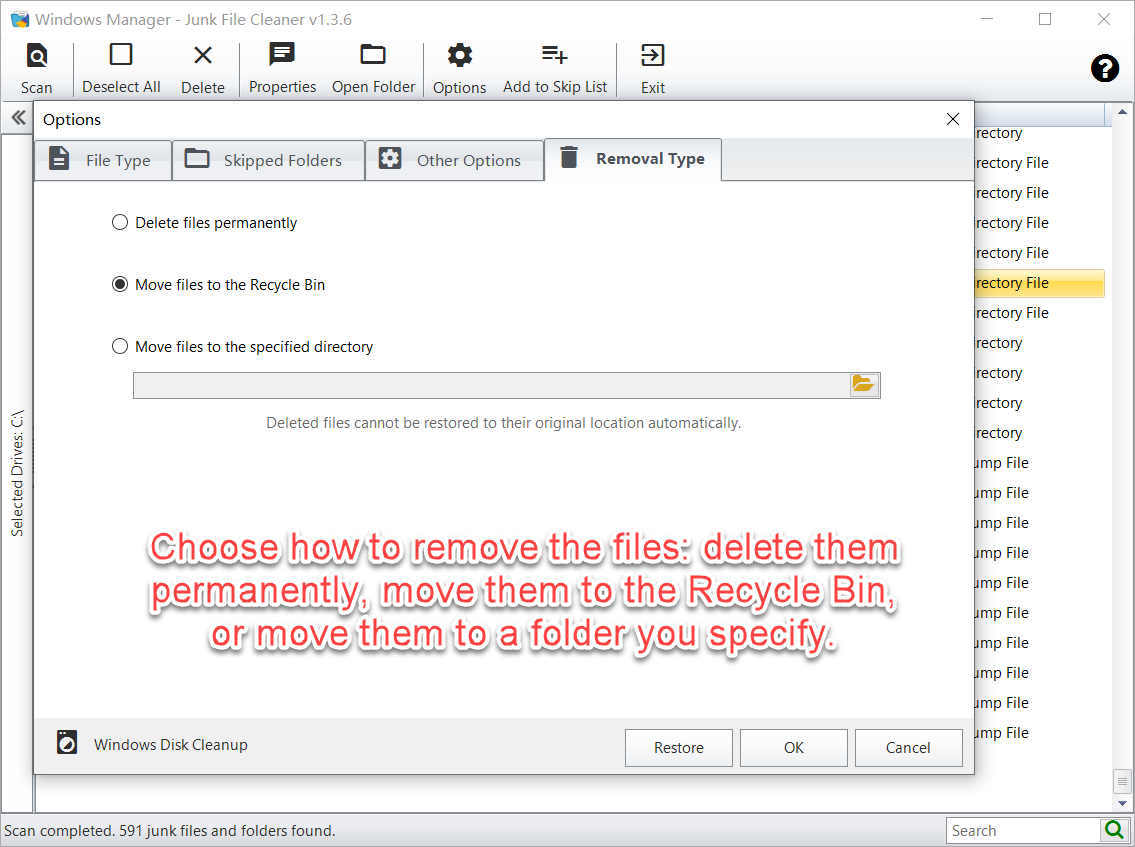
Keep the Recycle Bin option. Empty the Recycle Bin only after you are sure the freed space is correct.
10. Things to watch
- Scan one drive and read the results first. If you decline the prompt at the end of the scan, you can check each path and type.
- Prefer the Recycle Bin. Permanent deletion cannot be undone automatically. The window says so.
- Close programs that are using the files. Junk File Cleaner recommends this so a file in use is not left behind.
- Leave the default ignore options and skipped folders unless you know a system folder contains leftovers you mean to delete.
- Be careful with empty folders and zero-length files. Some programs rely on them.
- Delete Windows.old only if you will not roll back. It is a copy of the previous Windows installation.
- Invalid shortcuts are not scanned on a multi-boot PC. That avoids treating another installation's shortcuts as broken.
- Add to Skip List skips the whole folder. Add it only when later scans should ignore that directory.
11. A typical cleanup
Clear temporary files and dumps on the system drive
- Open Junk File Cleaner.
- Expand the sidebar and check only C:\.
- Open Options → Removal Type and keep Move files to the Recycle Bin.
- Click Scan. When asked, do not delete yet. Read the full paths and types.
- Clear anything you cannot identify. Use the search box to shorten the list.
- Click Delete, close other programs if asked, and finish the cleanup.
- Check the Recycle Bin, then empty it.
Stop scanning a folder
- Select a file from that folder in the results.
- Click Add to Skip List.
- Open Options → Skipped Folders and confirm the folder is listed.
Try it now
Use Junk File Cleaner when free space is getting low and temporary files or crash dumps have piled up. Scan, review, then move the items to the Recycle Bin. To find copies of the same file by content, continue with Duplicate Files Finder. See the product page for the rest of Windows Manager.
Try it: Download Windows Manager and scan a drive with Junk File Cleaner.
