Uninstalled programs often leave a name on the Start menu. The icon is still there, but the target is gone. Empty folders left by old installers do the same thing. Start Menu Manager in Windows Manager lists those shortcuts, marks the broken ones in red, and lets you rename or remove them without digging through hidden folders.
Open it from Customization → Start Menu Manager. The window reads the Programs folders for all users and for the current user, then shows each shortcut and folder in one list.
1. What can Start Menu Manager do?
- List Start menu shortcuts in one place. All Users and Current User appear together, with the user shown in its own column.
- Find broken shortcuts and empty folders. Invalid items are shown in red, the Available column says No, and the checkbox is already selected.
- Rename the selected item. The new name is the name Windows shows on the Start menu.
- Remove checked items. Remove deletes the shortcut, or the whole folder if the folder itself is checked. It does not uninstall the program.
- Open, launch, or pin the selected row. Open the folder in File Explorer, launch a shortcut whose target still exists, or pin an .exe shortcut to the taskbar.
2. The shortcut list
Start Menu Manager reads two folders:
- All Users:
C:\ProgramData\Microsoft\Windows\Start Menu\Programs - Current User:
%AppData%\Microsoft\Windows\Start Menu\Programs
Folders are listed with the shortcuts inside them. The list includes .lnk shortcuts and .url internet shortcuts. Other file types in those folders are skipped.
The columns you see are:
- Name — the name shown on the Start menu.
- User — All Users or Current User.
- Available — blank when the target exists. No when the item is invalid.
The status bar shows Total and Invalid. Total counts shortcuts. Invalid counts red shortcuts and red empty folders. The button at the bottom left expands every folder, or collapses them again.
3. The checkbox and the yellow row are different
A check mark and a yellow highlight do not do the same job.
- Checkbox. This is only for Remove. You can check several items. Remove stays available while any visible item is checked.
- Yellow row. This is the selected item, one row at a time. Rename, Open Folder, Launch, Pin to Start, and Pin to Taskbar use this row. Checking a box does not select the row, and clicking the name does not change the check mark.
Right-click a row to use the same actions as the side buttons, except Remove. Remove stays on the side panel because it acts on every checked item, not only the row under the pointer.
4. Invalid items are marked in red
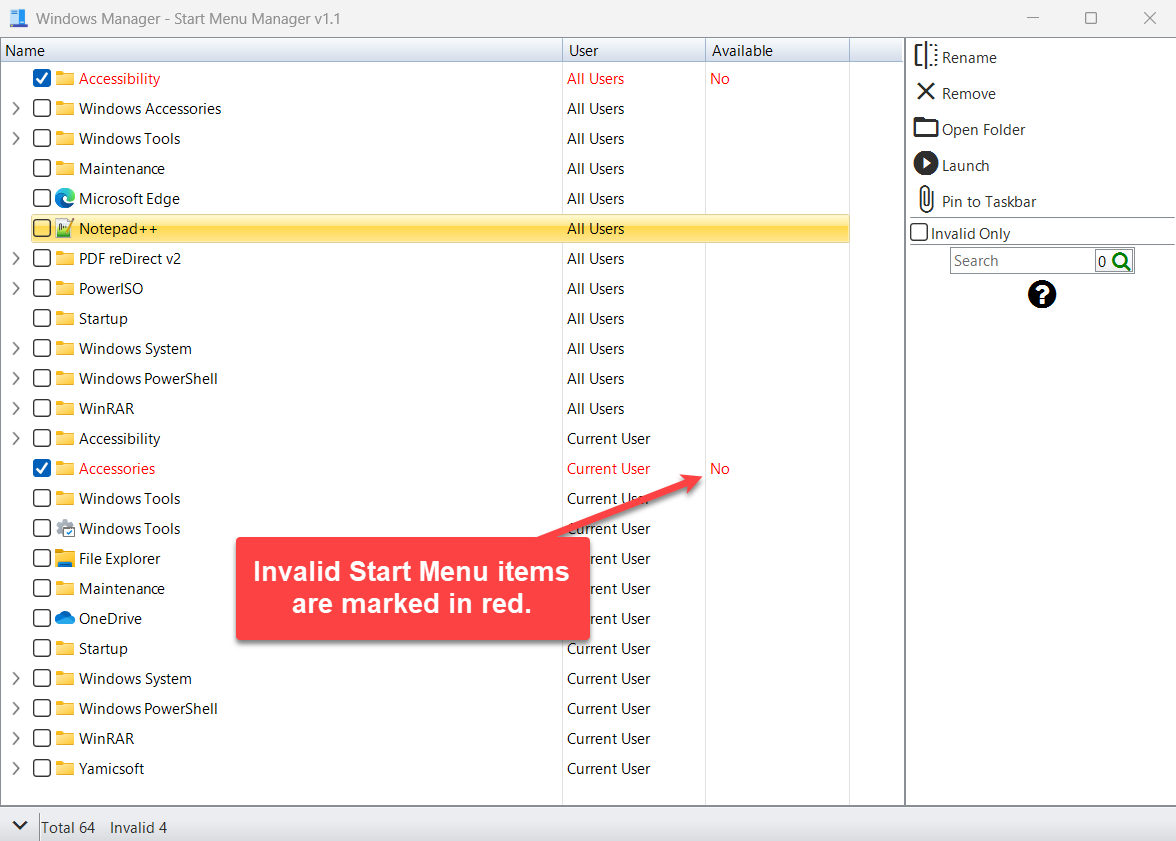
Two kinds of items are marked invalid when the list loads:
- A broken shortcut. The .lnk target path is not empty, and that file or folder is no longer on the disk. Internet shortcuts (.url) are not marked this way.
- An empty folder. A folder with nothing inside it is invalid. Startup, Maintenance, and Administrative Tools are left alone even when they are empty, because Windows uses those folders.
An invalid item is shown in red, Available is No, and its checkbox is selected. A folder that still contains items is not itself invalid, even when some of those items are red.
5. Rename the selected item
Click the row so it turns yellow, then click Rename. Type the new name and press Enter. The same command is on the right-click menu.
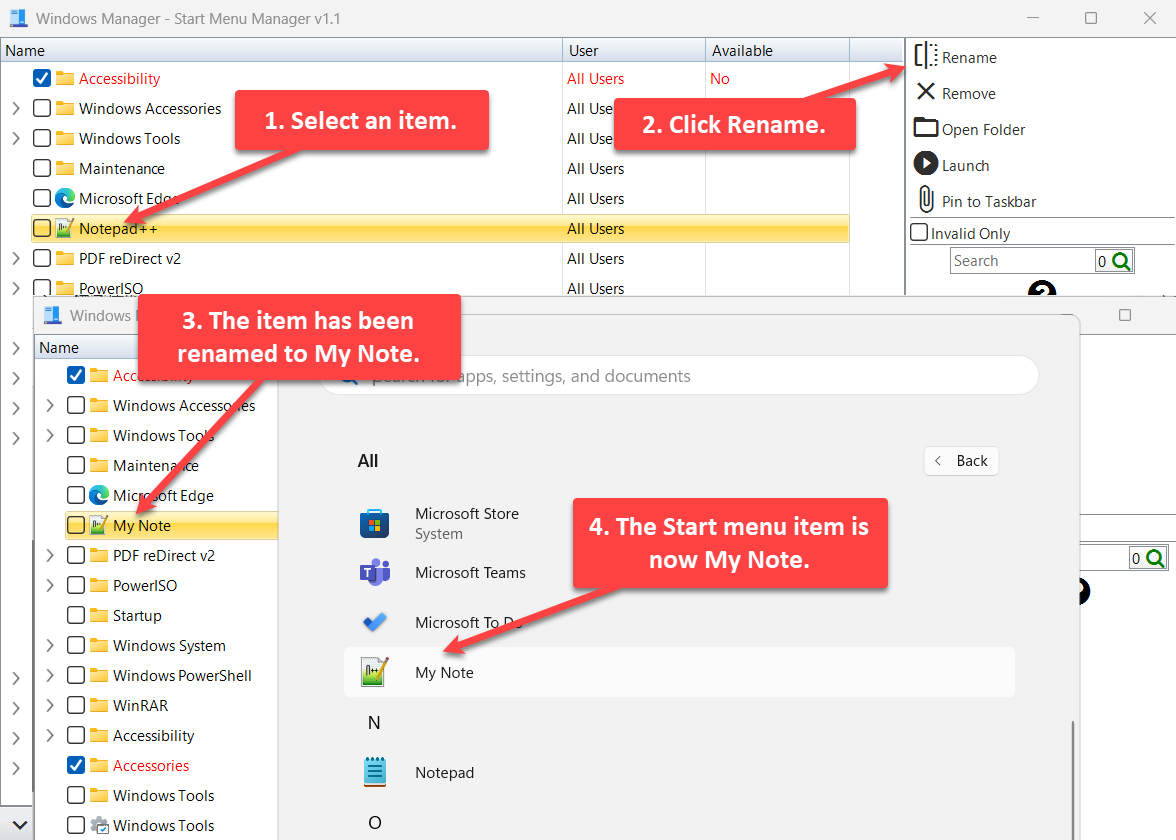
- Select an item.
- Click Rename.
- The item is renamed. In the example, Notepad++ becomes My Note.
- The Start menu shows My Note. The shortcut target does not change.
Rename works on a shortcut or on a folder. For a shortcut, the .lnk or .url extension stays on the file; only the display name changes. If you rename a folder, the items inside it keep working, because their saved paths are updated to the new folder name.
6. Remove checked items
Remove is available only when at least one visible item is checked. Invalid items are checked for you when the list loads, so Remove is usually available as soon as the window opens.
Click Remove. Start Menu Manager asks: “Are you sure you want to delete the checked items?” Choose Yes to delete them, then the list reloads.
- A checked shortcut is deleted. The program it pointed to is not uninstalled.
- A checked folder is deleted as a whole, including everything inside it. Clear the folder’s checkbox if you only want to delete some of the shortcuts inside.
- An item that is hidden by search or by Invalid Only is not deleted.
- When Invalid Only is on, a parent folder that is shown only so you can see a red child is disabled. Remove will not delete that parent, even if it is checked.
All Users items are shared by every account on the PC. Deleting one removes it from the Start menu for every user. Current User items affect only the account you are using.
7. Invalid Only and search
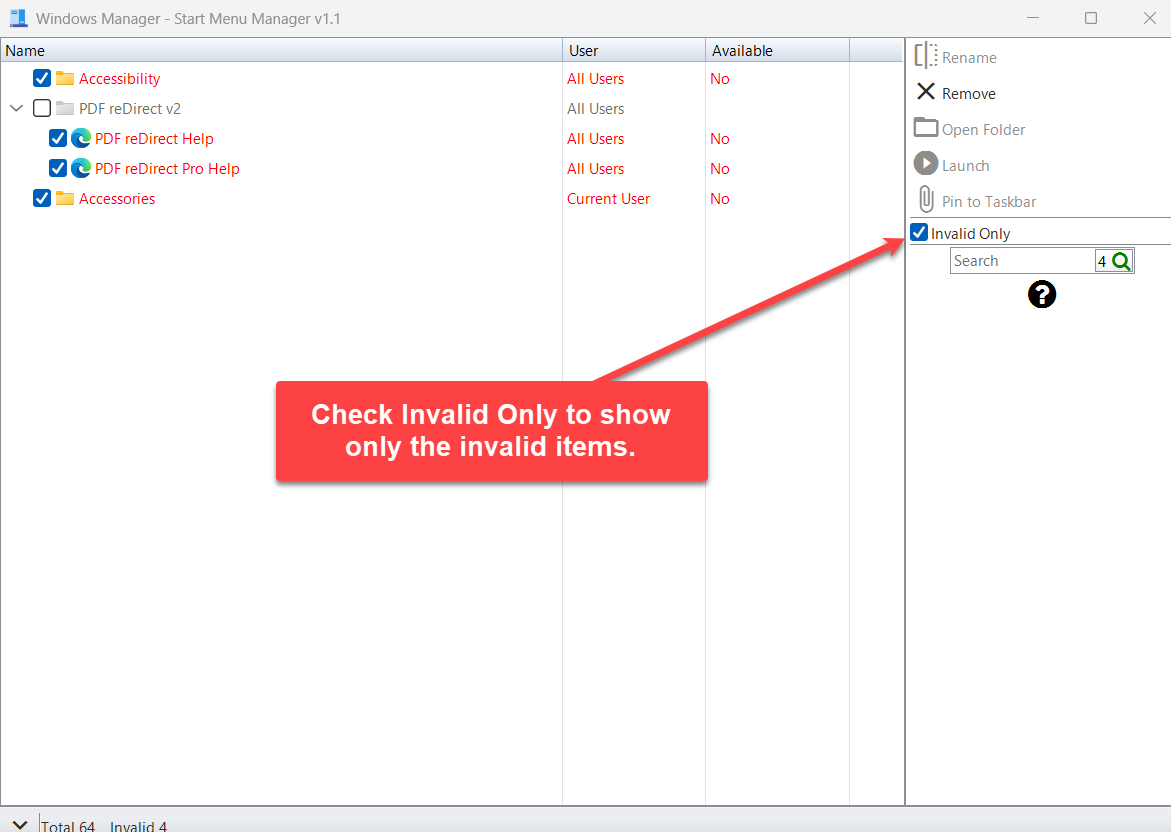
Check Invalid Only to show only the invalid items. A parent folder that is not itself invalid can still appear, so you can see the red items inside it. That parent is disabled. It is there for navigation, not for deletion.
The search box filters the list by the visible columns: Name, User, and Available. The number on the search button is how many rows match. Search and Invalid Only work together: with both on, you see invalid items that also match the text.
Clear the search box and clear Invalid Only to see the full list again.
8. Open Folder, Launch, and Pin
These buttons follow the yellow row. They do not look at the checkboxes.
- Open Folder. For a folder, File Explorer opens that folder. For a shortcut, File Explorer opens the Programs folder and selects the shortcut file.
- Launch. Available when the selected row is a shortcut and Available is not No. It starts that shortcut. A folder, or a red shortcut, cannot be launched.
- Pin to Taskbar. Available when Launch is available and the shortcut target is an .exe file. A document, a folder, or a website shortcut cannot be pinned.
- Pin to Start. Same rule as Pin to Taskbar. On Windows 11 this button is hidden, because pinning to Start from this window is not reliable there. Pin to Taskbar remains.
After a successful pin, a short notice confirms that the shortcut was pinned.
9. Important notes
- Remove does not uninstall software. It deletes a Start menu shortcut or a Start menu folder. Use Smart Uninstaller when you want to remove the program itself.
- Look before you remove a checked folder. The whole folder goes, including shortcuts that are not red.
- All Users is shared. A deleted All Users shortcut disappears for every account.
- Red means the target is missing, or the folder is empty. Startup, Maintenance, and Administrative Tools are not marked invalid when empty. A .url shortcut is not marked invalid by the missing-target check.
- Launch and Pin need a target that still exists. Pin also needs an .exe target. Rename and Open Folder still work on a red item.
- Windows 11 hides Pin to Start. Use Pin to Taskbar for an .exe shortcut.
- The name on the Start menu updates after Rename. You may need to open the Start menu again to see it. The program the shortcut runs does not change.
10. Clean broken Start menu items
- Open Customization → Start Menu Manager.
- Read the status bar. If Invalid is greater than zero, broken shortcuts or empty folders were found and checked.
- Check Invalid Only so the red items are easier to review.
- Clear the checkbox on any red item you want to keep, such as a shortcut you plan to repair.
- Leave empty leftover folders checked if you want them removed. Do not check a parent folder unless you want that entire folder deleted.
- Click Remove and confirm.
- Clear Invalid Only, select a shortcut you use often, and click Rename if the Start menu name should be shorter. Click Pin to Taskbar when the target is an .exe.
11. FAQ
Does Remove uninstall the program?
No. It deletes the checked shortcut or folder from the Start Menu Programs folder. The program files stay where the installer put them.
Why is a Start menu item shown in red?
The shortcut’s target file or folder is gone, or the folder is empty. Available says No. Startup, Maintenance, and Administrative Tools are not marked red only because they are empty.
What is the difference between the checkbox and the yellow row?
The checkbox is for Remove. The yellow row is for Rename, Open Folder, Launch, and Pin.
Why is Pin to Start missing?
On Windows 11, Start Menu Manager hides Pin to Start. Pin to Taskbar is still there for a shortcut whose target is an .exe file that exists.
Where are the shortcuts stored?
All Users shortcuts are in C:\ProgramData\Microsoft\Windows\Start Menu\Programs. Current User shortcuts are in %AppData%\Microsoft\Windows\Start Menu\Programs.
Try it now
Start Menu Manager is the tool for the names on the Start menu. When the program itself should be removed, use Smart Uninstaller. For a short Win+R command, use Run Shortcut Creator. More tools are on the product page.
Get started: Download Windows Manager, open Customization → Start Menu Manager, and review the items marked in red.
