Pressing Win+R and typing a short name is faster than browsing to a program or a folder. Windows already does this for a few built-in commands. Run Shortcut Creator in Windows Manager lets you add your own.
Give a command a name, point it at an executable file, a folder, or a URL, and then open it from the Run dialog. The same list also shows the commands Windows already has, and marks missing targets in red so you can remove them.
1. What can Run Shortcut Creator do?
- Open a program from Win+R. Type a short name instead of the full path.
- Open a folder quickly. The same command can open a folder in File Explorer.
- Open a website. A command can open a URL in your browser.
- See which commands are broken. Items shown in red as Deletable are invalid and can be deleted.
- Back up the list. Export the commands to a registry file and restore them later.
2. The shortcut list
Open Run Shortcut Creator from the Windows Manager window. The list shows every command registered for the Run dialog:
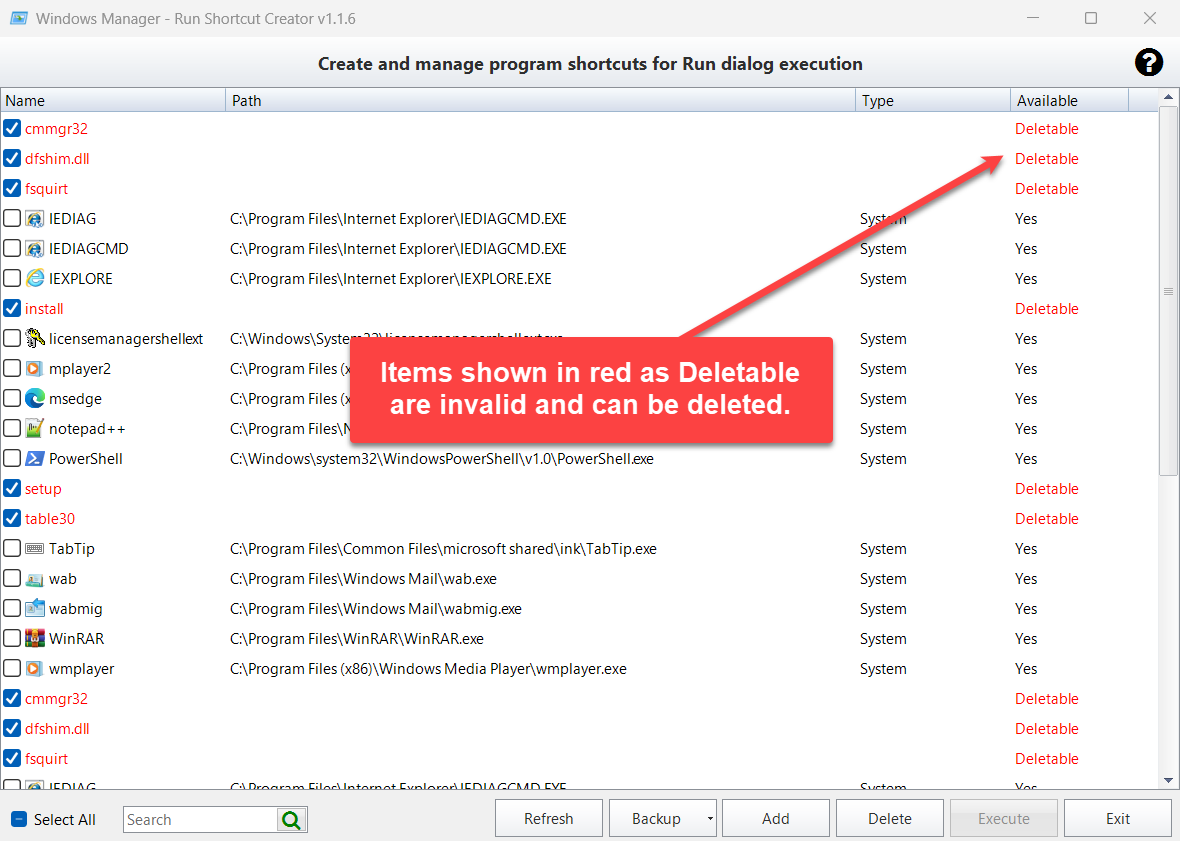
- Name: the text you type after Win+R.
- Path: the program, shortcut, or command that runs.
- Type: System for a command that Windows or another program registered, or My Shortcut for one you added here.
- Available: Yes when the target exists. Deletable, in red, when it does not. Those rows are checked so you can delete them.
Use Search to filter the list. Select All checks the rows that are currently visible. Refresh reads the list again.
3. Add a program
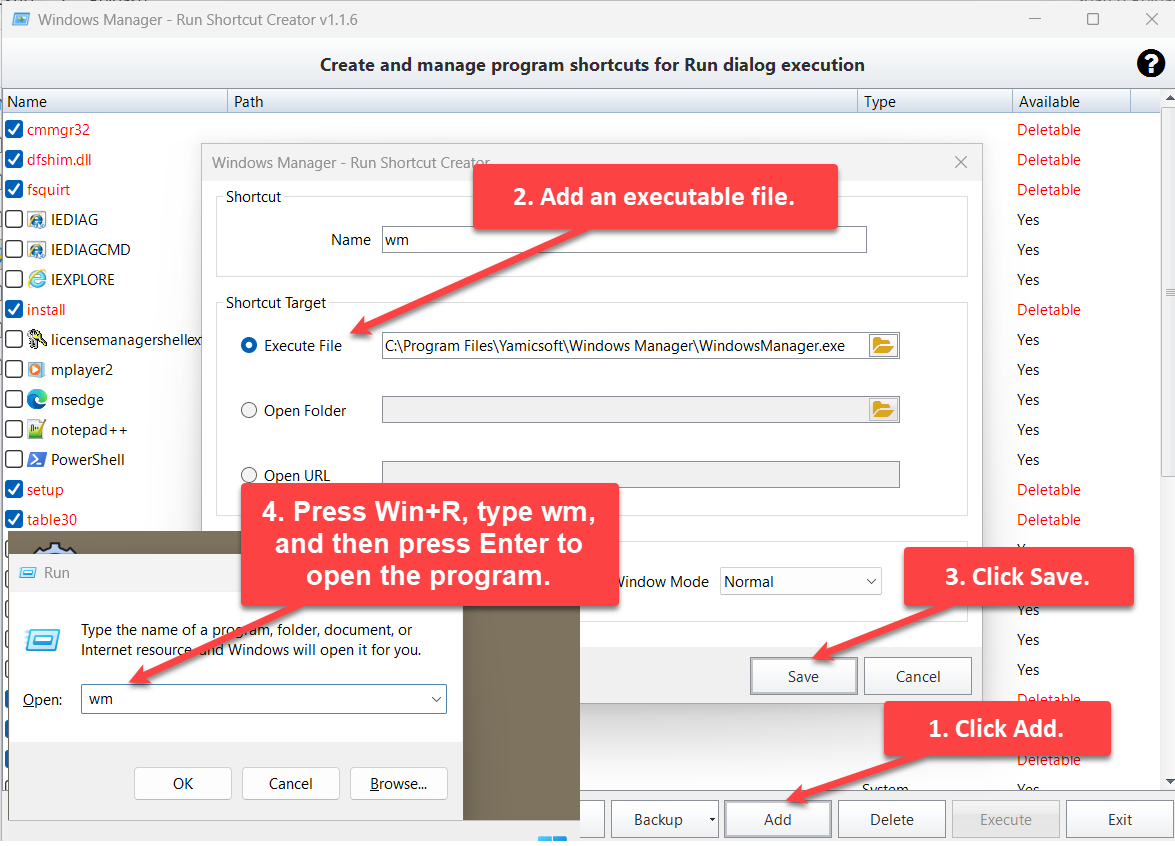
- Click Add.
- Type a short Name, such as wm. Select Execute File and choose the program.
- Click Save.
- Press Win+R, type wm, and then press Enter to open the program.
Optional: type Parameters if the program needs command-line arguments, and choose a Window Mode of Normal, Minimized, Maximized, or Hidden.
4. Add a folder
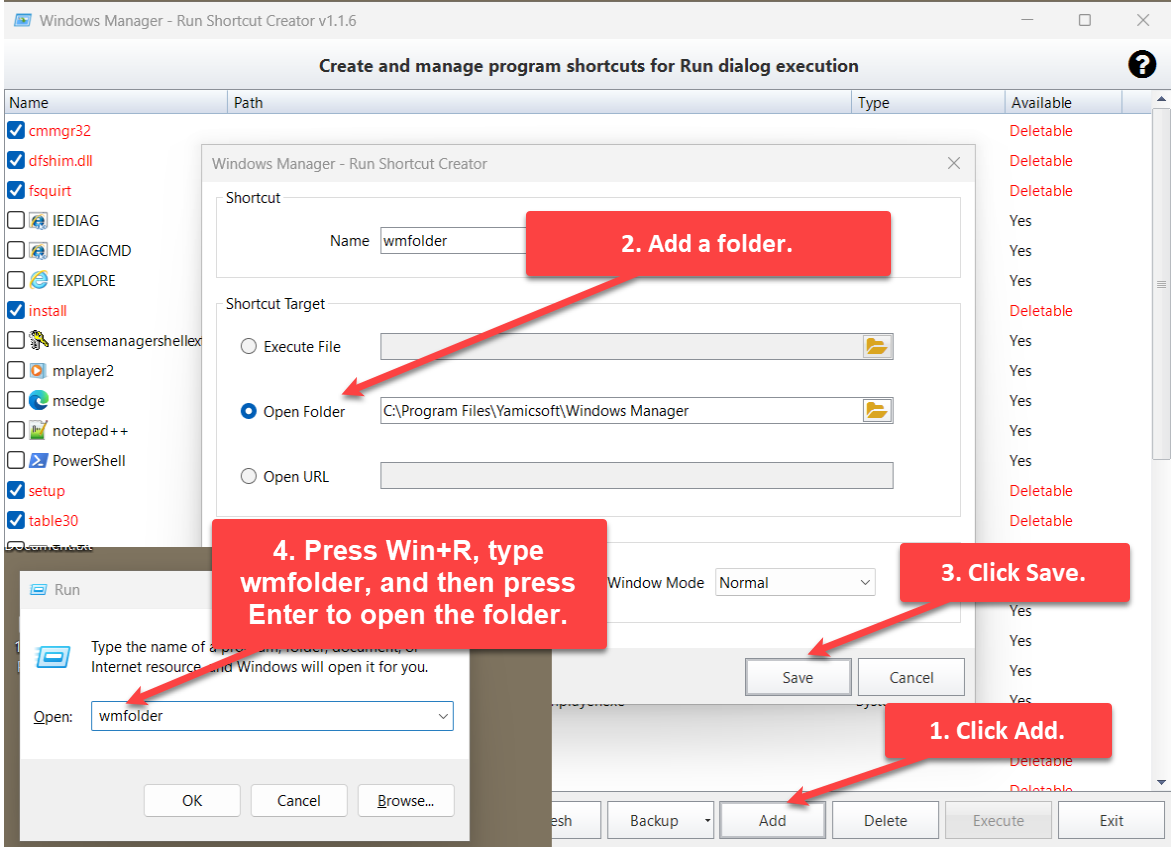
- Click Add.
- Type a name, such as wmfolder. Select Open Folder and choose the folder.
- Click Save.
- Press Win+R, type wmfolder, and then press Enter to open the folder.
5. Add a website
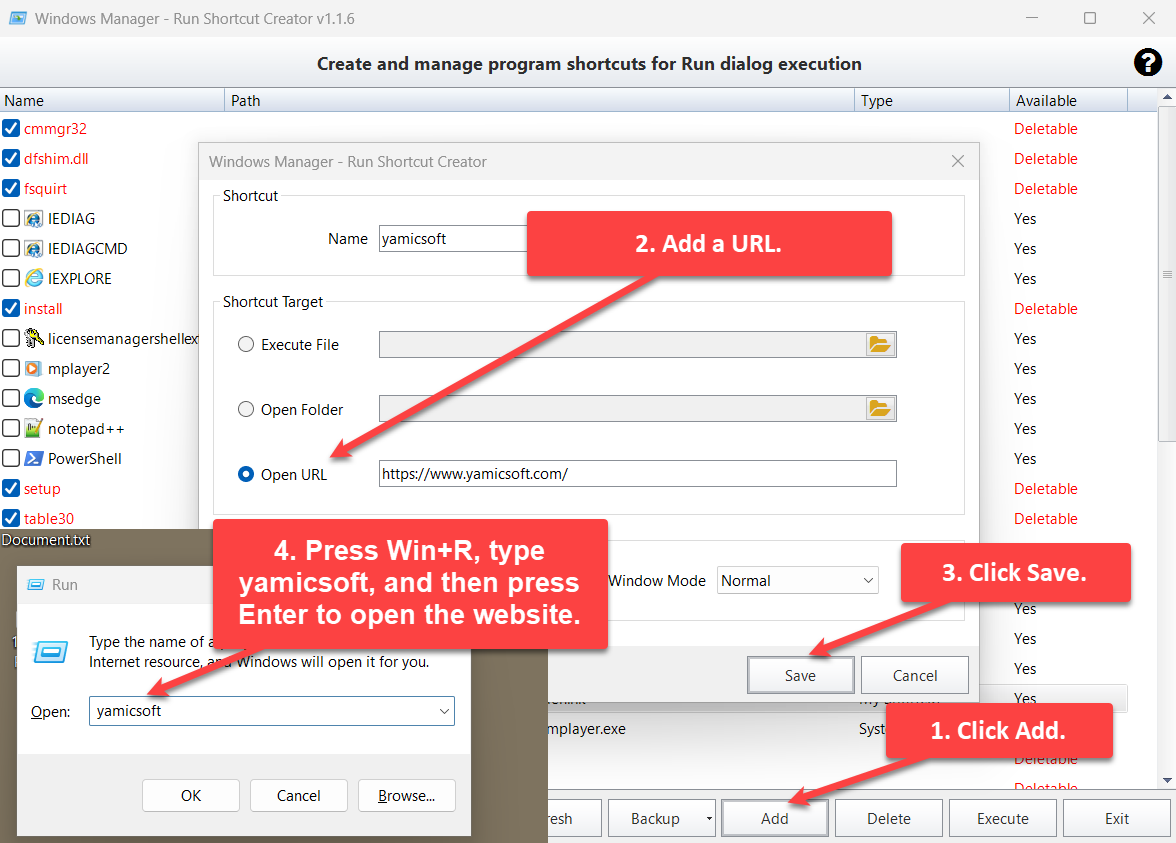
- Click Add.
- Type a name, such as yamicsoft. Select Open URL and enter the address, for example https://www.yamicsoft.com/.
- Click Save.
- Press Win+R, type yamicsoft, and then press Enter to open the website.
If the address has no http:// or https://, the tool saves it as an https address.
6. Run, delete, and back up
- Execute runs the selected command. You can also double-click the row.
- Delete removes the checked commands. For a shortcut you created, the shortcut file is removed as well.
- Backup exports the commands to a .reg file. Restore imports that file.
7. Important notes
- The name is the command. Use a short name without spaces. A trailing .exe is removed, so wm.exe becomes the command wm.
- Do not use file-name characters such as \ / : * ? " < > | in the name.
- Red Deletable rows are invalid. The target file or folder is missing. Review them before you delete, especially rows whose type is System.
- System commands belong to Windows and installed programs. Deleting one removes that Run command. Delete it only when you know you do not need it.
- On 64-bit Windows the list includes both 64-bit commands and 32-bit commands. The same name can appear twice.
- The tool needs administrator rights because these commands are stored for the whole computer.
Try it now
Run Shortcut Creator is for the commands you type every day: a program, a project folder, or a website. Other Windows Manager tools cover cleanup, startup items, and the right-click menu. See the product page for the rest.
Get started: Download Windows Manager, open Run Shortcut Creator, and add your first command.
