Shortcuts, documents, installers, and leftover folders collect on the Windows desktop until the icons are hard to find. Deleting them one by one is slow, and it is easy to remove something you still open.
Desktop Cleaner in Windows Manager lists every item on the current user's desktop and the All Users desktop. The list shows the name, user, size, type, last access time, and usage count. From there you can move unused items into folders, group files by type, or send selected items to the Recycle Bin.
This guide explains the list, the Organize menu, scheduled tasks, Options, and the checks to make before anything is moved.
1. What the desktop list shows
All items on the desktop are shown in this list. For each item, you can see its size, type, and other details.
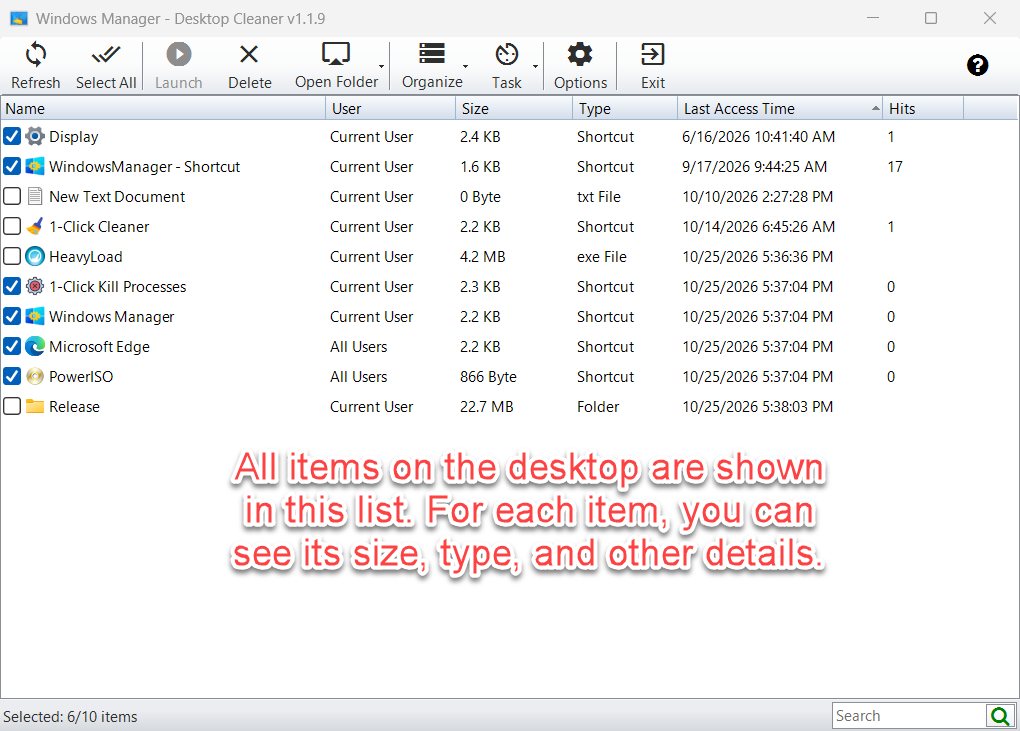
- Name: The shortcut, file, or folder name.
- User: Current User or All Users, so you can tell a personal desktop icon from a shared one.
- Size: File or folder size.
- Type: Shortcut, Folder, or a file type such as txt File or exe File.
- Last Access Time: When the item was last used. For a shortcut, this can come from Windows usage history.
- Hits: How many times a shortcut has been launched. Files and folders leave this column blank.
The status bar shows how many visible items are selected, for example Selected: 6/10 items. Use the Search box to filter the list by name. Refresh reloads both desktops.
2. Organize menu: two ways to arrange items
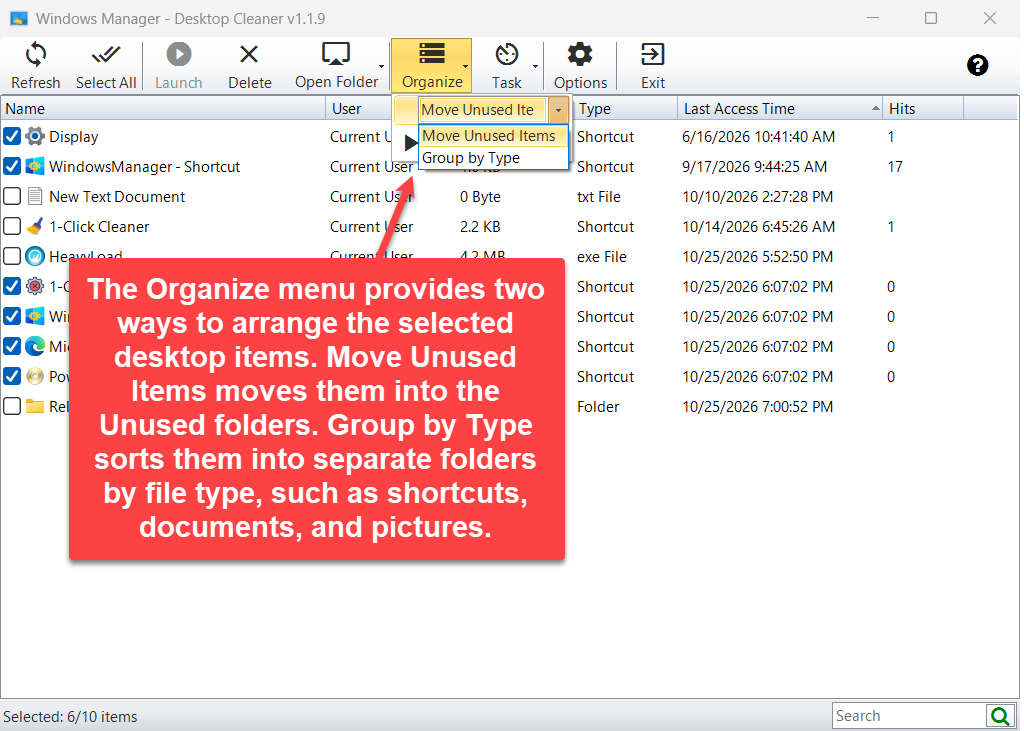
The Organize menu provides two ways to arrange the selected desktop items. Move Unused Items moves them into the Unused folders. Group by Type sorts them into separate folders by file type, such as shortcuts, documents, and pictures.
2.1 Move Unused Items
Checked shortcuts are moved into an Unused Shortcut folder. Checked files and other folders are moved into an Unused File folder. Current User items and All Users items go to separate folders, so a shared desktop icon is not mixed into your personal desktop.
Before the move, Desktop Cleaner asks you to confirm. The default folder names are Unused Shortcut (CU), Unused Shortcut (AU), Unused File (CU), and Unused File (AU). You can rename them in Options.
2.2 Group by Type
Checked items stay on the desktop they came from and are placed in a folder that matches the file type:
- Desktop Shortcuts
- Desktop Folders
- Desktop Documents
- Desktop Videos
- Desktop Audio
- Desktop Compressed
- Desktop Pictures
- Desktop Other
Only the folders that receive items are created. For the best result, select all items first, then choose Group by Type and click Start Organizing.
3. Task menu: schedule the cleanup
The Task menu schedules Desktop Cleaner or opens its existing tasks. Create Task adds either a task that organizes the desktop silently, or a task that starts the program. View Task opens the scheduled tasks.
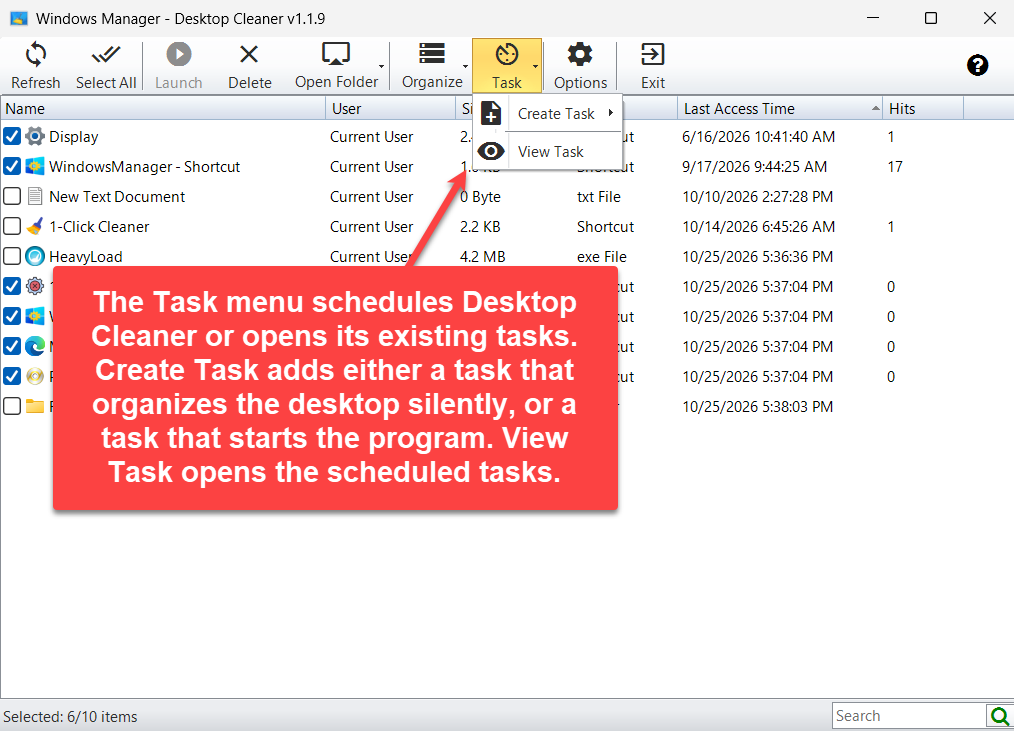
- Create Task → Silent Auto-Organize: Creates a scheduled task that runs the organize method currently selected in the Organize menu. The window does not stay on the taskbar.
- Create Task → Start Program: Creates a scheduled task that opens Desktop Cleaner so you can review the list yourself.
- View Task: Opens Task Scheduler Manager and shows the Yamicsoft tasks.
Set the time in the task window that opens. Silent Auto-Organize uses whichever command is selected under Organize, so choose Move Unused Items or Group by Type before you create the task.
4. Options: folder names and what gets selected
Options sets the Unused folder names and which desktop items are included. CU is the current user and AU is all users. Shortcuts and other items can use separate folder names on each desktop. Either desktop can be left out of the cleanup. Items not used for the specified number of days are selected automatically, and so are shortcuts with a usage count below the threshold.
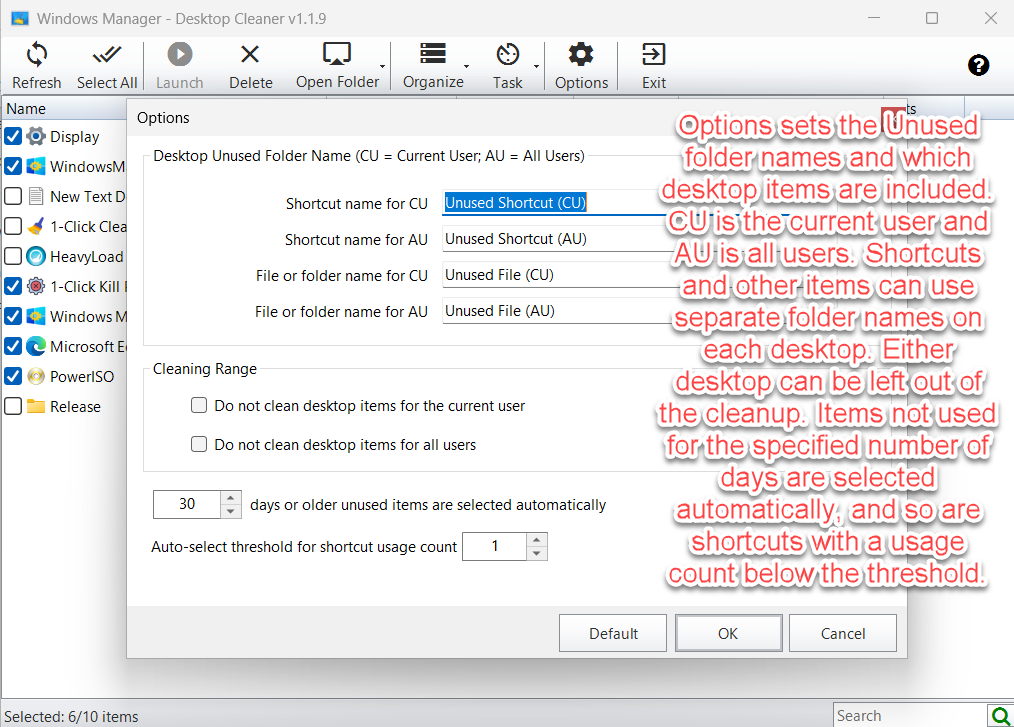
- Desktop Unused Folder Name: Four names, for shortcuts and for files or folders, on each desktop.
- Cleaning Range: Skip the current user's desktop, or skip the All Users desktop. The two boxes cannot both be checked, so at least one desktop stays in the list.
- Days: Items that have not been used for this many days, or longer, are selected. The default is 30.
- Shortcut usage count: Shortcuts used fewer times than this number are selected. The default is 1, which selects shortcuts that have never been launched.
Default restores these settings. OK saves them and reloads the list. Cancel closes Options without saving.
5. Other toolbar buttons
- Refresh: Read both desktops again.
- Select All: Check or clear every visible row. Hidden search results are left alone.
- Launch: Open the selected shortcut, file, or folder.
- Delete: Move the checked files and folders to the Recycle Bin. Confirm the prompt before they are removed from the desktop.
- Open Folder: Open Current User Desktop or All Users Desktop in File Explorer.
- Options and Exit.
The question-mark icon at the right of the toolbar shows a short description. Online Help under that description opens this guide in your current language.
6. Important notes
- Review the checks first. A shortcut is selected when its usage count is below the threshold, even if it was accessed today. Any item is also selected when it has not been used for the chosen number of days or more, even if a shortcut was launched many times. Clear the box for anything you still want on the desktop.
- Delete uses the Recycle Bin. Checked items are not erased permanently. Restore them from the Recycle Bin if a move or delete was wrong.
- Only checked rows are moved. Move Unused Items and Group by Type ignore cleared rows.
- Group by Type does not mix the two desktops. A shared icon stays on the All Users desktop, inside a type folder created there.
- Existing type folders are skipped. Desktop Shortcuts, Desktop Documents, and the other category folders are not moved into one another.
- All Users may need permission. Moving or deleting a shared desktop item can fail if Windows blocks the change. Those rows stay in the list.
- Choose the organize method before a silent task. Silent Auto-Organize repeats the method selected in the Organize menu.
7. Typical workflows
Move items you no longer open
- Open Desktop Cleaner and read the list.
- Clear any shortcut or file you still use.
- Choose Move Unused Items.
- Click Start Organizing and confirm.
- Open the desktop and check the Unused folders.
Sort the whole desktop by type
- Click Select All.
- Choose Group by Type.
- Click Start Organizing and confirm.
Repeat the cleanup on a schedule
- Select Move Unused Items or Group by Type.
- Open Task → Create Task → Silent Auto-Organize.
- Set when the task should run.
- Use View Task later if you want to change or remove it.
Try it now
Desktop Cleaner arranges what is already on the desktop. To remove temporary files from a drive, use Junk File Cleaner. To find copies of the same file by content, use Duplicate Files Finder. See the product page for the rest of Windows Manager.
Get started: Download Windows Manager, open Desktop Cleaner, and review the desktop list before you move anything.
