A program you do not want on a shared PC can still be started from a shortcut, the Start menu, or another copy of the same file. A startup entry can put itself back after you delete it. Malware can also redirect a program name so that starting it opens something else.
Security Lock in Windows Manager locks files, folders, programs, and selected system locations. You can block one program, every program signed with the same certificate, or only one exact file. You can also allow only the programs you name, make startup and file-association keys read-only, and see or remove Image Hijack redirects.
This guide follows each page, the message Windows shows when a program is blocked, and the cases that need a sign-out or a restart.
1. What can Security Lock do?
- Function Limit. Turn off selected Windows features, and block a file, folder, Windows app, Start menu item, or utility from running.
- Lock System. Set startup keys, advanced startup keys, and file-association keys to read-only so they cannot be changed.
- Allow by Name. Let only the EXE names in the list run. Every other EXE is blocked.
- Lock by Name. Block EXE names in the list. Every other EXE can still run.
- Lock by Signature. Block every program signed with the same certificate. One row can list several product names that share that thumbprint.
- Lock by Hash. Block one exact file by its SHA-256 hash. A different version of the same program has a different hash and is not blocked.
- Image Hijack. See programs that are redirected when they start, delete those entries, or add a redirect that opens another program or blocks the file.
The same window also opens Windows Features and Service Manager. Those are separate tools. They do not use the lock lists on the other pages.
2. How to open Security Lock
Open Security Lock from the Windows Manager main window. Run it as Administrator. Signature rules and several system locks are written for the computer, and they are not applied when the program cannot write those settings.
The left side lists the pages. The question mark on a page shows a short summary of that page. Online Help under the summary opens this guide.
A program that is already running stays open after you block it. Close it, then try to start it again. The new start is what Windows checks.
3. Function Limit
Locked files cannot run. Executable files inside a locked folder cannot run. Locked Win32 programs and Windows apps cannot run.
Check an item to turn that restriction on. Clear the check to turn it off. Under Components you can disable Command Prompt and batch files, Control Panel and Settings, Windows Features, File History, Programs and Features, Folder Options, management-console snap-ins, and finger touch on a touch screen. The Control Panel item also covers date and time formats, geographic location, themes, desktop background, color and appearance, and sound schemes.
The same list can block Registry Editor, Task Manager, Command Prompt, Windows Defender, Management Console, PowerShell, System Configuration, and Windows Script Host. Template items can block programs in Program Files, Program Files (x86), and Windows apps.
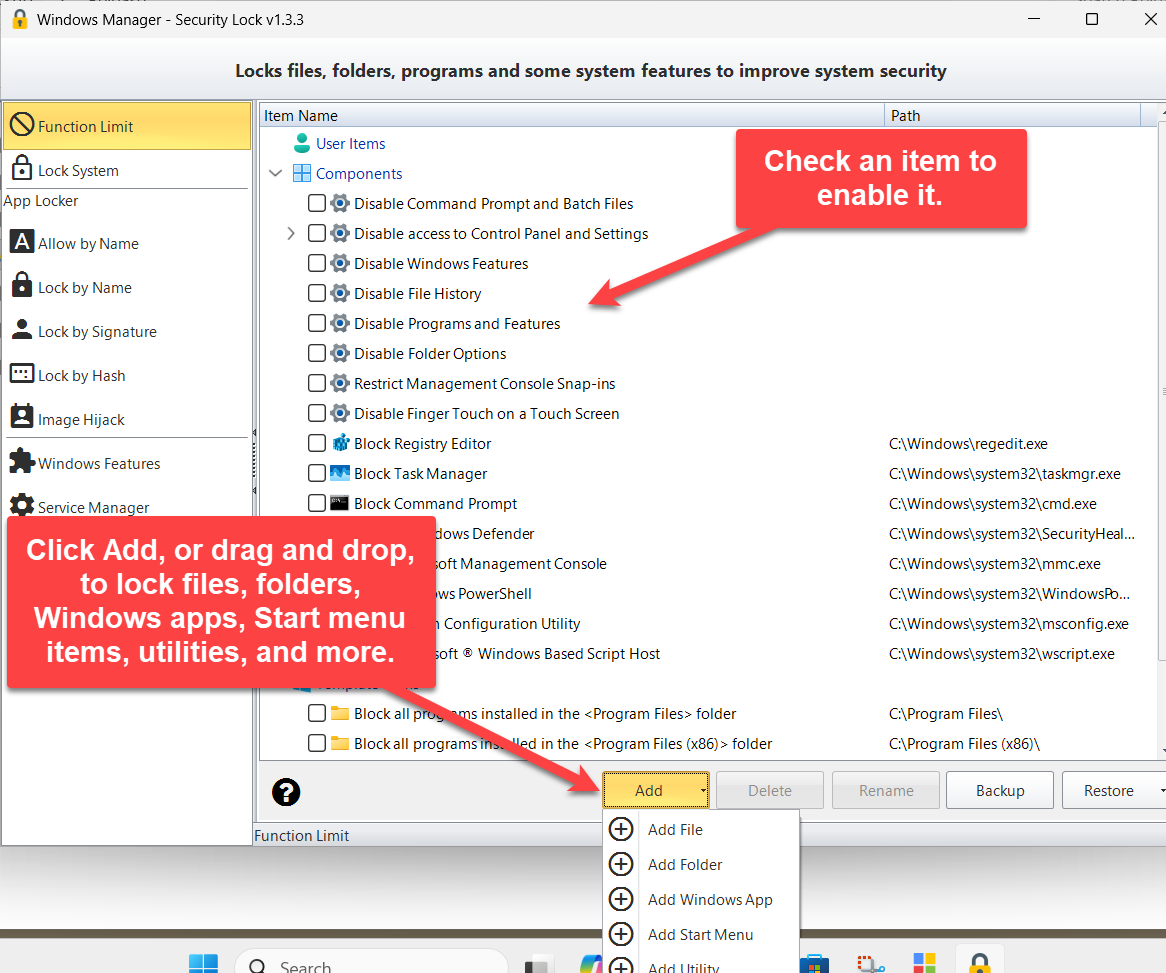
Click Add, or drag items onto the list, to lock files, folders, Windows apps, Start menu items, and utilities. Delete and Rename apply to items you added. Backup exports the rules to a registry file. Restore can restore the default items or import a registry file you saved earlier.
When the blocked program is started, Windows shows This app has been blocked by your system administrator.
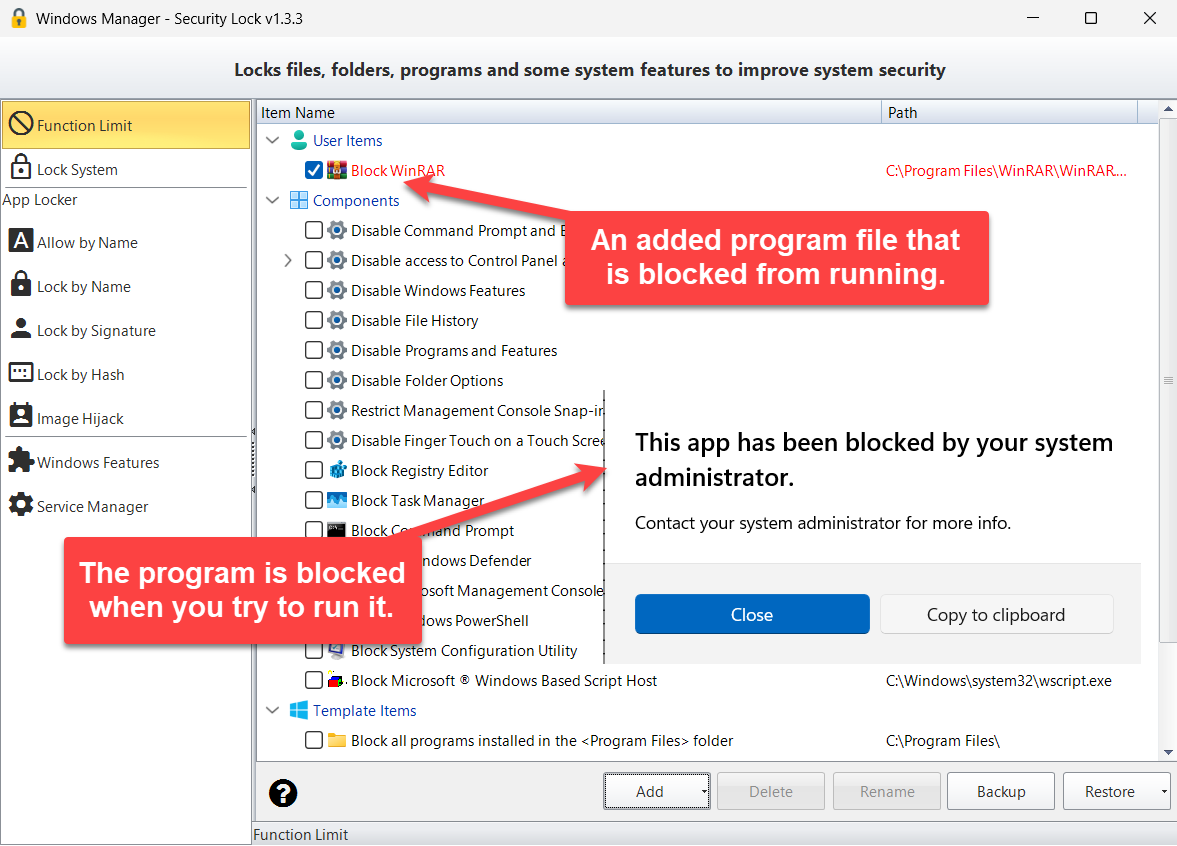
If Windows Manager itself is installed under C:\Program Files, blocking that folder also blocks this program. Copy C:\Program Files\Yamicsoft\Windows Manager to another folder and run it from there when you need to change the lock.
4. Lock System
Lock System sets the selected registry keys and folders to read-only. After they are locked, nothing can write new values there. That stops malware from adding a startup program or changing how EXE, BAT, VBS, and other file types open. Unlock an item before you install software, install a Windows update, or change that part of the system yourself.
Check an item, then click OK. A lock icon in Status means the item is locked. The list is grouped into:
- Lock Startup — Run keys and Startup folders for all users and the current user, including RunOnce.
- Lock Advanced Startup — Image File Execution Options, AppInit DLLs, shell hooks, installed components, and Safe Boot.
- Lock File Association — the open command for EXE, COM, BAT, VBS, SCR, MSI, and other types shown in the list.
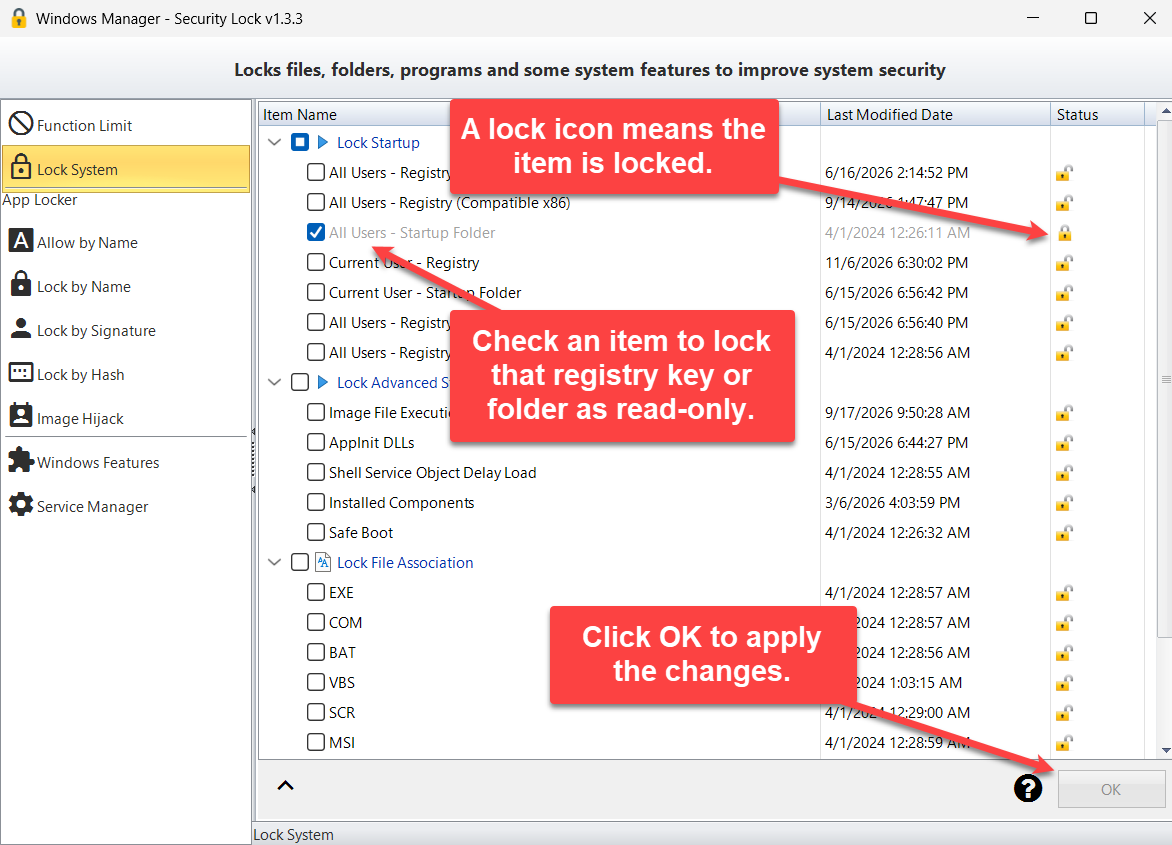
The permission change is applied when you click OK. A program that already started from a locked startup location keeps running until you sign out or restart File Explorer.
5. Allow by Name
Only executable files whose names are in this list can run. All other EXEs are blocked. Add several files at once by dragging them in, or by holding Ctrl or Shift in the file dialog. Remove every item to allow all programs again.
Security Lock keeps SecurityLock.exe and WindowsManager.exe on the list so you can open this window and clear it. A program that is not on the list shows This operation has been cancelled due to restrictions in effect on this computer.
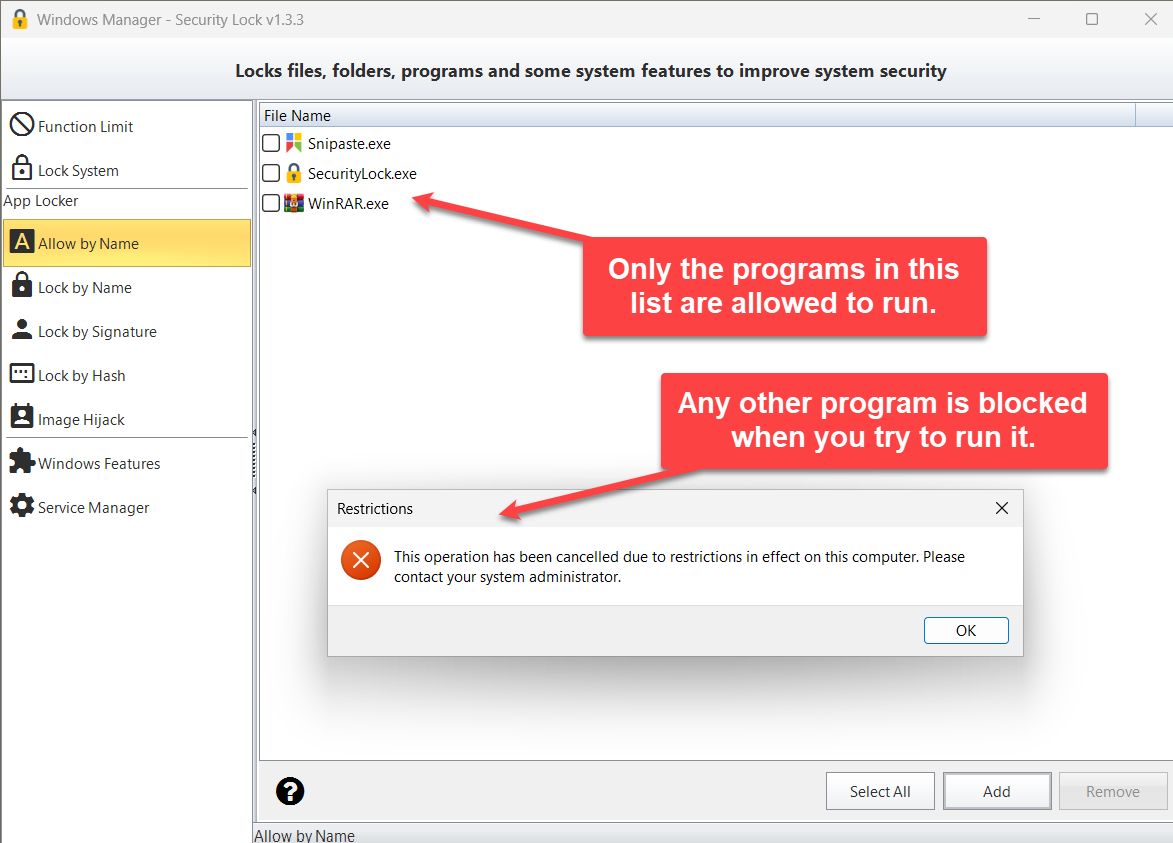
After you save the list, Security Lock asks whether to restart File Explorer so the change applies without restarting the computer. Choose Yes. Put every program you still need on the list before you do that, including explorer.exe if you want the desktop and File Explorer to keep working. This page matches the file name, not the folder, so two programs with the same EXE name are treated the same.
6. Lock by Name
Any EXE whose name appears in this list is blocked from running. All other EXEs can run. Drag files in, or hold Ctrl or Shift to add several at once. Remove all items to allow those programs again. You cannot add Security Lock itself.
Starting a listed program shows This app has been blocked by your system administrator. Renaming the EXE changes the name Windows checks, so a renamed copy is not the same entry.
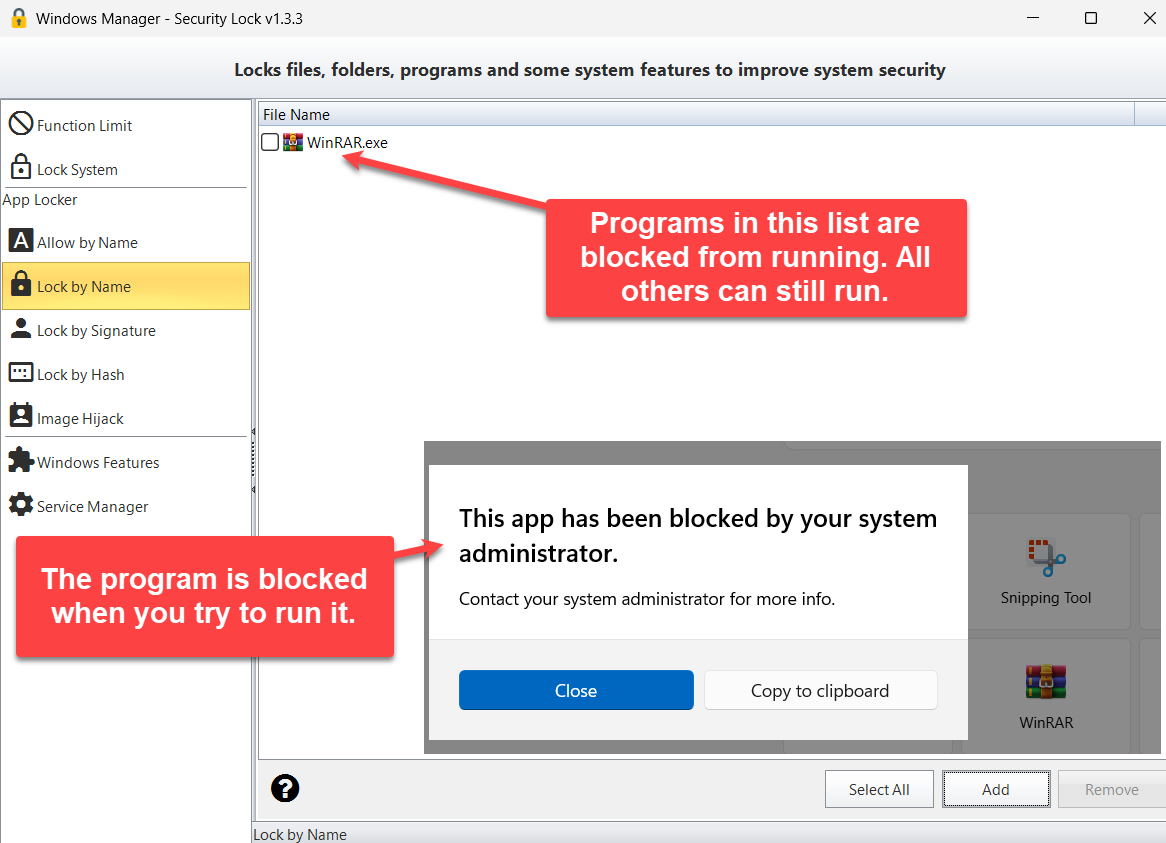
Save the list, then restart File Explorer when Security Lock asks. A program that is already open keeps running until you close it.
7. Lock by Signature
Add a signed EXE, a shortcut, or a certificate file. You can select several files or drag them in. Windows blocks all programs signed with that certificate, not only the file you added. The list shows the publisher, the product name, and the certificate thumbprint. Programs that share a thumbprint stay on one row, and each product name is kept.
An unsigned file cannot be added. A certificate file that cannot be read is rejected. Security Lock does not add its own publisher. To unblock, check the row and click Remove, then close any copy that is still running.
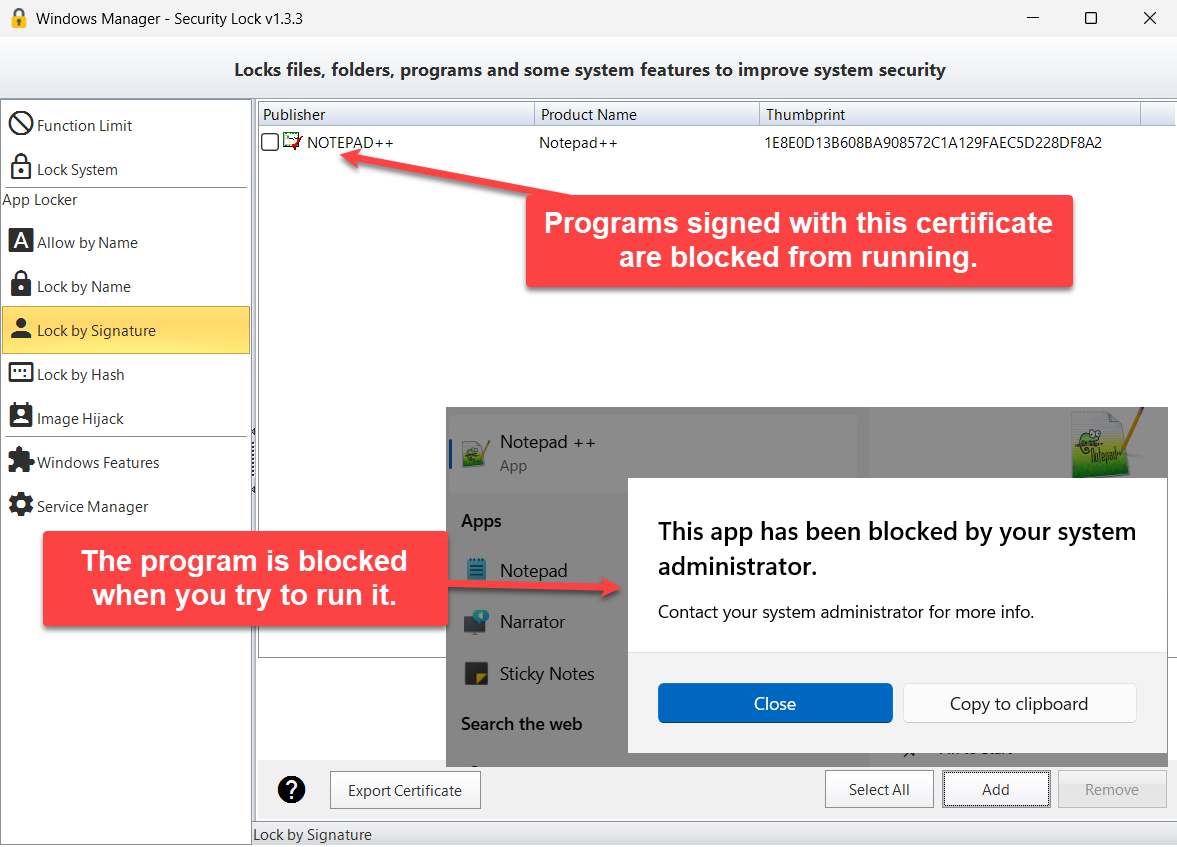
If the program still runs, run Security Lock as Administrator and add the signature again. The first time this kind of rule is turned on, some PCs apply it only after you sign out and sign in again. Catalog-signed Windows files are not recognized by this page. Blocking a publisher certificate blocks every product that publisher signed with that certificate, including updates of programs you still use.
8. Lock by Hash
Add an EXE or a shortcut, or click Add Hash and type a SHA-256 value of 64 hexadecimal characters. Hash blocking targets that exact file. A different build of the same program has a different hash and can still run. Check the row and click Remove to unblock it. You cannot add Security Lock itself.
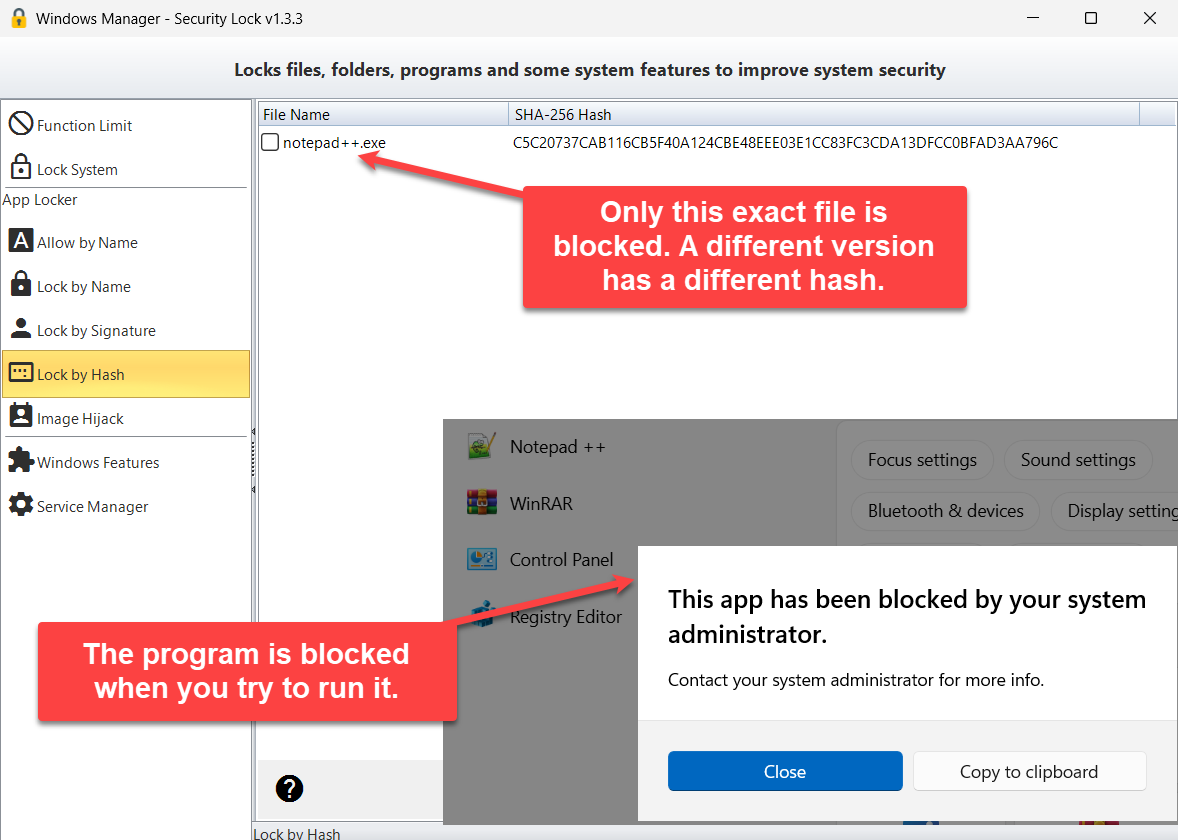
Use a hash when you need to stop one copy and still allow other versions. Use a signature when every program from that publisher should stop. The first time hash rules are enabled, a sign-out may be required before Windows starts checking new programs.
9. Image Hijack
Image Hijack redirects a program to another program when that file name starts. Malware often uses this to stop security software from running. This page lists those entries so you can delete them, and it can add a redirect for a file you want to block or send somewhere else.
Click Add. Type the file name with an extension, for example winrar.exe. The actual executable is the program that opens instead. Leave that box blank to block the redirected file from running. In the list, a block is shown as rundll32.exe. Entries already on the computer are marked Proposed for deletion so you can review them and delete the ones you do not want.
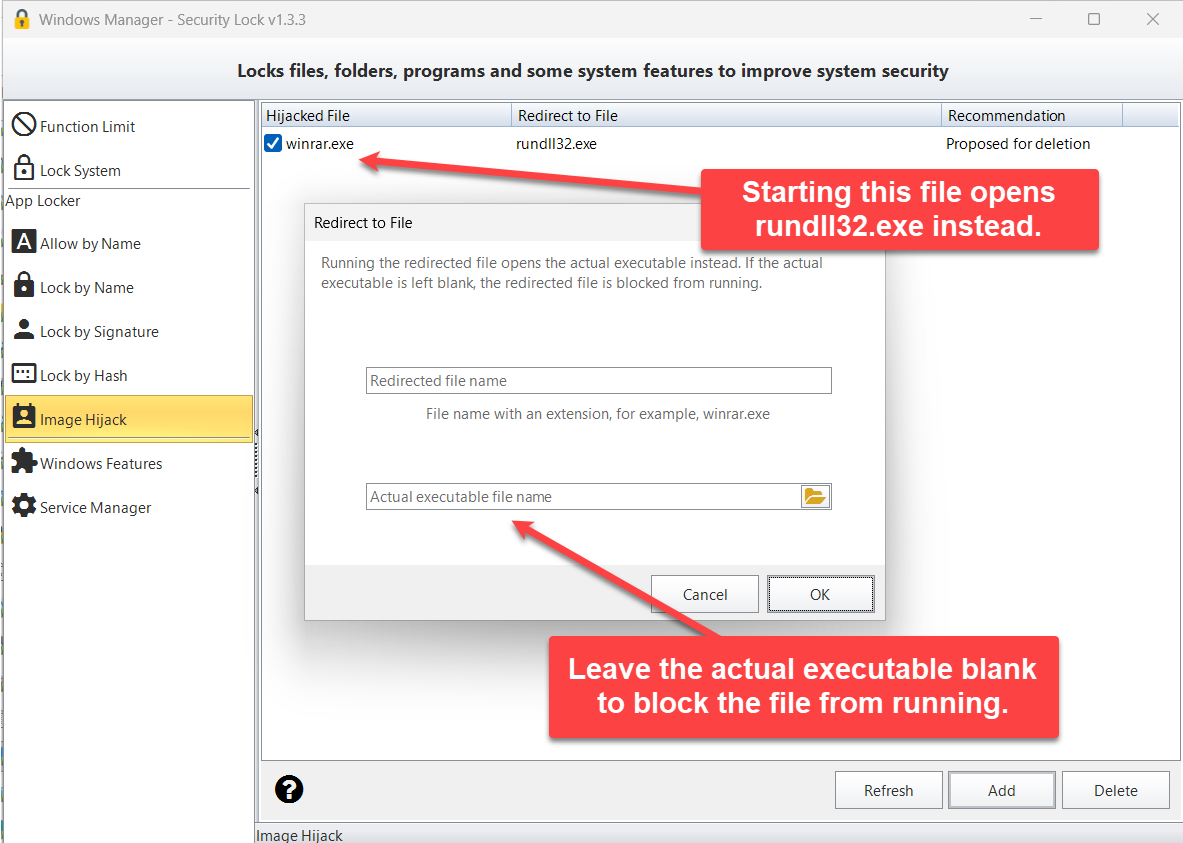
The redirect applies the next time that file name starts. A copy that is already running keeps running. Restart Windows when you need that copy to exit so you can delete the file.
10. Important notes
- Close the program, then start it again. A block does not end a copy that is already open.
- Allow by Name is the strict list. Every EXE name that is missing is blocked. Include the programs you still need before you restart File Explorer. Security Lock and Windows Manager stay on the list so you can turn the restriction off.
- Lock by Name follows the file name. It does not follow the folder. Renaming the file bypasses that entry. Other programs keep running.
- A signature blocks the whole certificate. Read the product names on the row before you leave it in place. Catalog-signed system files are not covered.
- A hash blocks one file. After that program is updated, add the new file if you still want it blocked.
- Restart File Explorer when Allow by Name or Lock by Name asks. That applies the name lists without restarting the computer.
- Sign out once if a newly enabled hash, signature, or Function Limit program block does not apply to the next start. Finger touch also takes effect after you sign out.
- Disable Windows Defender needs a restart, and Windows 10 and Windows 11 often ignore that policy. Do not treat it as a substitute for the security software you intend to keep.
- Unlock Lock System items before you install software or a Windows update. A read-only startup key or file association can make a normal setup fail.
- Do not block the folder that contains Windows Manager unless you have another copy you can run.
11. Typical workflows
Stop one program, and only that copy
- Open Lock by Hash.
- Click Add and choose the EXE, or drag it onto the list.
- Close the program if it is open, then try to start it. Windows should report that the app has been blocked.
Stop every program from one publisher
- Open Lock by Signature and add one signed program from that publisher.
- Read the product names on that row. Remove the row if a program you need is included.
- If it still starts, run Security Lock as Administrator and add it again. Sign out once if this is the first signature rule on the PC.
Allow only a few programs
- Open Allow by Name and add each EXE that must still run, including programs the user starts from the desktop.
- Save the list and restart File Explorer when asked.
- Remove every item when the restriction is no longer needed.
Keep startup from being changed
- Open Lock System.
- Check the startup keys or file associations you want to protect.
- Click OK. Clear the check and click OK again before a software installation or a Windows update.
Try it now
Security Lock is the Windows Manager tool for blocking programs by name, signature, or hash, limiting which EXE names can run, and locking startup and file-association settings. See the product page for the rest of Windows Manager.
Get started: Download Windows Manager, open Security Lock, and block a test program you can close and remove from the list before you lock anything you still need.
