Windows stores settings in registry hive files. As software is installed and removed, those files keep empty space. A bloated registry can slow startup and make programs wait longer when they read settings. Registry Defrag in Windows Manager rebuilds and reindexes the registry hives, removes that empty space, and applies the smaller files the next time Windows starts.
This is not a disk defragmenter, and it does not delete leftover registry keys. Registry Cleaner removes invalid entries. Registry Defrag compacts the hive files themselves. Registry Tools is a separate editor for searching, backing up, and changing keys.
1. What Registry Defrag does
The window title is Rebuild and defragment the registry to fix errors and corruption. The list shows each registry hive Windows has loaded, together with its current size.
Over time, a bloated registry with a lot of empty space can slow startup and overall performance. Registry Defrag rebuilds and reindexes the registry to remove fragmentation and repair corruption. After defragmentation, the registry has a more linear structure, which reduces application response time and registry access time. The computer must be restarted after the registry is defragmented.
Typical hives include \REGISTRY\MACHINE\SYSTEM, \REGISTRY\MACHINE\SOFTWARE, \REGISTRY\MACHINE\SAM, \REGISTRY\MACHINE\SECURITY, \REGISTRY\USER\.DEFAULT, and the loaded user profiles. Temporary Windows container hives under \REGISTRY\WC\SILO are left out.
- Analyze rewrites each hive and calculates the compacted size and the percentage of space that can be saved. Nothing is replaced yet.
- Compact schedules the smaller files to replace the current hives. Windows finishes the replacement at the next restart.
- Cancel closes the program. If you have not compacted, the registry stays as it is.
2. How to open Registry Defrag
Open Windows Manager, then open Registry Defrag. The program needs administrator permission because it reads and replaces system hive files. The question-mark icon in the title bar shows a short description. Under that description, Online Help opens this page.
The status bar starts with Welcome to Windows Manager - Registry Defrag. Compact stays unavailable until an analysis shows that compacting is worth doing. If Windows Manager is not installed yet, download it from the download page. Registry Defrag is one of the tools in the suite and runs on Windows 10 and Windows 11.
3. Analyze the registry hives
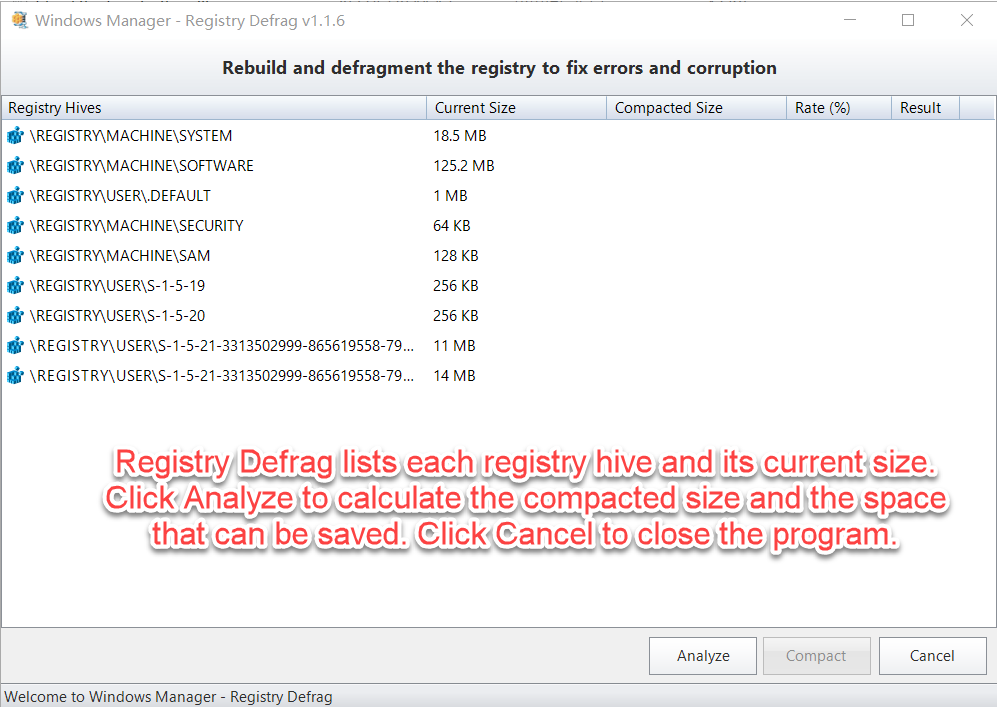
The columns are Registry Hives, Current Size, Compacted Size, Saved (%), and Result. Before you click Analyze, only the hive name and the current size are filled in.
Close other programs first. Registry Defrag asks: It is strongly recommended to close all other applications before analyzing. Continue? Choose No to go back. Choose Yes and the screen dims while the hives are read. A window titled Analyzing the registry. This may take several minutes... shows the hive being analyzed and a progress bar. Wait until that window closes by itself.
For each hive, the program writes a compact copy in the latest registry format. Empty space is removed. If the new file is not smaller than the original, that hive is left unchanged and is not used as a replacement.
4. Read the result and compact the registry
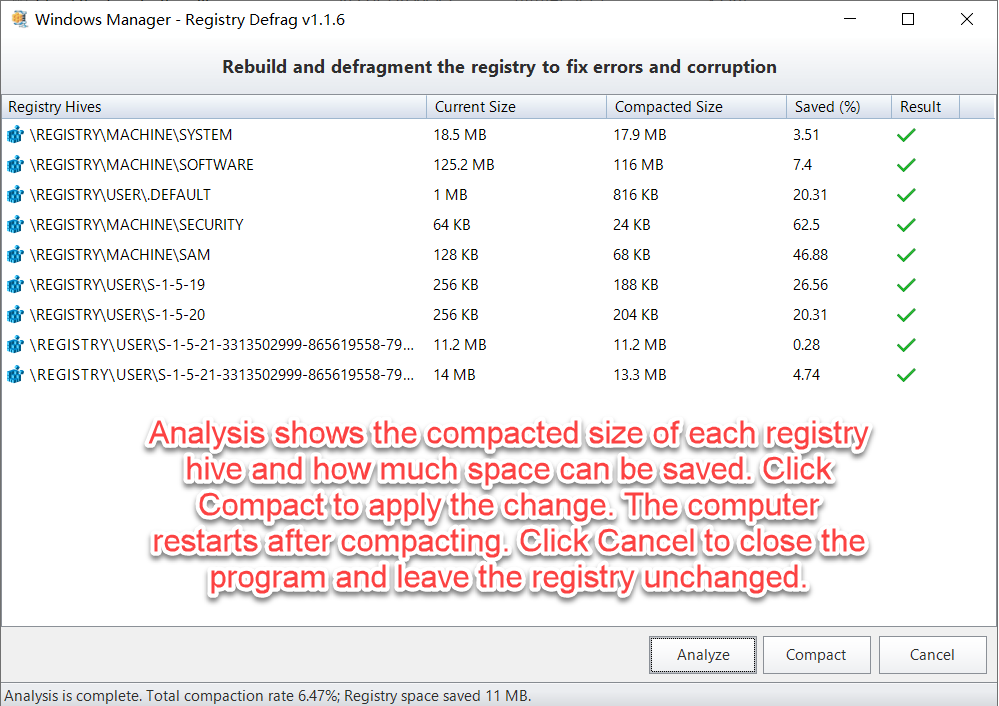
When analysis finishes, the status bar reports the total compaction rate and the registry space saved, for example: Analysis is complete. Total compaction rate 6.47%; Registry space saved 11 MB. A check mark in Result means that hive was analyzed. An error mark means that hive was skipped.
Saved (%) is the share of that hive’s current size that the compact copy removes. The total rate uses the real file sizes, not the rounded numbers in the list.
- If the total rate is under 2%, Registry Defrag says Analysis is complete. It is not necessary to defragment the registry. Compact stays unavailable, and the temporary copies are removed.
- If the total rate is 2% or more, Registry Defrag asks Analysis is complete. Compact the registry now? Choose No if you want to look at the numbers first. Compact then becomes available. Choose Yes to continue.
Compacting shows this warning: Warning: The system will restart after compacting the registry. Please save all work and close all applications before continuing. Are you sure you want to continue? Choose No to stop. Choose Yes and Windows Manager prepares the replacement, then restarts the computer. Windows applies the new hive files during that restart and keeps a backup of the previous files.
If no hive can be replaced, Registry Defrag reports that compacting failed and the computer does not restart. Closing the window before you compact also leaves the registry unchanged.
5. Run Registry Defrag from 1-Click Cleaner
1-Click Cleaner can run Registry Defrag together with the other cleanup tasks. The item is labeled Registry Defrag (May need to restart). Analysis starts on its own. If the total savings are at least 2% and the computer is set to restart, a 15-second countdown appears: The registry defragmentation will start after a 15-second countdown, and your computer will restart. Continue starts the restart. Abort stops it. If you do nothing, the countdown continues and the computer restarts.
If 1-Click Cleaner is set to shut down after cleaning, Registry Defrag compacts the registry and does not start a separate restart. A scheduled sign-in task should leave registry defragmentation turned off, because the computer needs to restart after the registry is defragmented. Turn it off in 1-Click Cleaner before you rely on that sign-in task.
6. Things to watch
- Save your work before you compact. The computer restarts, and unsaved documents are lost if you continue.
- Close other applications before Analyze. Programs that are writing settings can change a hive while it is being rebuilt.
- The dimmed screen during analysis is expected. Wait for the progress window to close.
- Compact stays unavailable when the total savings are under 2%. That result means the hives are already compact enough.
- A hive whose compact copy is larger is not replaced. Registry Defrag does not swap in a bigger file.
- Cancel before Compact leaves the current registry in place.
- Registry Defrag does not remove invalid keys. Use Registry Cleaner for leftover entries, and Registry Tools when you need to edit or back up keys yourself.
- Let the restart finish. Turning the computer off while Windows is replacing the hive files can leave a hive unusable.
Registry Defrag is included with Windows Manager. Install the suite from the download page, open Registry Defrag, and start with Analyze. Compact only when the saved space is worth a restart.
