Windows keeps a record of the programs you run, the folders you open, the pages you visit, and how long the computer takes to start. Privacy Protector in Windows Manager puts those records in one window. You can turn off features that record or share activity, clear the traces you choose, and look at each history list before you delete it.
1. What Privacy Protector does
The window title is View and manage privacy settings and activity traces. The left side lists the pages you can open. Which pages appear depends on the computer: Microsoft Edge, Google Chrome, and Firefox are shown when those browsers are installed, and Wi-Fi Manager appears when Windows has saved wireless network records.
- System Settings turns off features that record activity or share data, such as recent items, activity history, optional diagnostic data, the advertising ID, and app access to location, camera, or microphone.
- Clear Privacy removes traces of what was opened, run, or typed. You choose the items, then clear them.
- The history pages let you read a list first. Typical lists include URL history, browser history and cookies, folder history, executed programs, recent documents, common dialogs, Jump Lists, Windows Prefetch, the compatibility cache, feature usage, startup time, and USB storage history.
2. How to open Privacy Protector
Open Windows Manager, then open Privacy Protector. The question-mark icon at the bottom of the left panel shows a short description. Under that description, Online Help opens this page.
If Windows Manager is not installed yet, download it from the download page. Privacy Protector is one of the tools in the suite and runs on Windows 10 and Windows 11.
3. System Settings
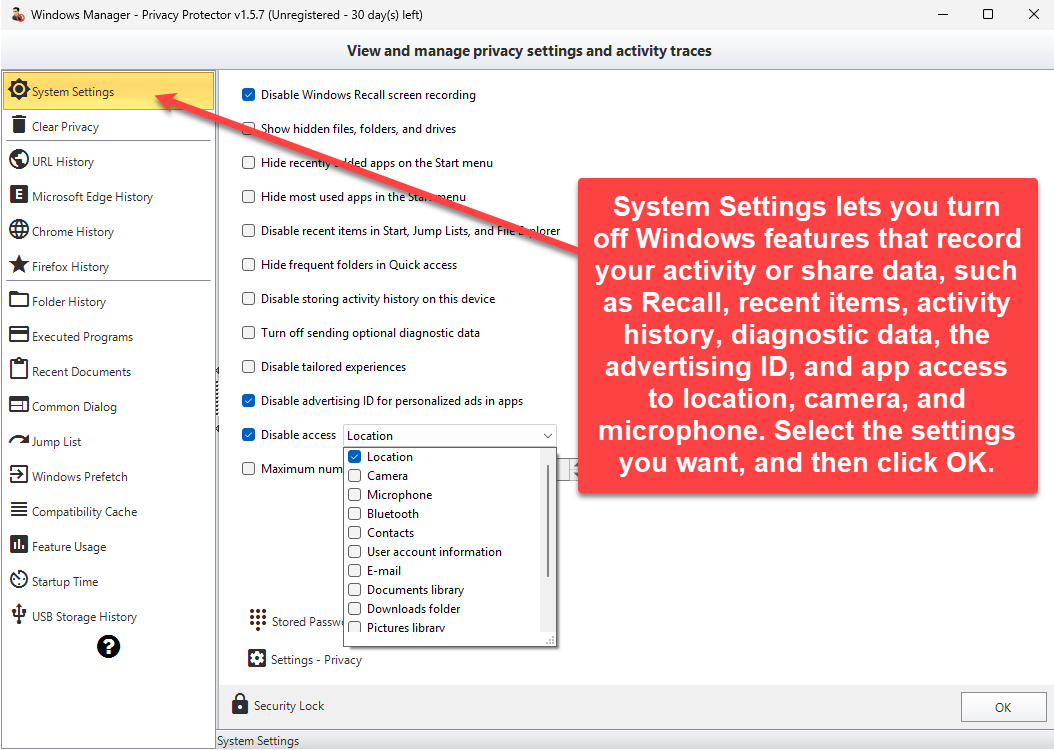
System Settings is the first page. Select the options you want to change, then click OK. Some changes ask whether to restart File Explorer so they take effect without restarting the computer.
The page can hide recently added apps and most-used apps on the Start menu, disable recent items in Start, Jump Lists, and File Explorer, and hide frequent folders in Quick access. It can also stop storing activity history on this device, turn off optional diagnostic data, disable tailored experiences, and disable the advertising ID.
Disable access lists app permissions such as location, camera, microphone, Bluetooth, contacts, account information, mail, and the Documents, Downloads, Pictures, and Videos libraries. Open the list, select the access you want to turn off, and apply the page with OK.
Settings - Privacy opens the Windows privacy page. Security Lock opens the related Windows Manager tool when you want a password on selected settings. Stored Passwords opens the saved-credential list so you can review it separately from history cleanup.
4. Clear Privacy
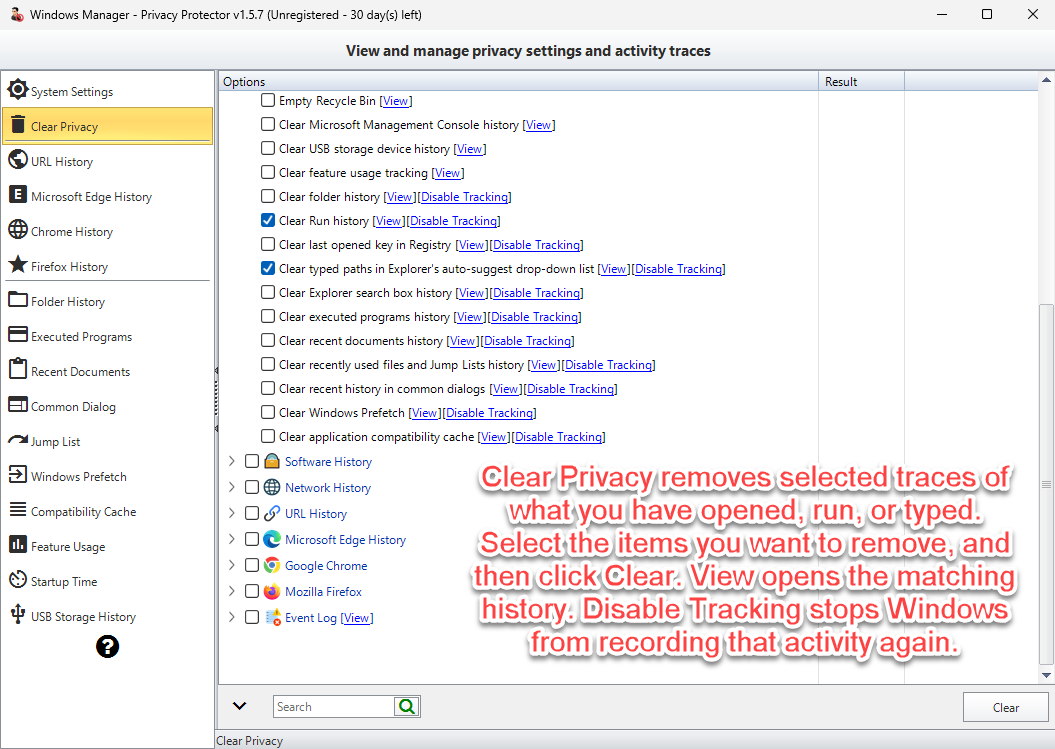
Clear Privacy groups traces into Windows history, software history, network history, URL history, Microsoft Edge, Google Chrome, Firefox, the event log, and Windows apps. Check the items you want to remove, then click Clear. The program asks you to confirm before it clears the checked items.
View opens the matching history page so you can see the entries before deleting them. Disable Tracking stops that item from recording new activity. While tracking is disabled, the clear action for that item is unavailable until you enable tracking again.
The list covers recent documents, Run history, typed URLs, common-dialog history, Jump Lists, prefetch, the thumbnail cache, notification-area icons, Windows Media Player and WordPad recent history, Wi-Fi connections that have not been used for a number of days, browser downloads, cookies, and form data. Only the items you check are cleared.
5. Edge, Chrome, and Firefox history
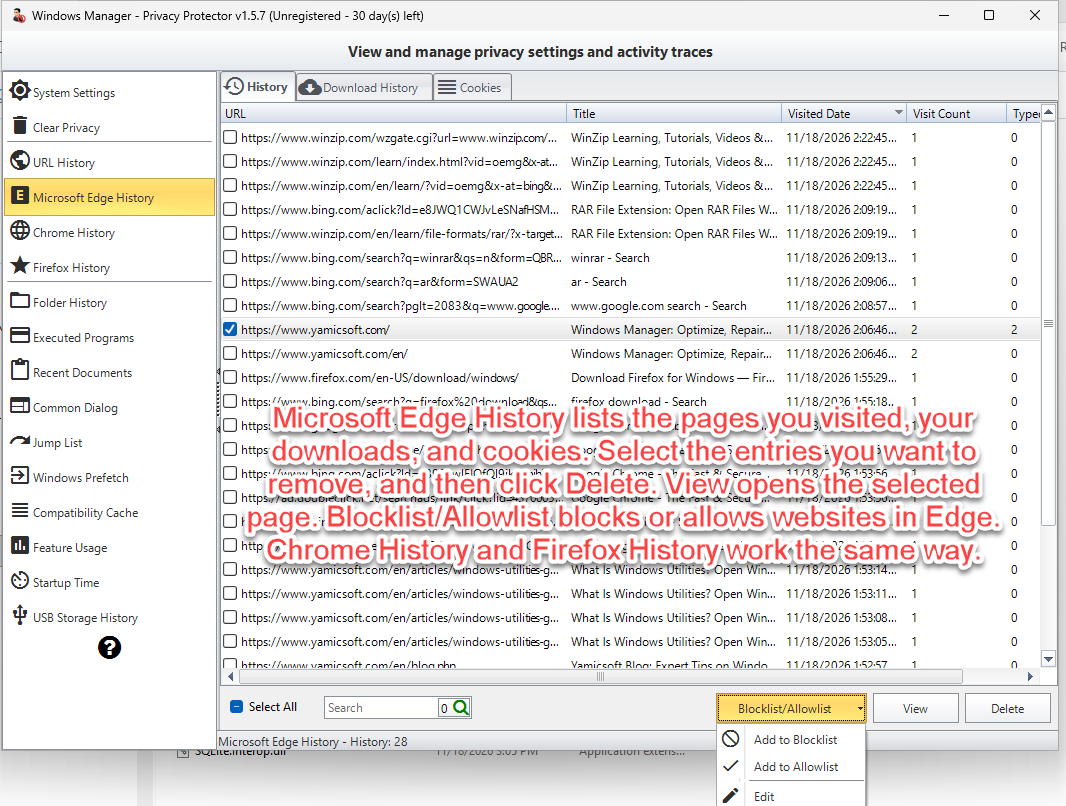
Microsoft Edge, Google Chrome, and Firefox each have their own history page when the browser is installed. The page lists visited pages and downloads. Select the rows you want to remove, then click Delete. View on the Clear Privacy page opens this same list.
Close the browser before you open or clear its history. Edge, Chrome, and Firefox lock the database while they are running. Privacy Protector asks whether to close the browser so the database can be unlocked.
On Edge and Chrome, Blocklist/Allowlist adds sites you want to block or allow. The allowlist takes precedence over the blocklist. Leave the address box empty and the site is not added. Up to 1,000 exceptions can be defined on the allowlist.
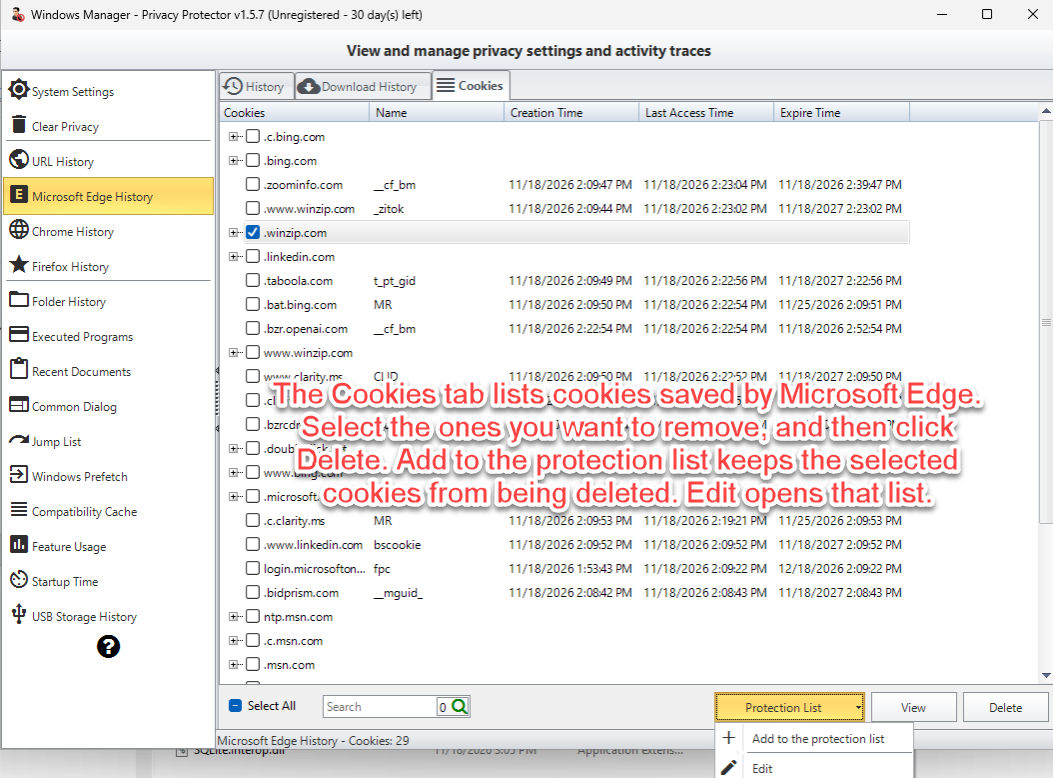
The Cookies tab lists cookies by domain. Delete removes the selected cookies. Cookies on the protection list are kept, even when you clear cookies from Clear Privacy. Use Edit Protection List when you want to change that list later.
6. Folder history and the other activity lists
The pages below URL history use the same idea: a list of what Windows recorded, a search box, and actions for the selected rows. Select All checks every visible row. Search filters the list. Delete removes only the selected records.
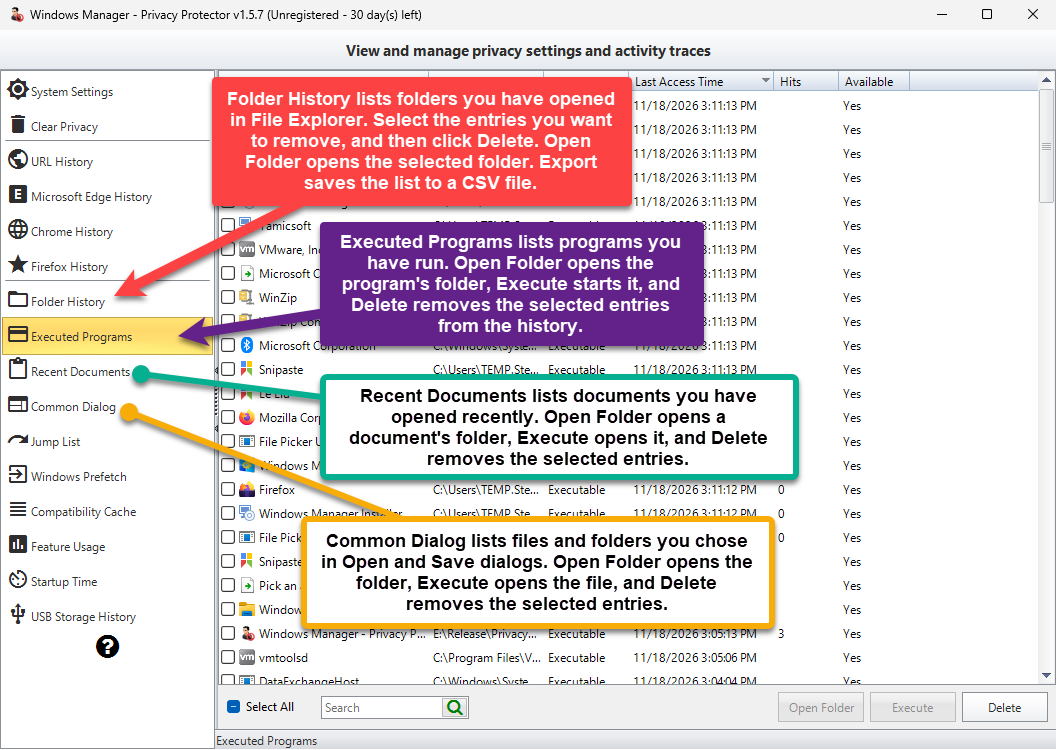
- Folder History lists folders you have opened. You can export the list to a CSV file before you delete entries.
- Executed Programs lists programs that have been run. Open Folder opens the folder, Execute starts the program, and Delete removes the history entry. The program file itself stays on disk.
- Recent Documents lists files Windows shows as recently opened.
- Common Dialog lists folders used by Open and Save dialogs.
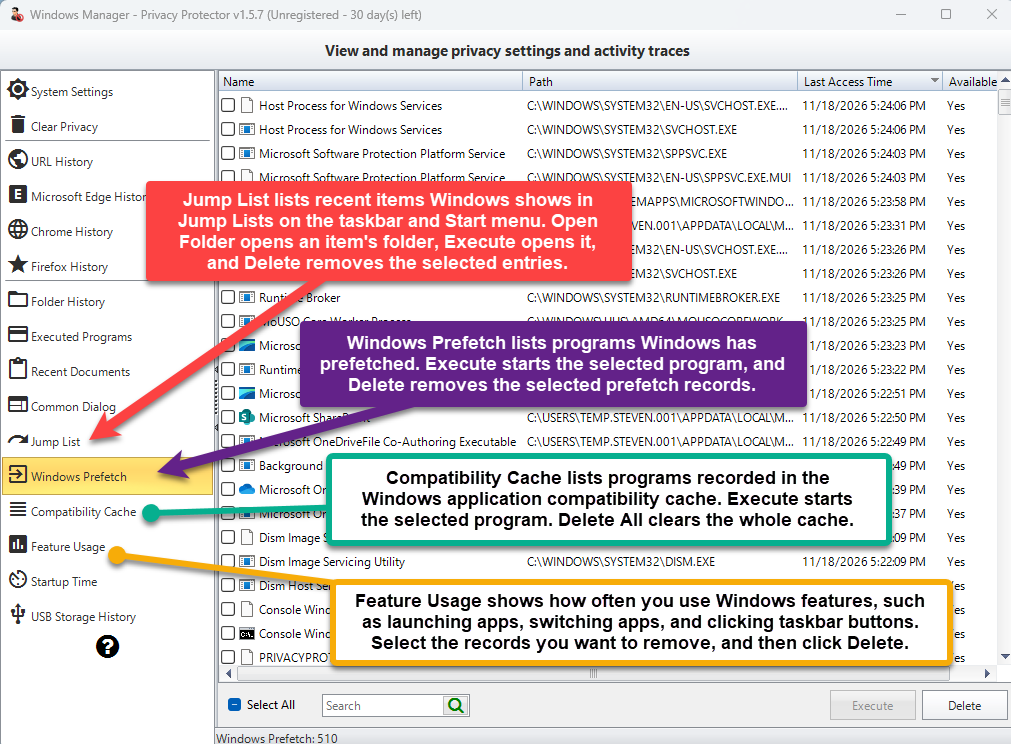
- Jump List lists recent items Windows shows in Jump Lists on the taskbar and Start menu. Open Folder opens an item’s folder, Execute opens it, and Delete removes the selected entries.
- Windows Prefetch lists programs Windows has prefetched. Execute starts the selected program, and Delete removes the selected prefetch records. Windows can create new prefetch files later.
- Compatibility Cache lists programs recorded in the application compatibility cache. Execute starts the selected program. Delete All clears the whole cache.
- Feature Usage shows how often Windows features are used, such as launching apps, switching apps, and clicking taskbar buttons. Select the records you want to remove, then click Delete.
- USB Storage History lists USB storage devices Windows has seen.
7. Startup Time
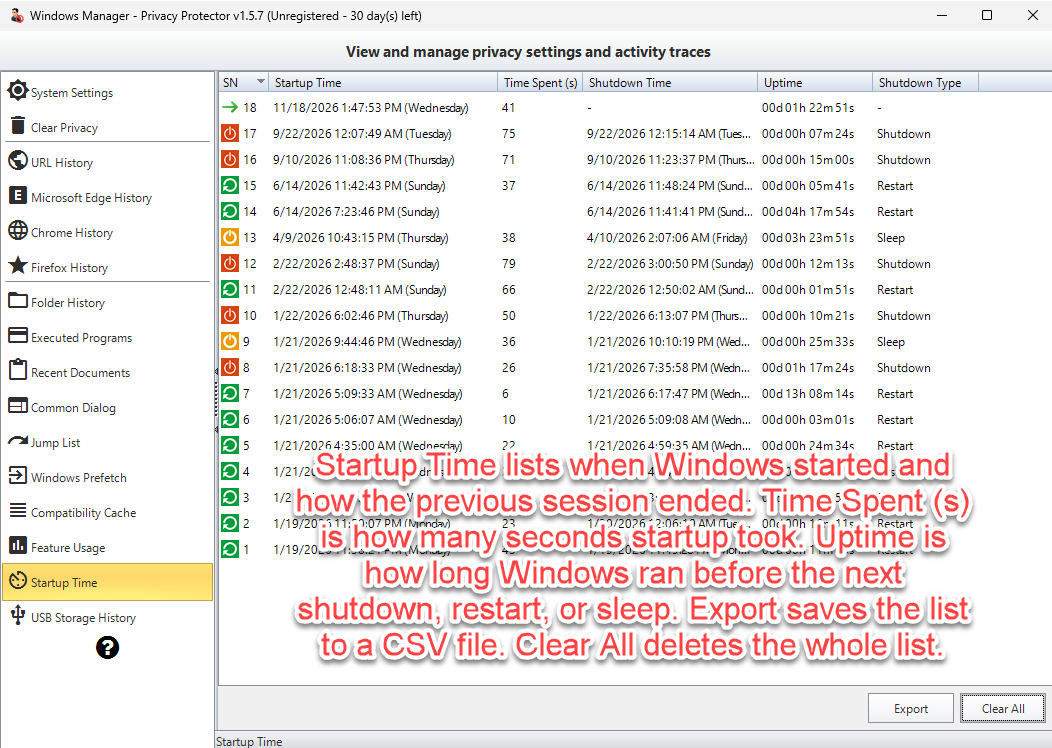
Time Spent (s) is the number of seconds that startup step took. Uptime is how long Windows has been running since the last start. The list also records shutdown, restart, and sleep. Export the list to CSV if you want a copy, then use Clear All only when you want the whole list removed.
8. Things to watch
- Close Microsoft Edge, Google Chrome, or Firefox before you read or clear that browser’s history. The browser locks its database while it is open.
- Clear and Delete remove history records. They do not uninstall programs or delete the documents those records point to.
- Cookies on the protection list are not deleted. Check that list before you clear browser cookies.
- Disable Tracking stops new records for that item. Enable tracking again when you want Windows to record it.
- After System Settings, restart File Explorer when Privacy Protector asks, so Start menu and File Explorer changes show up immediately.
- Prefetch files, thumbnail cache, and notification-area icons are rebuilt by Windows after you clear them.
- Edge, Chrome, Firefox, and Wi-Fi Manager stay hidden when that browser is not installed or when no Wi-Fi records exist.
Privacy Protector is included with Windows Manager. Install the suite from the download page, open Privacy Protector, and start with System Settings or Clear Privacy.
